Agent Dashboard
Overview
The Agent Dashboard is a central hub where support agents manage and respond to customer queries when they are transferred from the AI chatbot. When a customer clicks “Connect with a Human” in the Hilal chatbot from one of their websites, the conversation is forwarded to available agents for further assistance.
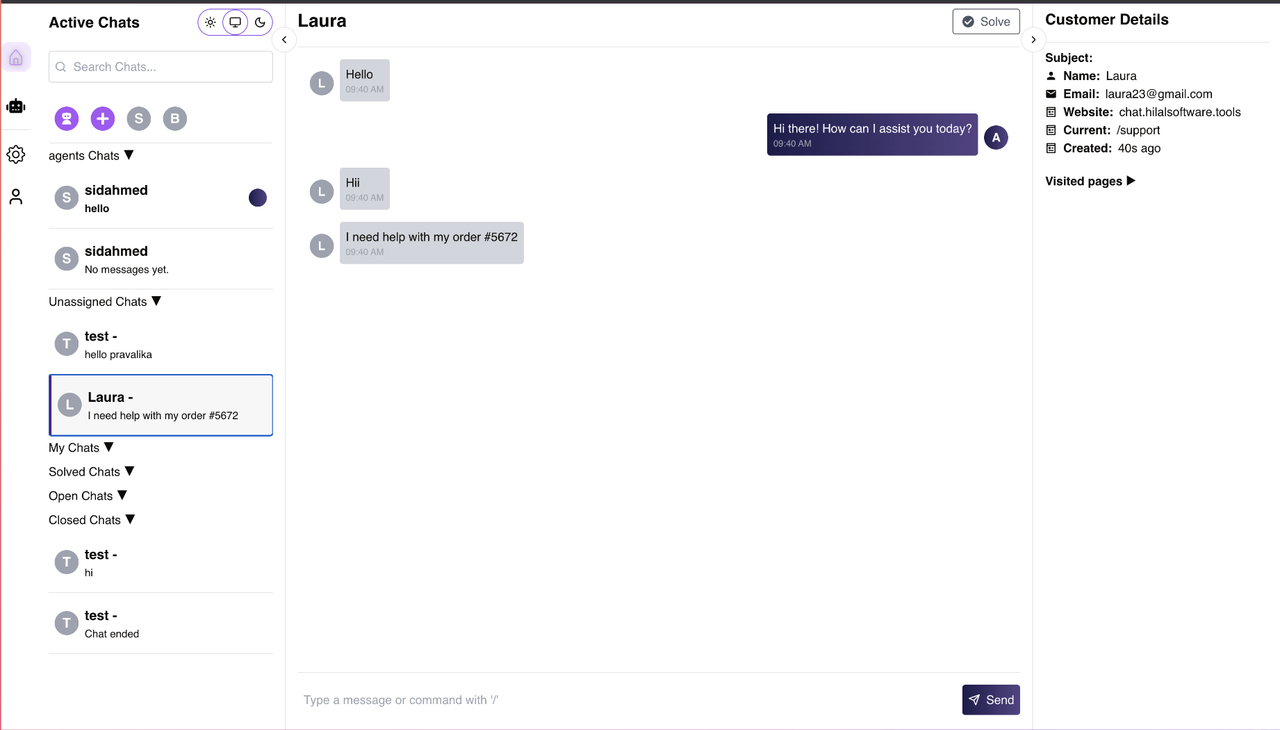
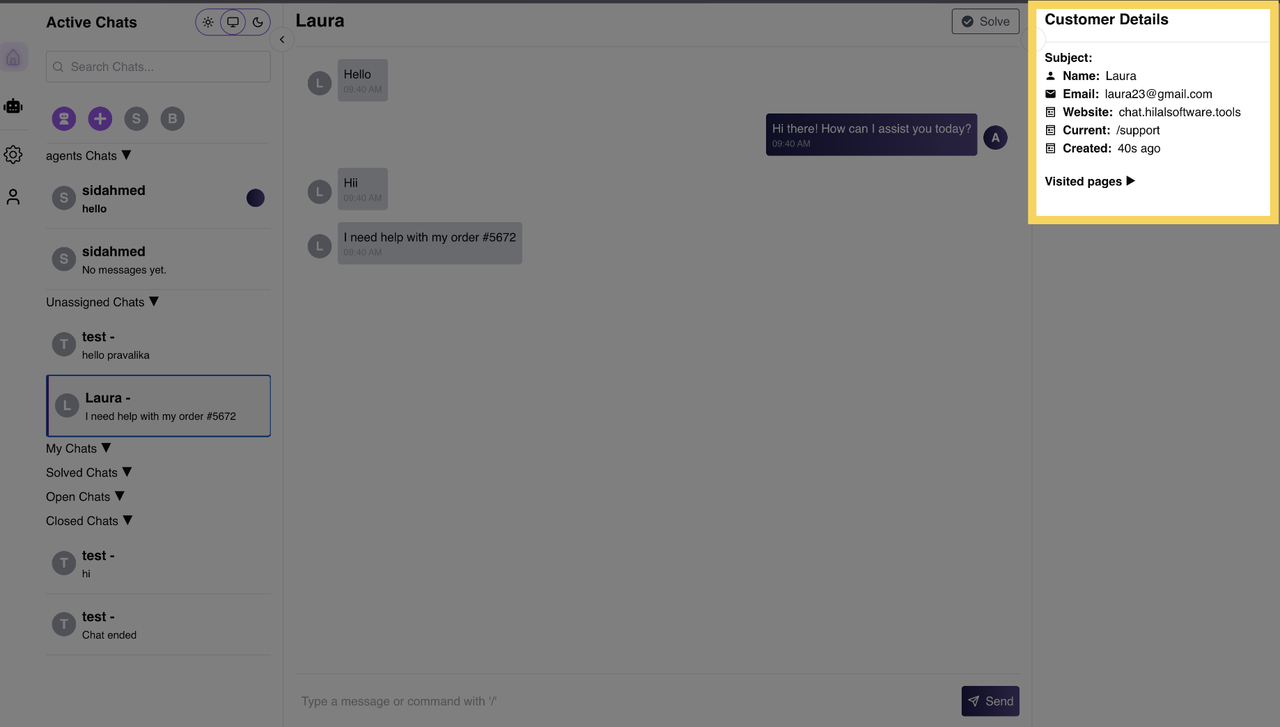
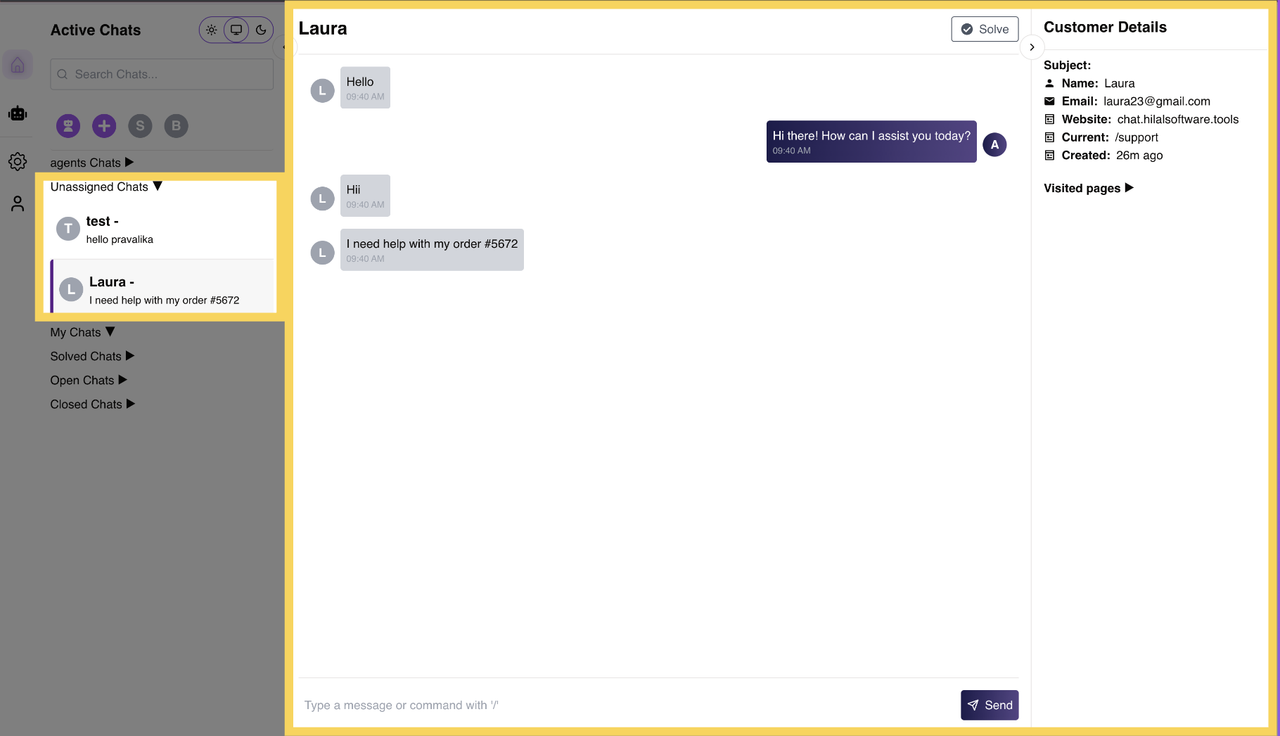
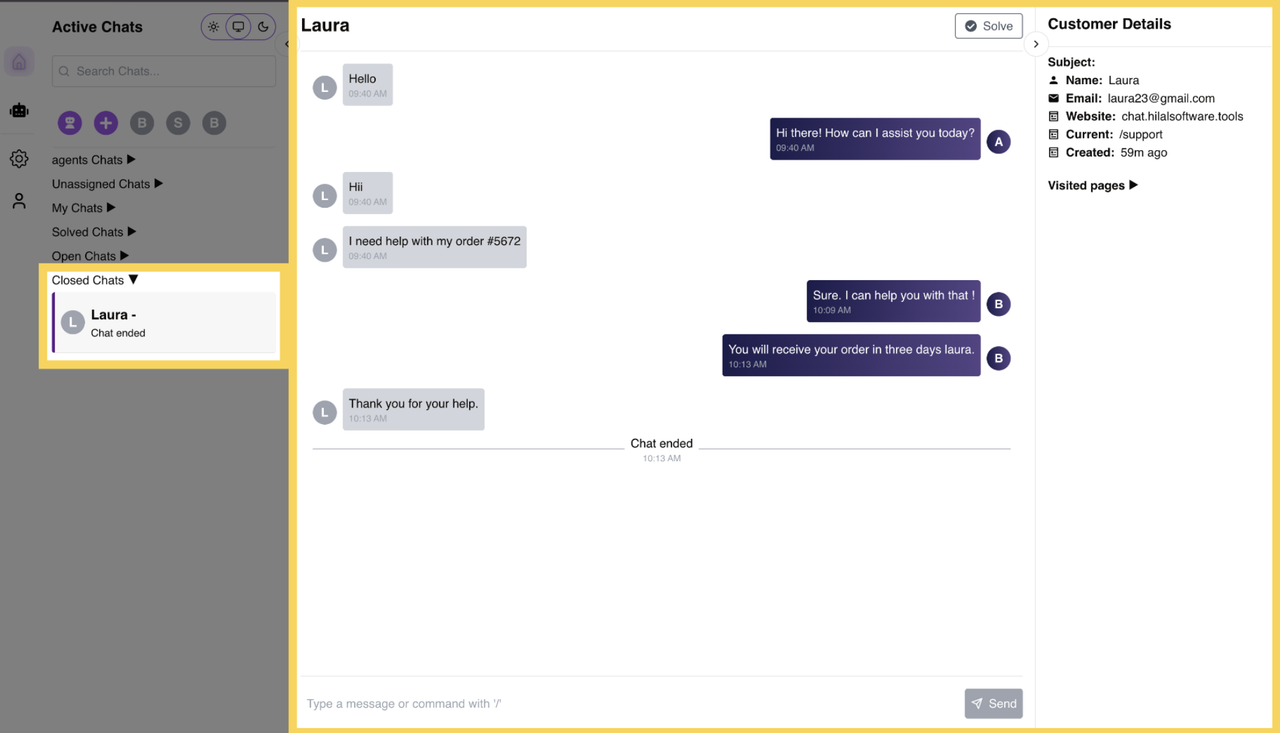
Upon receiving a message, agents can view essential details about the customer, including:
- Name: The customer’s name.
- Email ID: The email address used for communication.
- Website: The website from which the customer initiated the conversation.
- Current Page: The exact webpage where the customer was browsing when they requested human support.
- Created: The timestamp of when the customer initiated the chat request.
Switching Between Dashboards
To navigate and switch between dashboards, follow these steps:
Accessing the Dashboard:
- When an agent navigates to the homepage, they are automatically redirected to the dashboard with the default organization ID if they are already logged in.
- If the agent is not logged in, they will be redirected to the login page.
Switching Organizations:
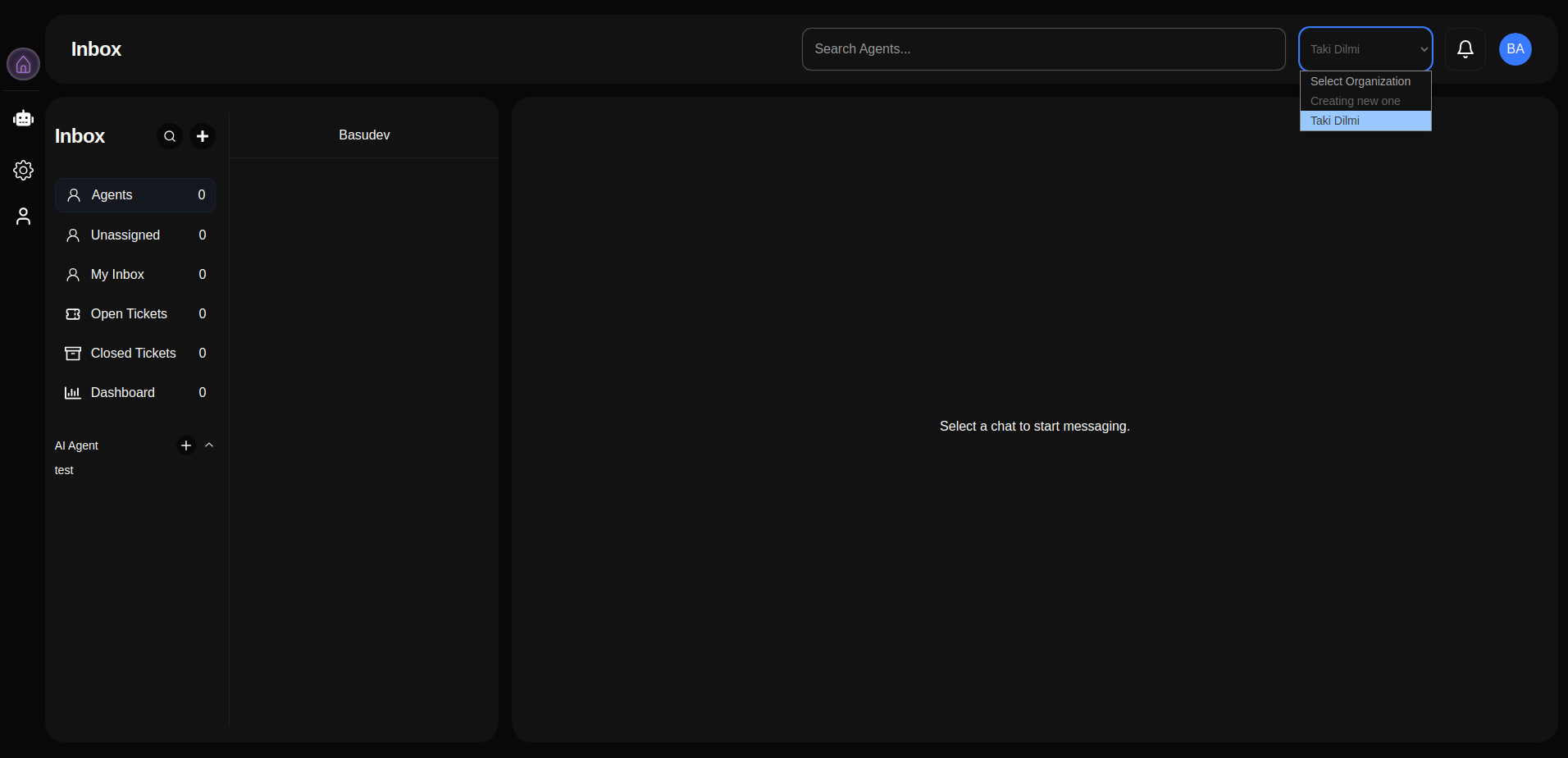
- Agents can select and switch between organizations using the dropdown menu located in the dashboard’s navbar.
- Alternatively, agents can navigate to the Settings page to change the organization.
By using these options, agents can seamlessly manage their work across multiple organizations.
Key Features
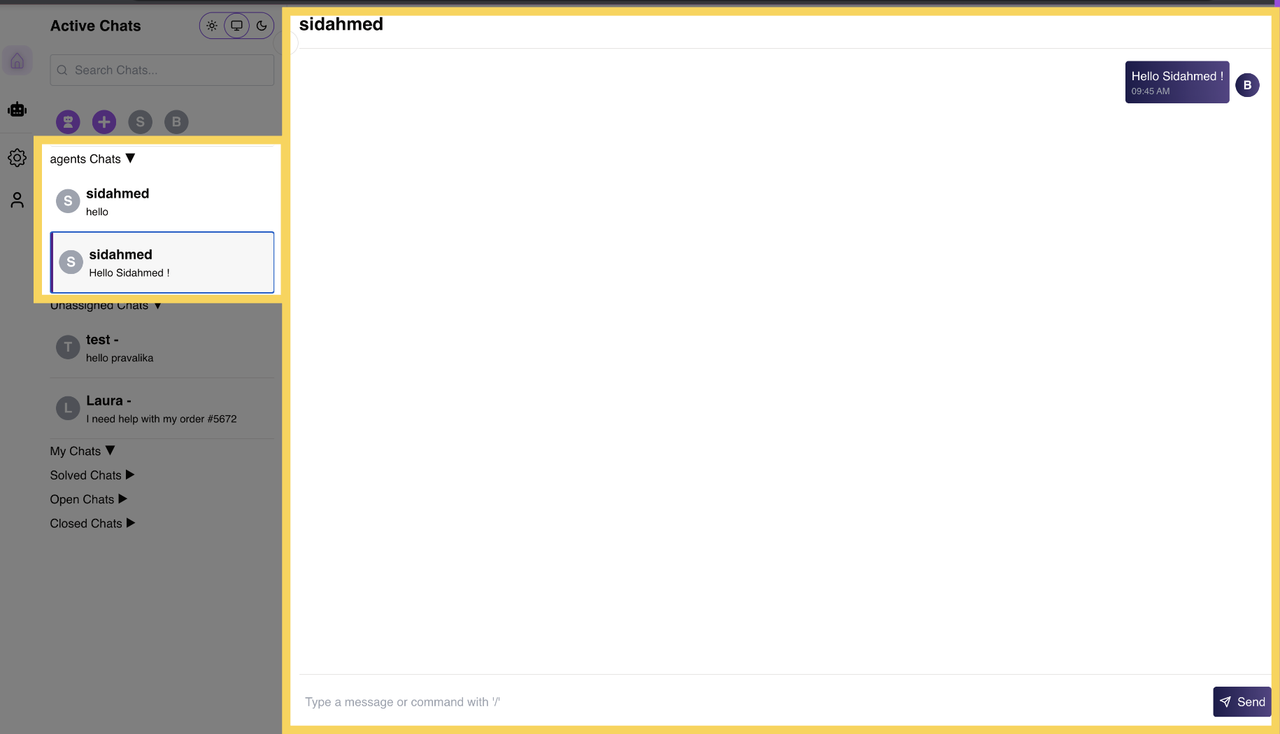
1. Agent Chats
Agents can engage in direct conversations with their colleagues through Agent Chats. This feature enables internal discussions and collaboration between agents, ensuring seamless communication.
2. Unassigned Chats
When a customer first initiates contact with an agent, their conversation appears under Unassigned Chats. These chats remain in this section until an available agent picks them up, responds, and starts providing support.
3. My Chats
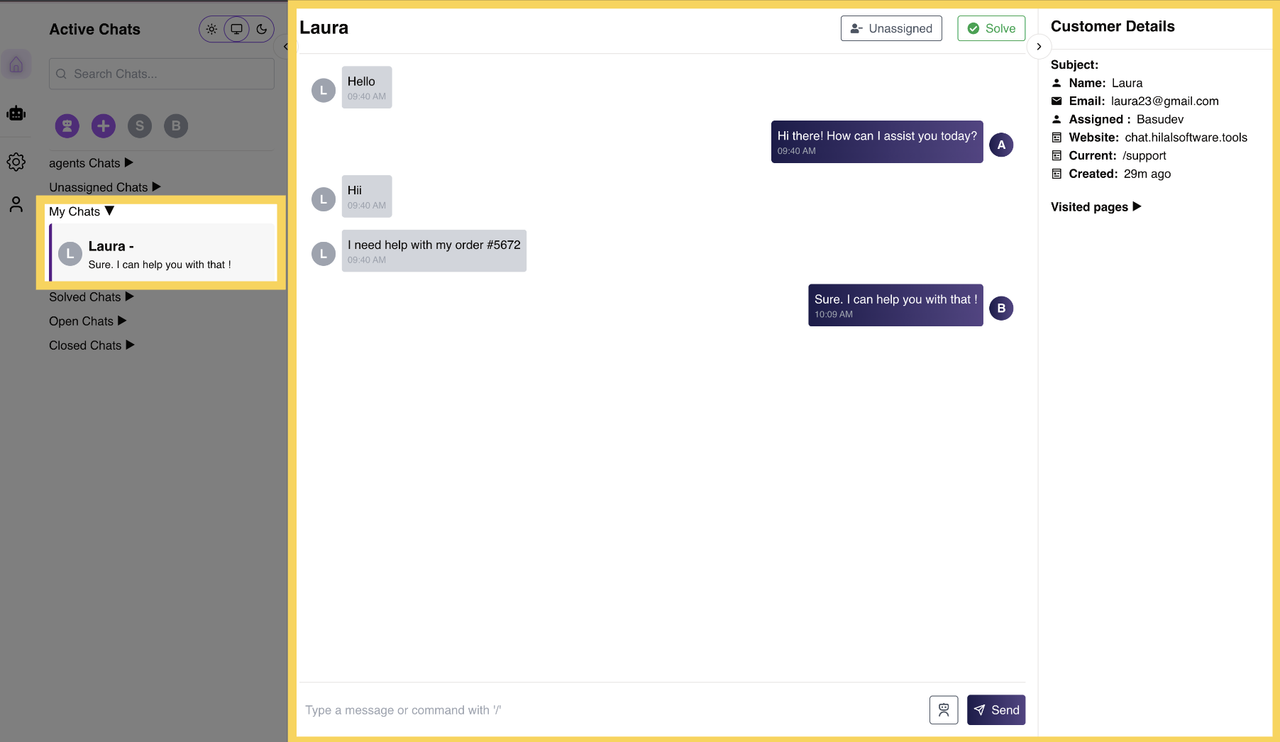
Once an agent takes ownership of an unassigned chat by responding to the customer, it moves to the My Chats section.
Within My Chats, agents have two key actions:
- Solve: Mark the conversation as resolved when the customer’s issue is addressed.
- Unassign: Release the chat back into the unassigned pool if the agent cannot handle it.
4. Solved Chats
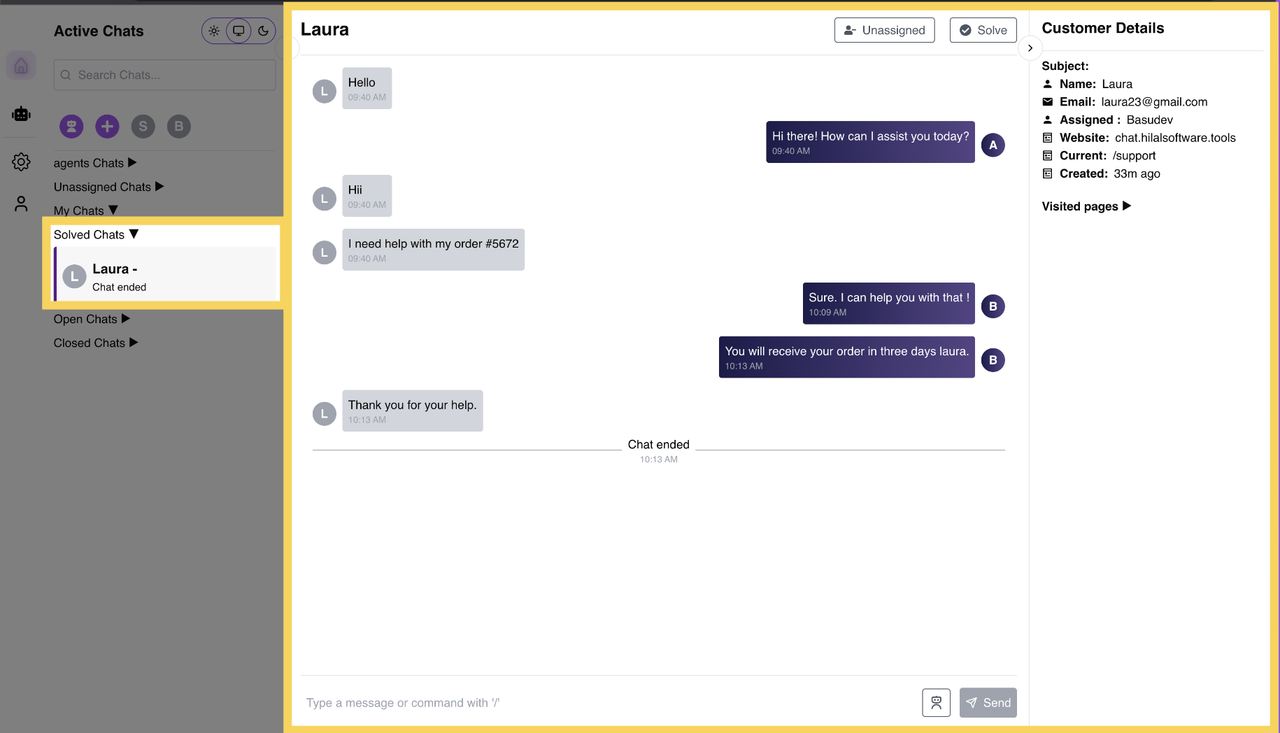
When an agent successfully resolves a customer query, they can click the Solve button. This action moves the conversation from My Chats to Solved Chats.
5. Open Chats
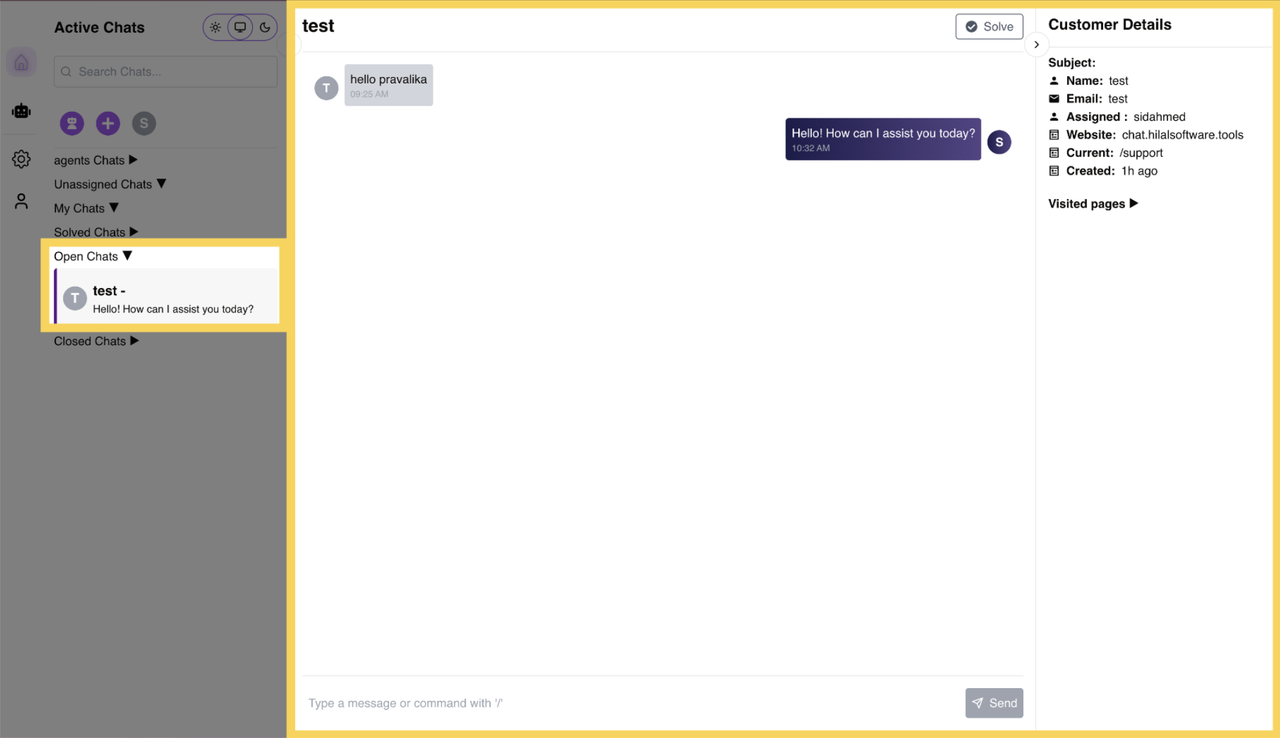
Open Chats displays ongoing conversations between agents and customers. However, these are chats assigned to other agents, not the ones directly assigned to you. While agents can view these chats, they cannot reply to them, as each chat is assigned to a specific agent responsible for handling the conversation.
6. Closed Chats
Chats that are fully resolved and no longer require attention move to Closed Chats. Additionally, if a customer clicks “End Connection” from the website chatbot, their conversation is automatically moved to Closed Chats.
AI Support for Agents
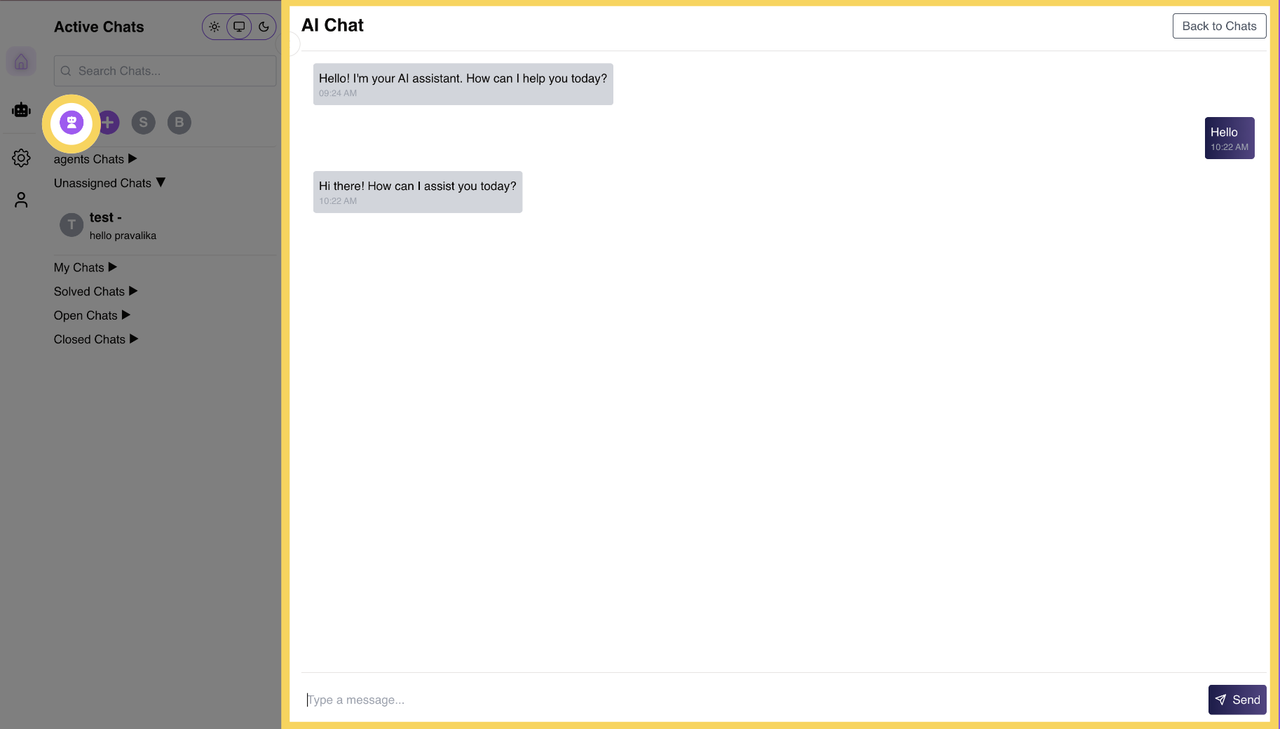
Agents have access to AI assistance within the dashboard. They can ask AI-powered chat support questions to receive guidance while assisting customers.
Creating a Group Chat
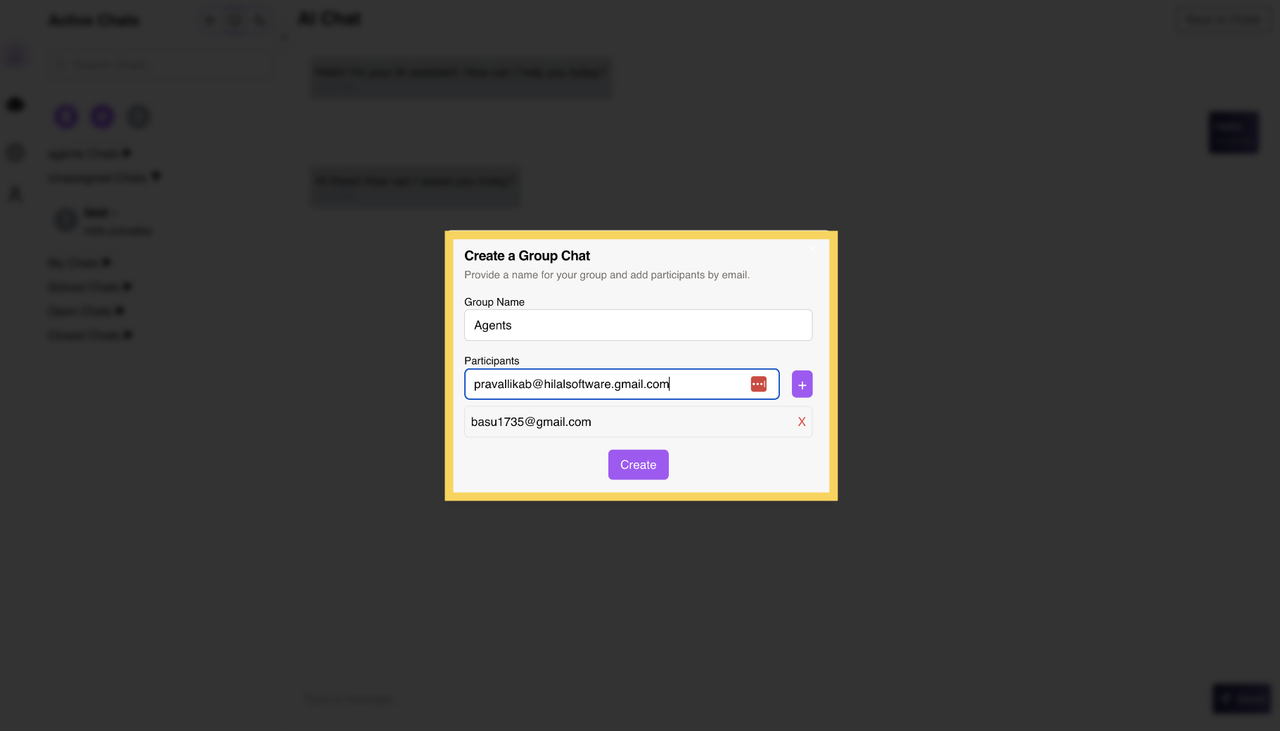
Agents can collaborate with multiple team members by creating a Group Chat. To create a group:
- Provide a Group Name.
- Add participants using their email addresses.
- Start the conversation within the group.
Agent Collaboration
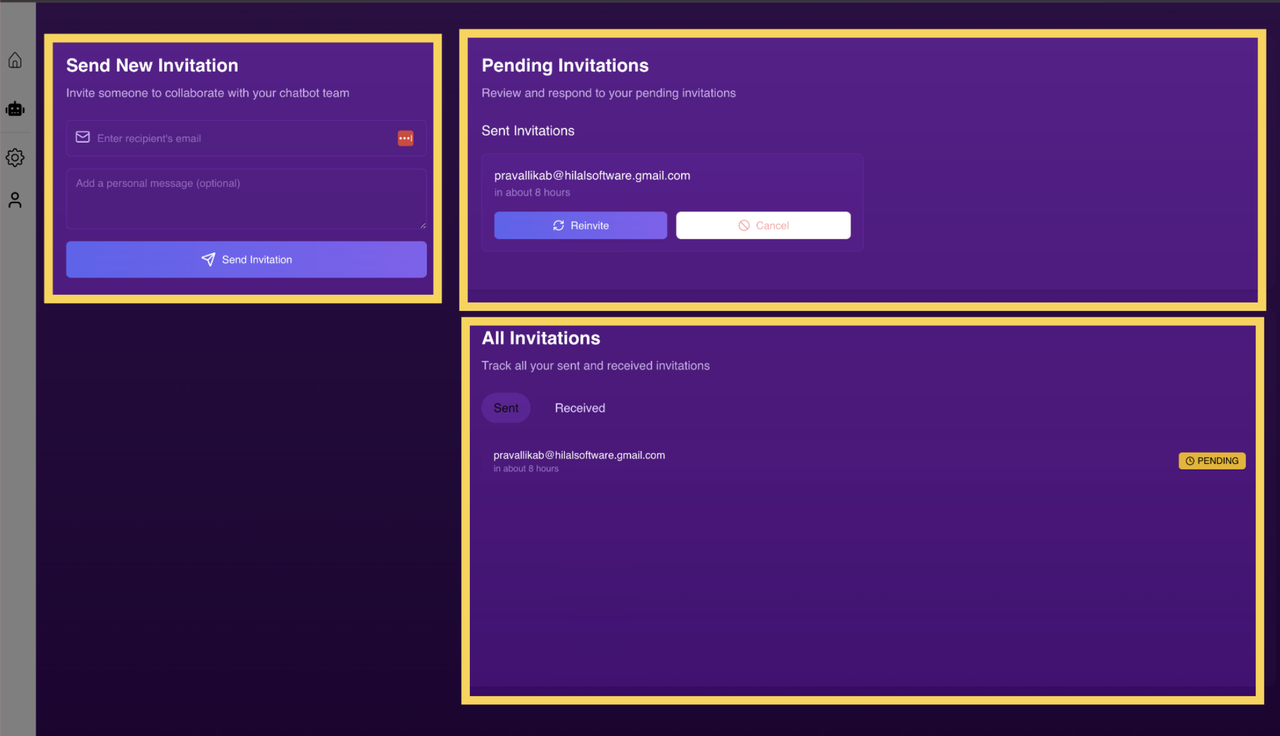
Agents can invite colleagues to collaborate on customer support efforts. They can:
- Send invitations by entering the recipient’s email and an optional personal message.
- Review Pending Invitations and respond accordingly.
- Track both Sent and Received Invitations under the All Invitations section.
By leveraging these features, agents can efficiently manage customer queries, enhance collaboration, and provide seamless support.