User Profile
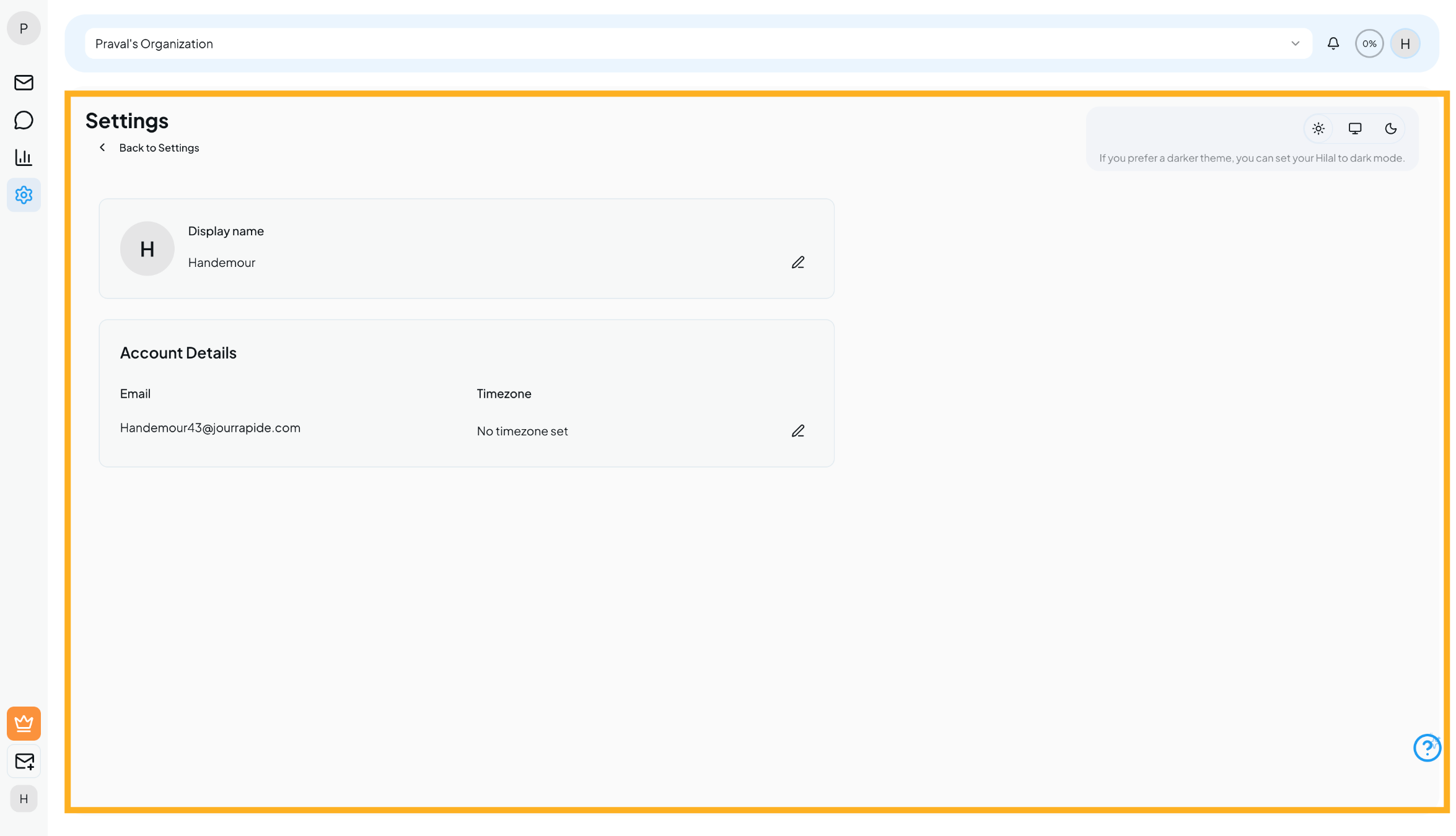
The User Profile page allows you to manage your personal account information and customize your experience on the platform. From updating your display name to changing the theme, all essential personal settings are available in one place.
Accessing the User Profile
- Click the Settings icon from the left navigation panel.
- You’ll land on the User Profile page by default.
Profile Information
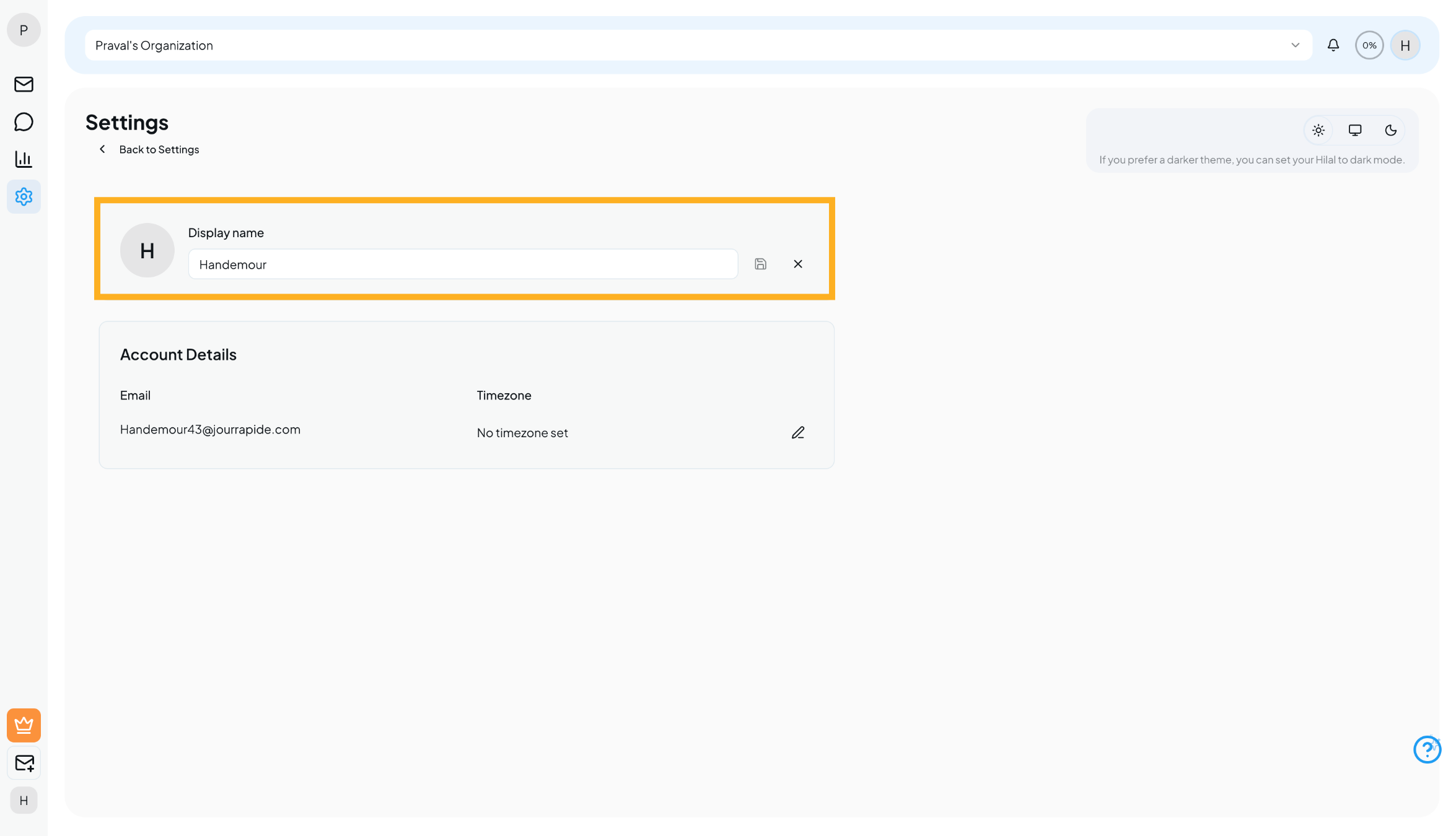
Display Name
- Your display name is shown across the platform.
- Click the edit (✏️) icon to update it.
- Changes are saved instantly once confirmed.
Profile Image
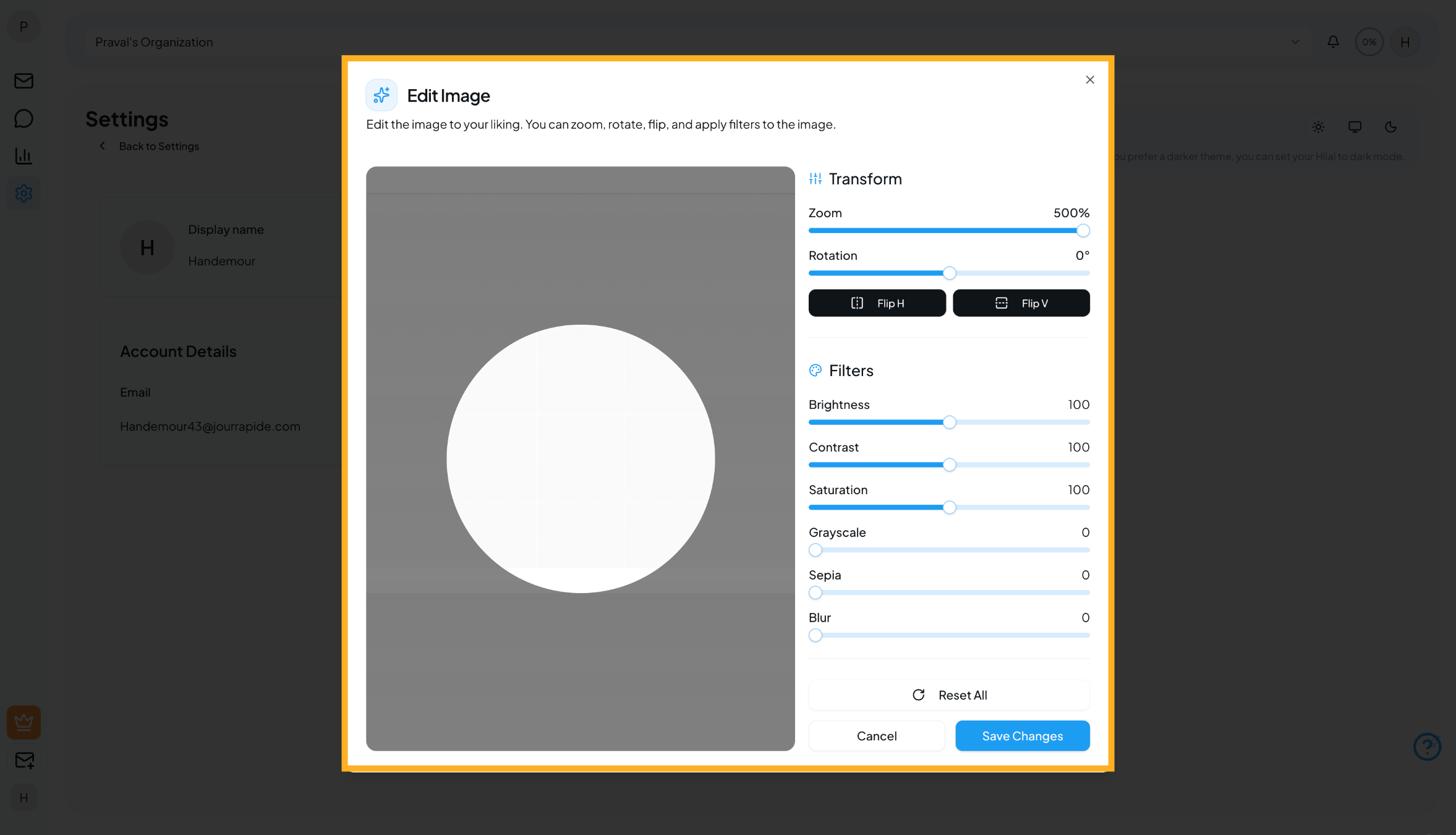
- Your profile image is generated from your display name initially.
- When supported, updating your profile image will reflect across the platform wherever your profile appears.
Account Details
Email Address
- The email address cannot be edited.
- This is the email you used during registration and is tied to your account for authentication and notifications.
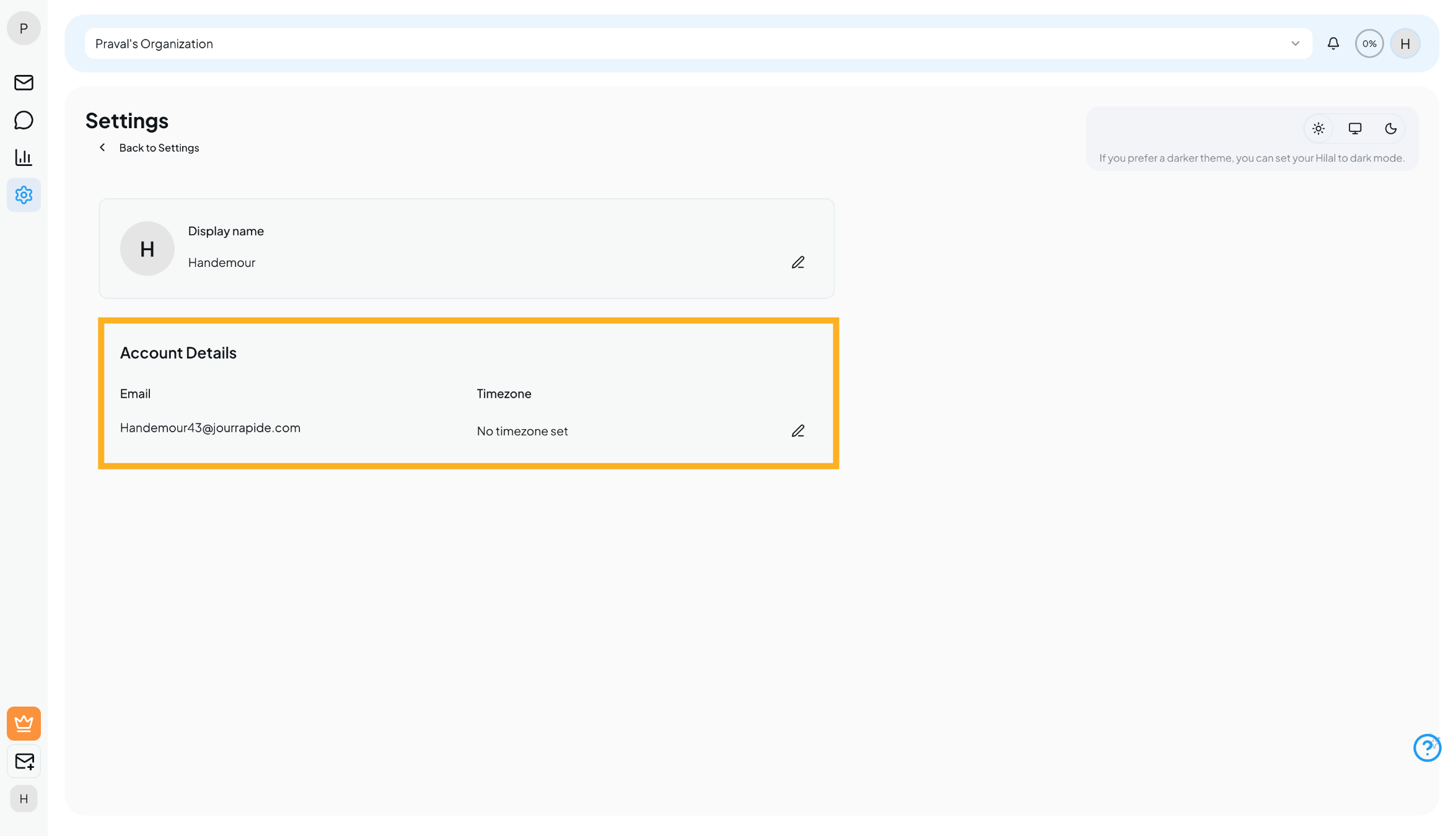
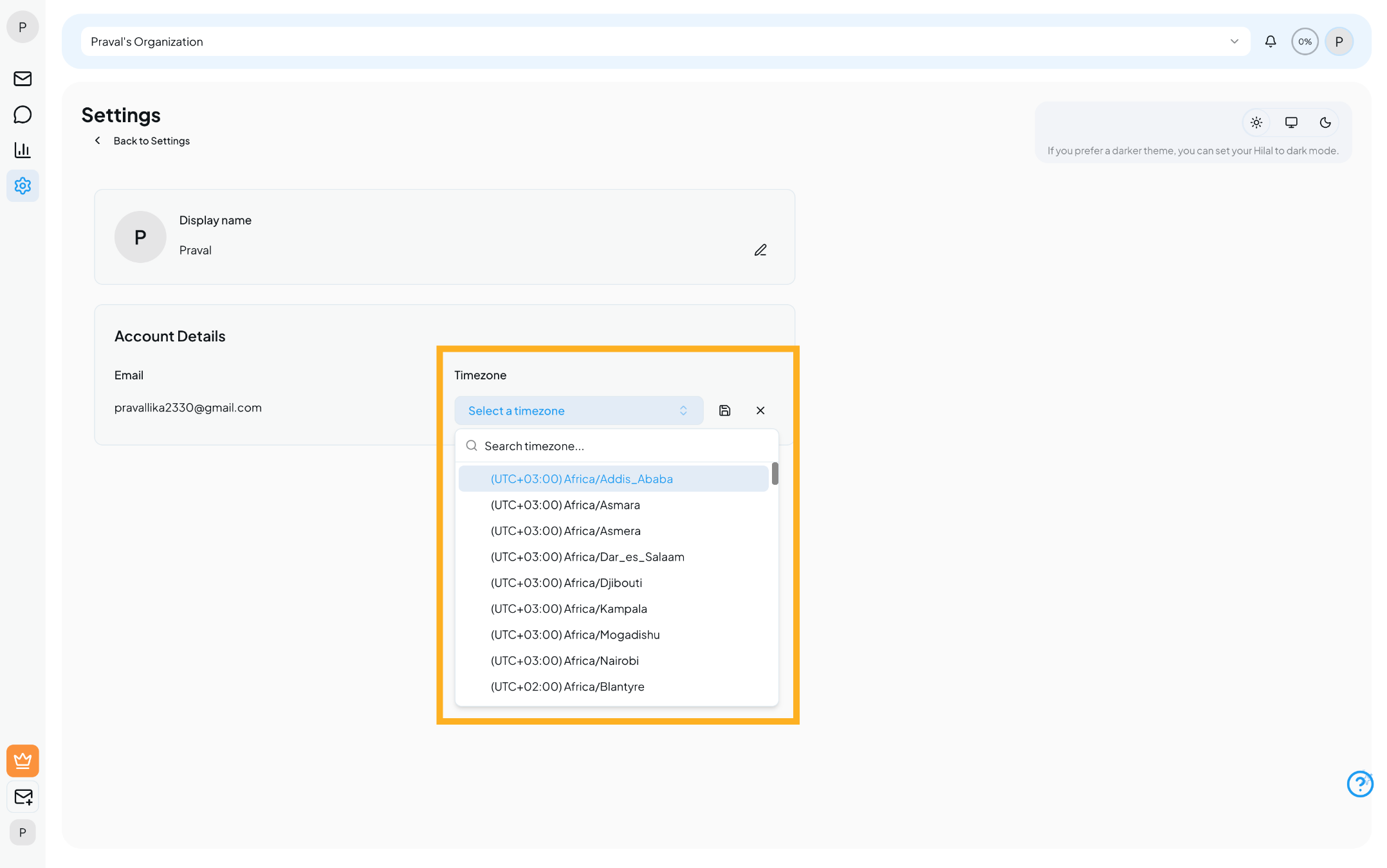
Time Zone
- You can set or update your time zone at any time.
- This helps ensure accurate timestamps, scheduling, and activity logs.
- Click the edit (✏️) icon next to Time Zone to make changes.
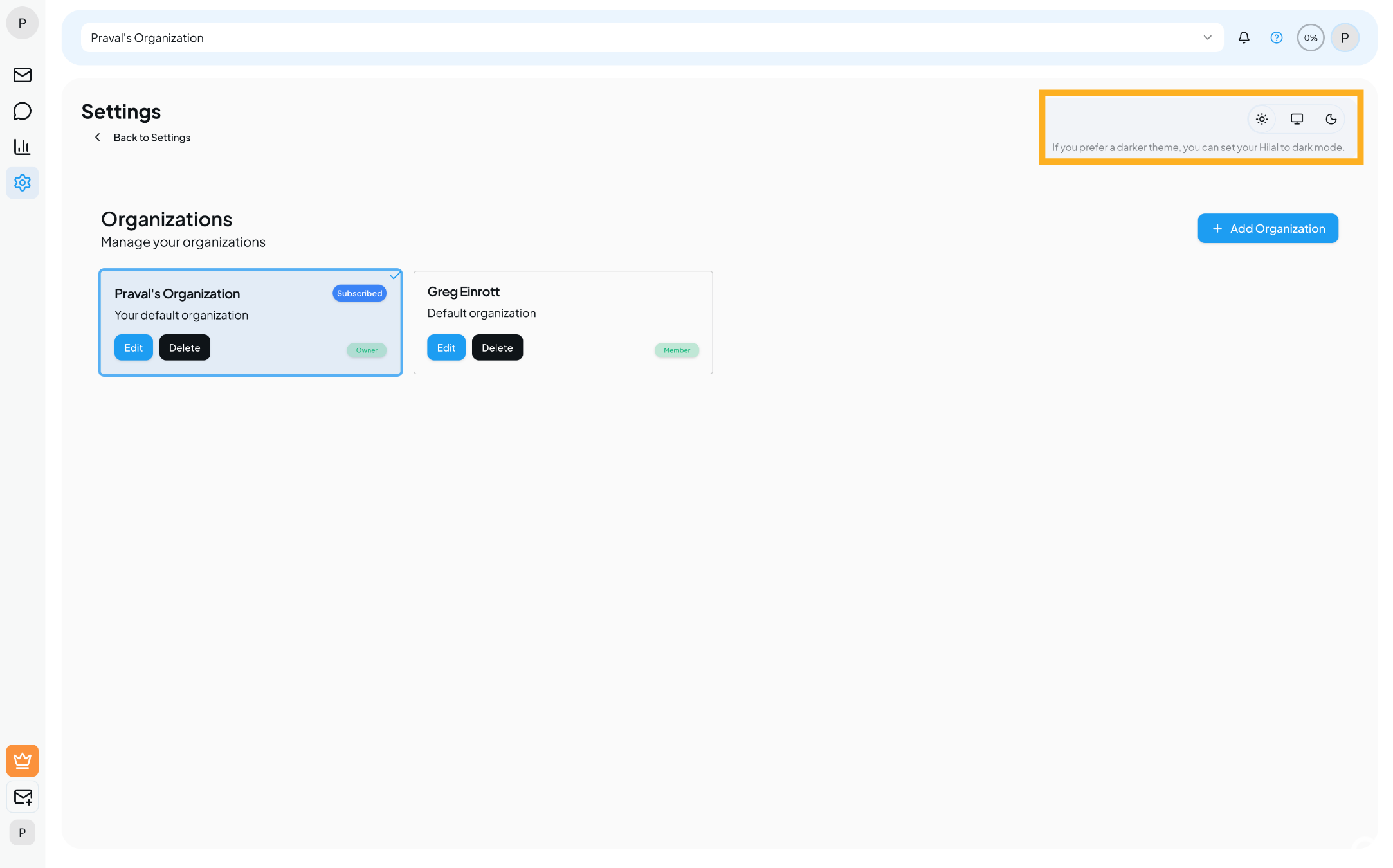
Appearance & Theme
You can customize how the platform looks to suit your preference:
- Light Mode
- Dark Mode
- System Default (matches your device settings)
Use the theme toggle on the top-right of the page to switch instantly.
Help & Guided Setup
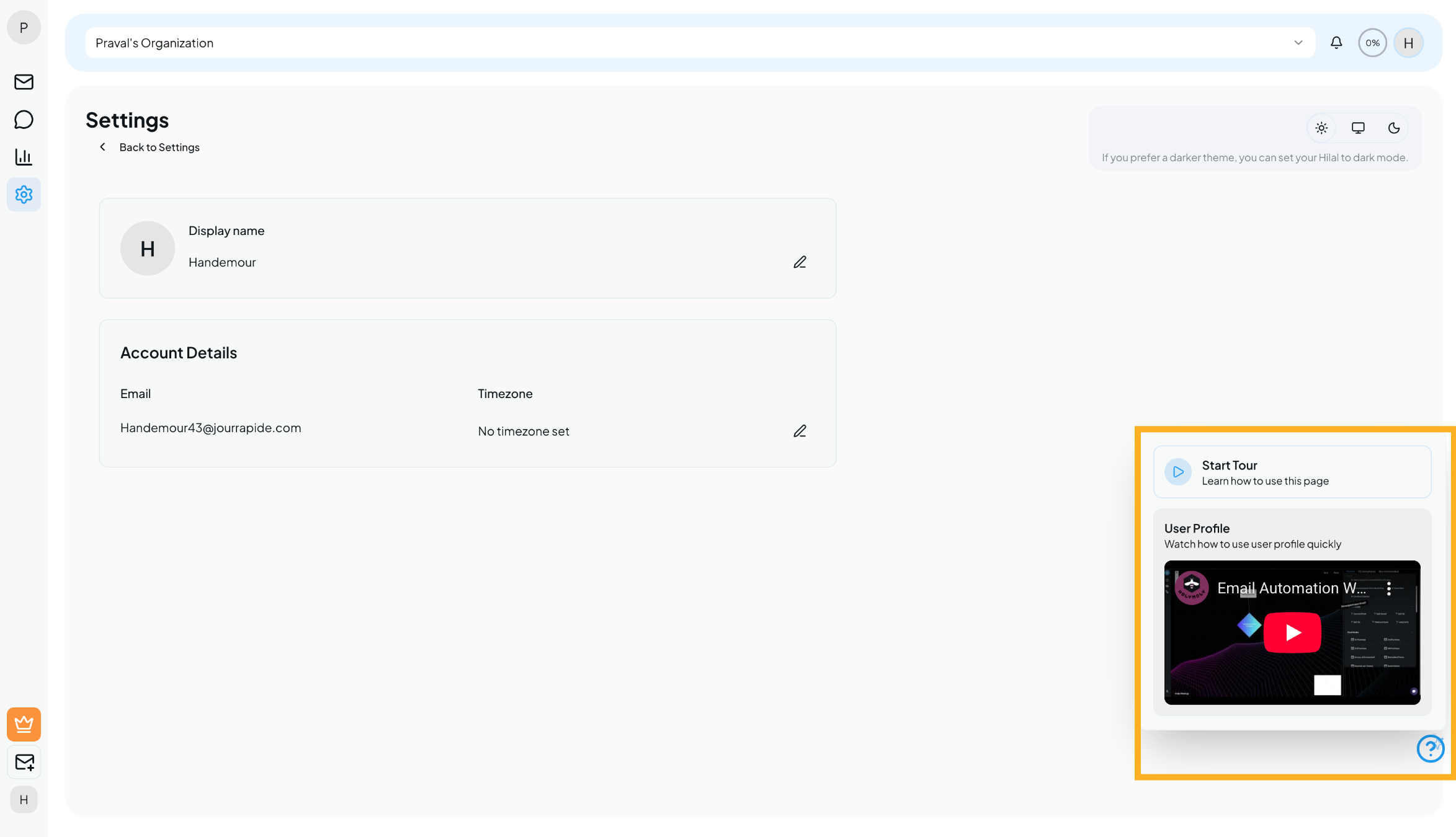
If you need assistance navigating the User Profile page, click the Help (?) icon at the bottom-right corner.
You’ll see two helpful options:
Start Tour
- A guided, step-by-step walkthrough of the User Profile page.
- Ideal for first-time users.
Video Guide
- A YouTube tutorial explaining how to use the User Profile settings quickly and effectively.