Notification preferences
Hilal Chatbot fires a lot of events — new conversations, handoffs, training updates, credit and system alerts. The notifications page is where you decide which of those reach you, where, and how often.
In this guide:
- Open notification preferences
- Notification categories
- Per-event channels
- Global Settings (Quiet Hours, Digest Schedule)
- Mute all
Step 1: Open notification preferences
Settings → Notifications.
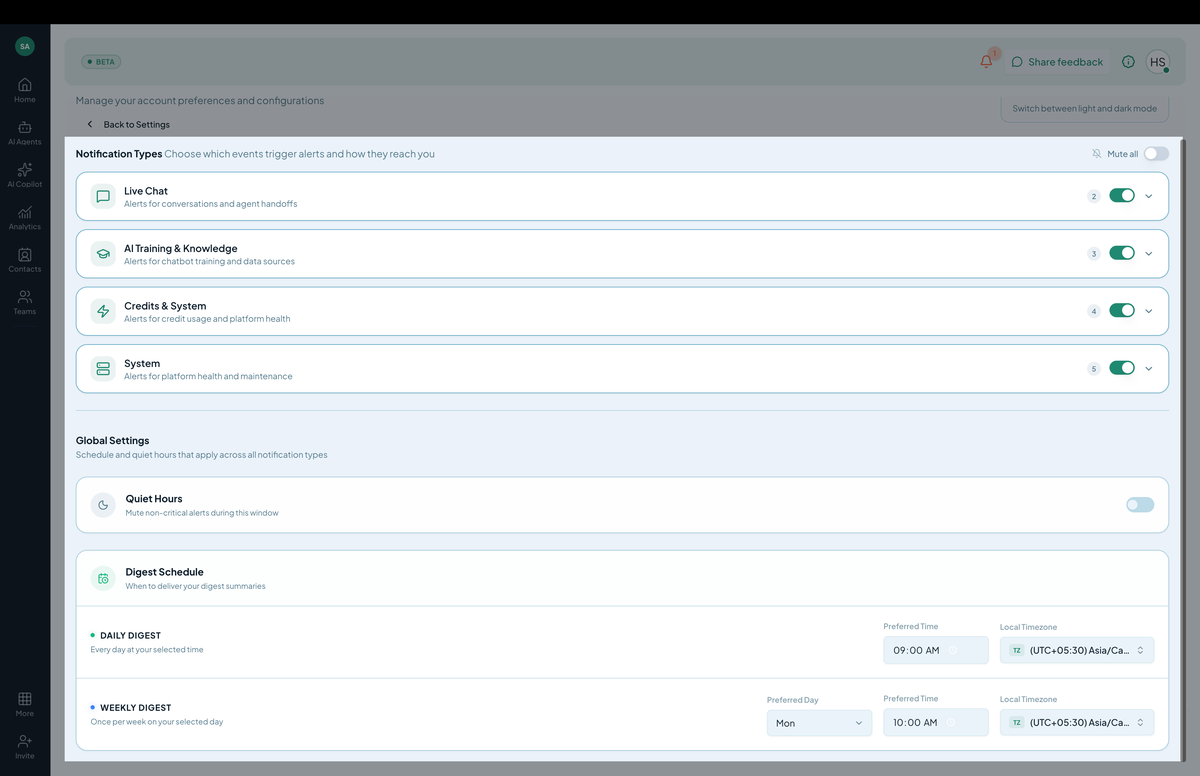 Screenshot: The Notification Types list, and the Live Chat category expanded to show individual events.
You’ll see a list of Notification Types, grouped into categories. Each category shows a badge with the number of events it contains, a category-level on/off toggle, and an expand arrow to reveal the individual events inside.
Step 2: Notification categories
| Category | Covers |
|---|---|
| Live Chat | Alerts for conversations and agent handoffs (e.g. “Human handoff requested,” “Group chat invited”) |
| AI Training & Knowledge | Alerts for chatbot training and data sources |
| Credits & System | Alerts for credit usage and platform health |
| System | Alerts for platform health and maintenance |
Expand a category to see its individual events. Each event row shows:
- A short name and description (e.g. Human handoff requested — “A customer requests to speak with a live agent”).
- A row of channel icons showing where that event is currently delivered — desktop (in-app), email, mobile push, and others, with a +N indicator if more channels are enabled than shown.
- An on/off toggle for the event.
- A dropdown arrow to configure that event’s channels individually.
Step 3: Configure channels per event
Click the dropdown arrow on any event to choose which channels it’s delivered to (in-app, email, mobile push, Slack, and others depending on what’s connected). Turning an event off entirely disables it across all channels at once via its toggle.
Step 4: Global Settings
Below the notification categories is a Global Settings section — schedule and quiet hours that apply across all notification types.
Quiet Hours — a toggle that mutes non-critical alerts during a window you define.
Digest Schedule — controls when batched summaries are delivered:
- Daily Digest — delivered every day at your Preferred Time, in your Local Timezone.
- Weekly Digest — delivered once per week on your Preferred Day, at your Preferred Time, in your Local Timezone.
Step 5: Mute all
At the top of the Notification Types section, a Mute all toggle lets you silence every notification type at once without changing your individual event settings underneath.
Notification feed
The bell icon top-right of every page shows your in-app notifications:
- Unread count.
- Click to read; click row to jump to context.
Per-organization vs. per-account
These preferences are per-account, not per-organization. If you belong to multiple orgs, the same prefs apply to all (with org-specific filtering).
For different prefs per org, you’d need separate accounts — not common, but possible.
Tips
- Don’t enable everything. Notification fatigue is real. Pick the events that genuinely require your attention and leave the rest on Daily or Weekly Digest.
- Use Quiet Hours. Your team will respect them if you set them.
- Check per-event channels. An event can be set to alert you in-app but skip email or Slack — worth reviewing if you feel like you’re missing things (or getting too much).
What’s next
You’ve reached the end of the operational sections. The last guide section covers the upcoming Unified Agentic Chatbot Beta.