Profile & password
Your profile is what teammates and customers see — your name on a conversation reply, your avatar in the agent dashboard, your email for invitations and password reset.
In this guide:
- Open profile
- Edit name and avatar
- Change email
- Change password
- Two-factor authentication
- Sign out other sessions
Step 1: Open profile
Settings → Profile (or click your avatar top-right → Profile).
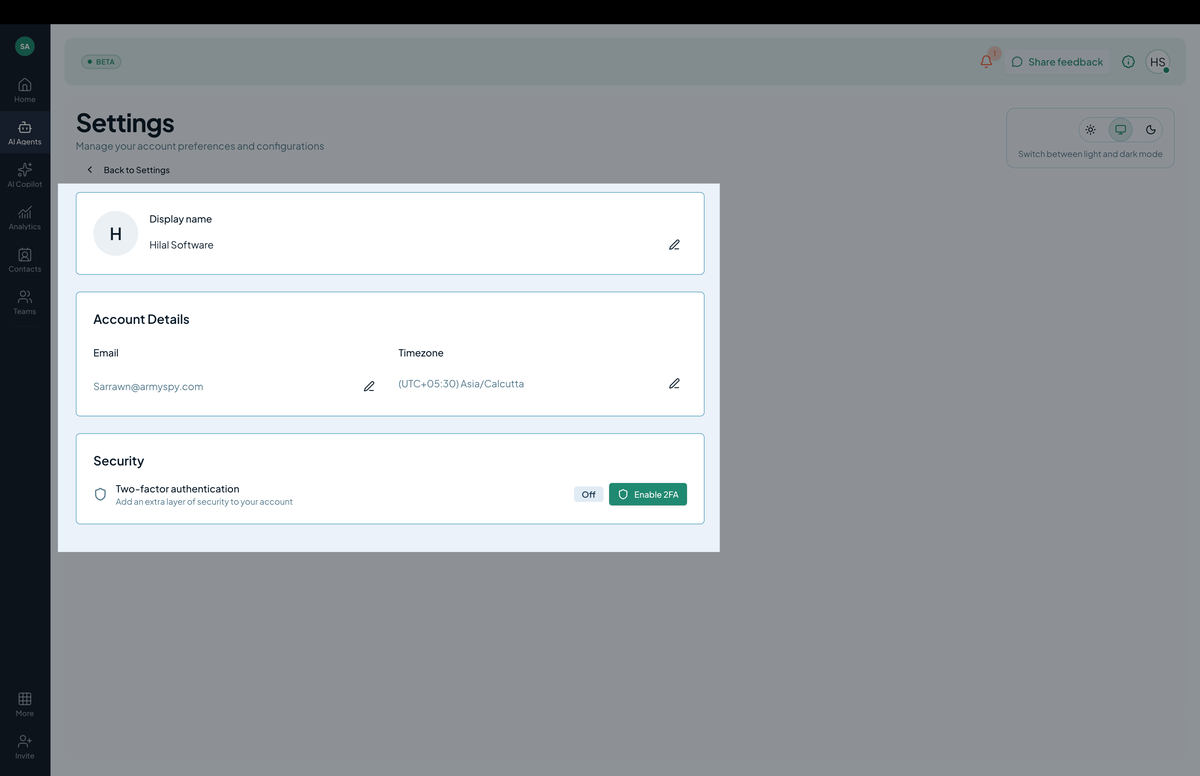 Screenshot: The profile editor with name, avatar, and email fields.
Step 2: Edit name and avatar
- Display name — what teammates and customers see in conversations.
- Avatar — upload an image (PNG, JPG, ≤ 2 MB). Square crops best.
Click Save. Updates appear everywhere within ~1 minute.
Step 3: Change email
Click Change email. You’ll be asked to:
- Enter the new email.
- Confirm via a code sent to the new email.
- Confirm via a code sent to the current email.
Both codes are required to prevent account takeover.
The new email becomes your sign-in identifier. Existing organization memberships persist.
Step 4: Change password
Click Change password. Provide:
- Current password.
- New password (≥ 12 characters; mix of uppercase, lowercase, digit, symbol).
A success message confirms; your existing sessions remain signed in but other devices are signed out (see below).
Step 5: Two-factor authentication (2FA)
Click Enable 2FA. Pick a method:
- Authenticator app (TOTP) — Google Authenticator, Authy, 1Password.
- SMS — text-message codes (least secure; use only if no app).
- WebAuthn / Passkey — hardware security key or platform passkey.
Scan the QR code (TOTP) or follow the platform prompts. Save your backup codes somewhere safe — you’ll need one if you lose your authenticator.
After enabling, sign-ins require both password and second factor.
Step 6: Sign out other sessions
If you’ve signed in on multiple devices and want to end them all:
- Profile → Sessions → Sign out all other sessions.
- Useful after a lost laptop or shared computer.
Your current session stays signed in.
Single sign-on (SSO)
If your organization uses SSO, password and email changes happen at your identity provider (Okta, Azure AD, Google Workspace), not here. The profile page warns you and links out to your IdP.
Permissions
Profile fields are personal — only you can edit your own profile. Teammates can’t change each other’s names or passwords.