Add-ons
Add-ons are à-la-carte capacity and feature unlocks. Use them when you don’t want to change plans but need a temporary or recurring boost.
In this guide:
- Browse add-ons
- One-time vs. recurring add-ons
- Purchase
- Auto-renew
- Cancel an add-on
Step 1: Browse add-ons
Settings → Billing → Add-ons.
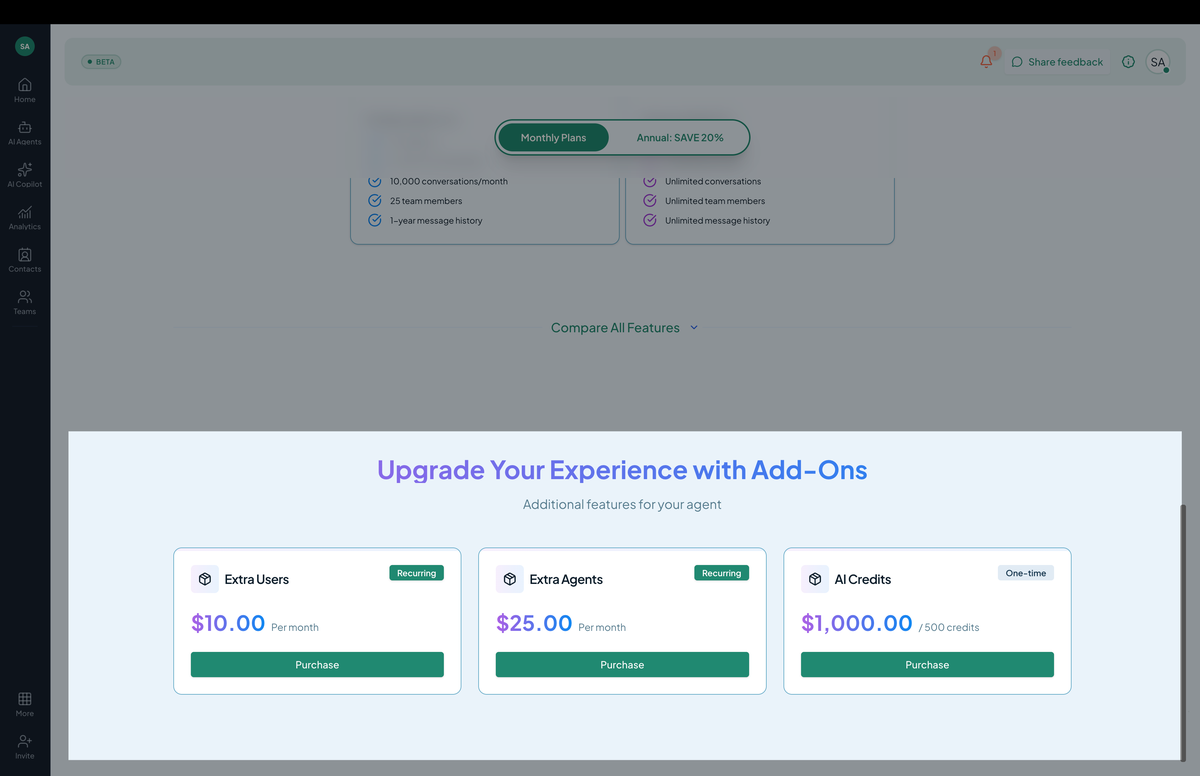 Screenshot: The add-ons grid with one-time and recurring options.
Common add-ons:
- Extra Users — a recurring add-on for additional user seats beyond your plan’s cap.
- Extra Agents — a recurring add-on for additional AI agents beyond your plan’s cap.
- AI Credits — a one-time purchase of additional AI credits for your agent.
The exact catalog and prices show on this page (in-app is always current; this docs page is a reference, not the price list).
Step 2: One-time vs. recurring
Two add-on shapes:
- One-time — a single capacity boost. Example: “Add 100,000 messages this billing cycle.” Charged once; capacity drops back when used or at end of cycle.
- Recurring — adds to your plan every cycle. Example: “Salesforce connector — $50/mo.” Renews with your plan.
Clear which one you’re buying — one-times don’t auto-extend.
Step 3: Purchase
Click Purchase on the add-on you want. You see:
- Pro-rated charge for the rest of this cycle (recurring) or full price (one-time).
- Going-forward monthly cost (recurring only).
- Effective date.
Confirm. Charge happens immediately on your saved card. Capacity / feature unlocks instantly.
Step 4: Auto-renew
Recurring add-ons auto-renew with your plan. Toggle Auto-renew off if you want to use the add-on for a single cycle and stop.
One-time add-ons (message packs, knowledge expansions) don’t have auto-renew — you re-purchase if you need them again.
Step 5: Cancel an add-on
For recurring add-ons:
- Settings → Billing → Add-ons → Active.
- Find the add-on.
- Click Cancel (or toggle auto-renew off).
- Cancellation takes effect at the next billing cycle.
For one-time add-ons:
- They’re already used. No cancellation needed; just don’t re-purchase.
Auto-recharge for messages
A special case: auto-recharge auto-buys message packs when you’re about to run out, instead of you manually buying. → Auto-recharge
Permissions
billing.read— see active add-ons.billing.update— purchase, cancel.
Tips
- Buy ahead for known events. Launching a campaign next month? Pre-purchase a message pack so you don’t run out mid-launch.
- Watch the quota dashboard weekly. Usage analytics shows trajectory; act before you hit a wall.
- Stack add-ons. Multiple message packs in one cycle work — they all add to your remaining quota.