Auto-recharge
Hitting your message cap mid-month means the bot stops responding to new messages until your next billing cycle. Auto-recharge prevents that — when remaining messages drop below a threshold, Hilal Chatbot purchases the smallest message pack that gets you back above it.
In this guide:
- Why use auto-recharge
- Configure
- See history
- Pause
- Costs
Why use auto-recharge
- Customer traffic doesn’t respect billing cycles. A viral mention on Monday can blow through your monthly cap by Wednesday.
- Bot downtime is expensive. Lost conversations, frustrated customers, missed leads.
- Set-and-forget. Configure once; never worry about message quota again.
The downside: you might pay for capacity you don’t strictly need. For predictable usage, manual add-ons or a higher plan are cleaner.
Step 1: Open auto-recharge settings
Settings → Billing → Auto-recharge.
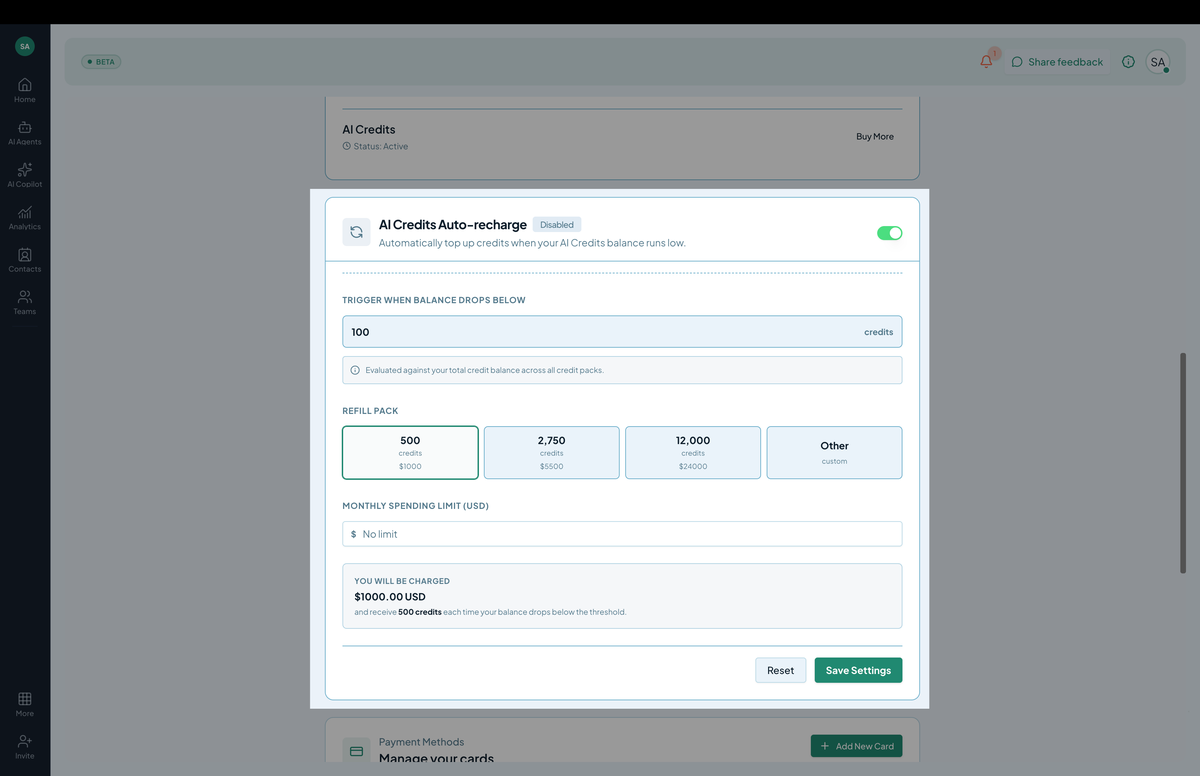 Screenshot: The auto-recharge toggle with threshold and pack-size inputs.
Step 2: Toggle on
Flip the Auto-recharge switch.
Two settings appear:
- Threshold — at how many remaining messages should auto-recharge fire? Common values: 1,000, 5,000, 10,000.
- Pack size — what size pack to buy? Common: 50,000, 100,000, 250,000 messages.
Step 3: Set the values
A reasonable default:
- Threshold: 10% of your monthly allowance. (If your plan has 100,000 messages, set threshold to 10,000.)
- Pack size: 50% of your monthly allowance. (Same plan: 50,000.)
These keep the bot running through traffic spikes without blowing your budget.
Step 4: Save
Click Save. Auto-recharge is now active. The next time your remaining messages drop below the threshold, Hilal Chatbot buys a pack and bills your saved card.
Step 5: See history
Below the toggle:
- Recent auto-recharge events — date, pack size, charge amount.
- Year-to-date — total auto-recharge spend.
Use this to validate your settings. If auto-recharges are firing daily, your threshold is too low or you should upgrade your plan.
Step 6: Pause
Toggle the switch off. Auto-recharge stops; manual purchases still work.
If you’ve spent too much on auto-recharges in a month, pause and reassess.
Notifications
Each auto-recharge fires:
- An in-app notification.
- An email to billing-notification recipients (configure in Settings → Notifications).
You can also subscribe a Slack channel.
When auto-recharge fails
If your saved card declines:
- Auto-recharge can’t complete.
- You get an immediate email and in-app banner.
- Bot continues until you hit the cap, then stops.
Update the card or top up manually to recover.
Permissions
billing.read— see settings and history.billing.update— toggle and configure.
Tips
- Set up auto-recharge before you need it. If it’s the day you’re about to hit cap, you’ve waited too long.
- Re-evaluate quarterly. Pack size and threshold should grow with your usage.
- For big known events, pre-buy a one-time pack instead of relying on auto-recharge — you’ll get a better rate at the larger size.