Cancel a subscription
Cancellation is a one-click action with a few confirmations. This page covers what to expect — what gets kept, what gets stopped, and how to come back if you change your mind.
In this guide:
- Cancel
- Plan limit check
- What happens after
- Data retention
- Re-activate
- Delete the organization
Step 1: Cancel
Settings → Billing → Cancel subscription.
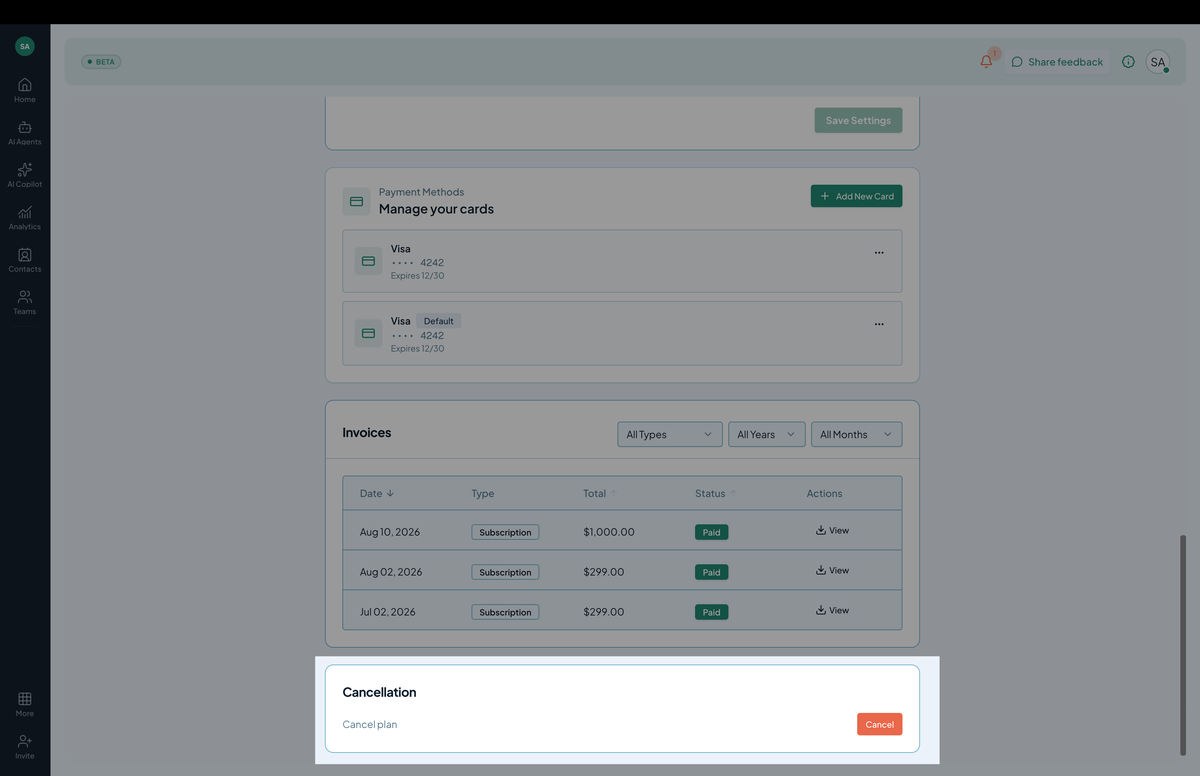
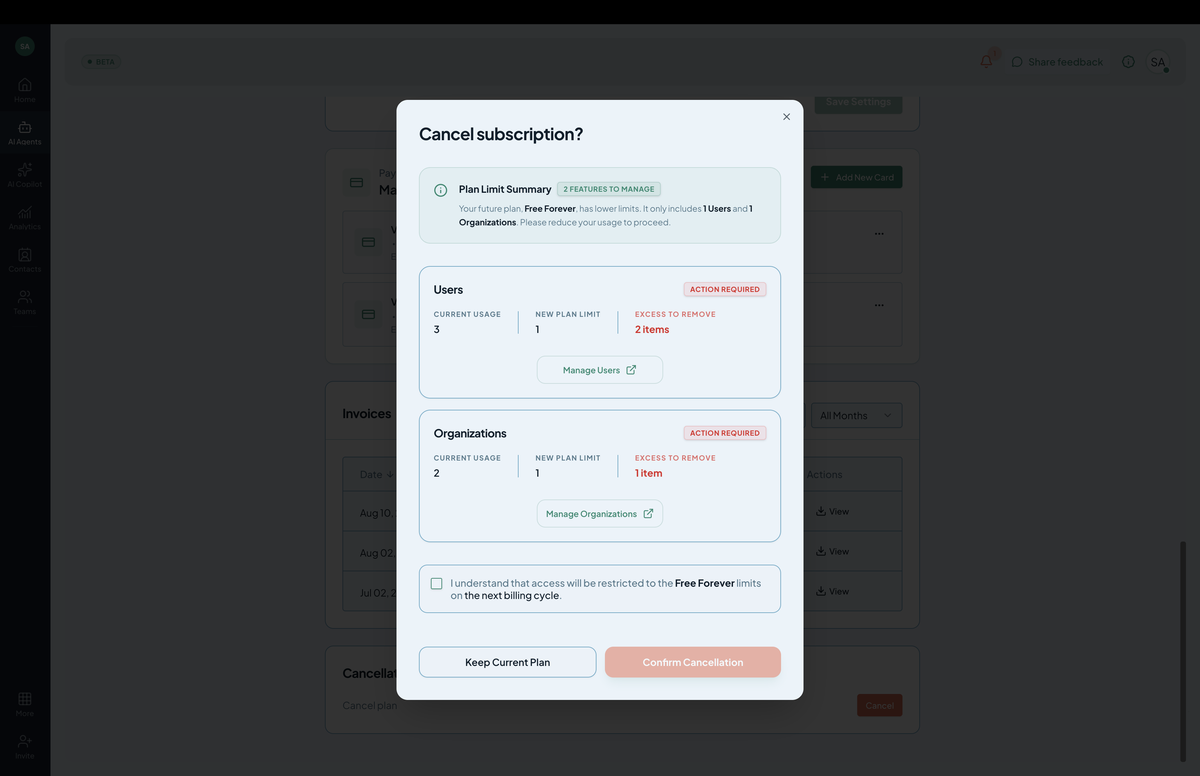 Screenshot: The cancel-subscription confirmation modal with the Plan Limit Summary.
A modal opens, showing a Plan Limit Summary. Cancelling downgrades you from your current subscription to a lower-tier plan, which has much lower limits — for example, just 1 organization and 1 user. If your current usage exceeds those limits, the modal flags each affected feature as Action Required, showing:
- Current usage — how much of that resource you’re using now.
- New plan limit — what the downgraded plan allows.
- Excess to remove — how many items you need to remove before you can proceed.
Each flagged section (e.g. Organizations, Users) includes a Manage button that takes you directly to where you can remove the excess.
You cannot confirm cancellation until every flagged item is reduced to within the downgraded plan’s limits. Once your usage is within range, check the box confirming you understand access will be restricted to those limits on the next billing cycle, then click Confirm Cancellation.
Step 2: What happens immediately
- Once confirmed, your subscription enters cancellation pending state.
- You retain full access to your current plan’s features until the end of the current billing period.
- No further charges are made (recurring add-ons and the next plan renewal don’t fire).
- Your data is preserved.
Step 3: At the end of the billing period
- Your plan is downgraded, limited to the reduced usage you confirmed in Step 1.
- Chatbots stop responding to new messages if you exceed the downgraded plan’s limits.
- Conversations, contacts, knowledge sources, integrations — all data is preserved.
- You can re-activate any time.
Step 4: What you keep
| Item | Status after cancel |
|---|---|
| Chatbots | Preserved (read-only). |
| Knowledge sources | Preserved. |
| Conversations | Preserved (read-only). |
| Contacts | Preserved. |
| Integrations | OAuth tokens retained but inactive. |
| Members | Still accessible (read-only on chatbots). |
| Audit logs | Preserved. |
Step 5: What stops
- Bot replies to new conversations.
- Outbound webhook deliveries.
- Inbound webhook receivers.
- AI Action executions.
- Auto-retraining cycles.
Essentially: read access stays, outbound and inbound activity stops.
Step 6: Re-activate
To come back:
- Settings → Billing → Plans → pick a plan.
- Confirm payment.
- Everything resumes — chatbots start replying, integrations reactivate, webhooks fire again.
No data migration. No data loss. Pick up where you left off.
Step 7: Delete the organization (irreversible)
If you want to go further than cancel:
- Settings → Organization → Danger zone → Delete organization.
- You’ll be asked to type the org name to confirm.
Deletion:
- Cancels the subscription if not already cancelled.
- Deletes every chatbot, knowledge source, conversation, contact, integration token, member assignment, audit log.
- Triggers a 30-day grace period before final purge — during which Hilal Chatbot’s support team can restore on request.
- After 30 days, data is permanently and irrecoverably gone.
This is the GDPR / right-to-be-forgotten path for organizations.
Just for one chatbot, not the whole org
If you want to discontinue one chatbot but keep the rest:
- Go to that chatbot → Settings → Danger Zone → Delete Agent.
- Confirm.
The org subscription remains. Other chatbots keep working.
Permissions
- Cancellation requires
billing.update(Owner or Admin). - Organization deletion requires Owner role.
Tips
- Reduce usage before you start. If you’re over the downgraded plan’s limits (extra organizations, extra users, etc.), remove the excess first — the modal won’t let you confirm cancellation until you do.
- Export first. If you might come back, export conversations and contacts before cancelling — quicker than reactivating just to export.
- Tell your team. Cancellation can surprise teammates if they don’t know it’s coming, especially if it means removing organizations or users.
- Cancel ≠ delete. Cancellation is reversible; delete is forever.