Invoices & billing history
Every charge — plan renewal, upgrade pro-rate, add-on, auto-recharge — generates an invoice. The invoices page is your billing audit trail.
In this guide:
- See past invoices
- Download an invoice
- See upcoming invoice (preview)
- Configure invoice delivery
- Reconcile payments
Step 1: Open invoices
Settings → Billing → Invoices & history.
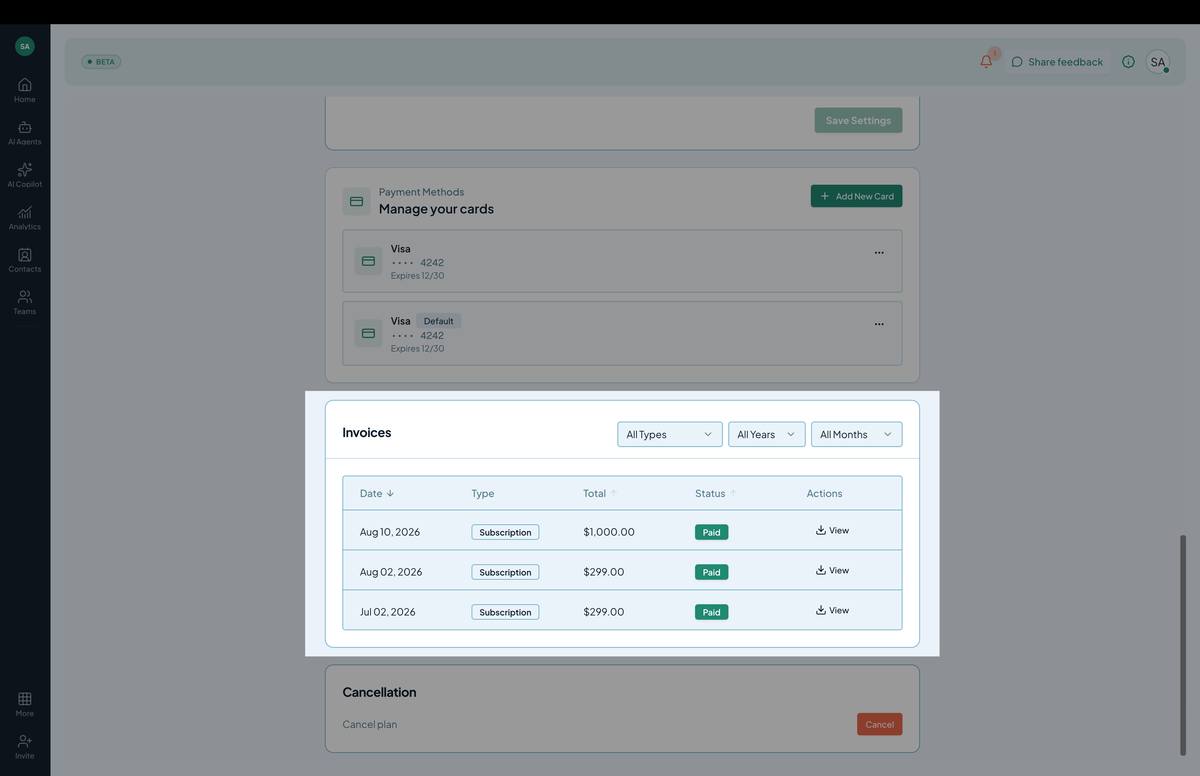 Screenshot: The invoices table with date, amount, status, and download actions.
You see a table:
- Date — when the invoice was issued.
- Description — plan renewal, upgrade pro-rate, add-on purchase, auto-recharge.
- Amount — total charged.
- Status — paid / pending / failed.
- Actions — download (PDF), view receipt.
Step 2: Download an invoice
Click the download icon on any row → PDF downloads.
Each invoice PDF has:
- Hilal Chatbot’s billing entity name.
- Your billing details (name, address, tax ID).
- Line items with quantities and rates.
- Tax breakdown.
- Payment method (last 4 of card).
- Invoice number.
Compliant for most expense-report and accounting workflows.
Step 3: Bulk download
For year-end reconciliation:
- Filter by date range (top of the table).
- Click Export → ZIP to download all matching PDFs.
Available on Business and Enterprise plans.
Step 4: See upcoming invoice
Click Upcoming invoice above the table to preview what your next invoice will look like:
- Plan renewal cost.
- Recurring add-ons.
- Pro-rated upgrades or downgrades you’ve made mid-cycle.
- Estimated tax.
This is generated live and updates as you make changes.
Step 5: Failed payments
If a charge fails:
- Status shows Failed in red.
- An email notifies you.
- Hilal Chatbot retries 3 times over 7 days.
- After 3 failures, your subscription enters past due state — features remain available but a banner prompts you to update payment.
- After 14 days past due, the subscription is suspended.
To resolve: update your card in Settings → Billing → Payment methods and click Retry payment on the failed invoice.
Step 6: Reconcile
For finance teams:
- All invoices have unique numbers.
- The Stripe charge ID is on each invoice (for matching against Stripe statements).
- The line items match the activity in Usage analytics.
For unusual charges, every invoice’s “auto-recharge” line items link to the auto-recharge history page for context.
Refunds
Refunds are issued for billing errors only. To request:
- Click Request refund on a specific invoice → fill in the reason.
- Hilal’s billing team reviews and replies within 3 business days.
Refunds are credited to the original payment method.
Permissions
billing.read— view invoices.billing.export— bulk download.