Plans & subscriptions
Your subscription plan controls how much you can do — message quota, knowledge size, channels, integrations, members. This page is how you change it.
In this guide:
- See your current plan
- Compare plans
- Upgrade
- Downgrade
- Change billing cycle (monthly ↔ annual)
Step 1: See your current plan
Settings → Billing → Plans.
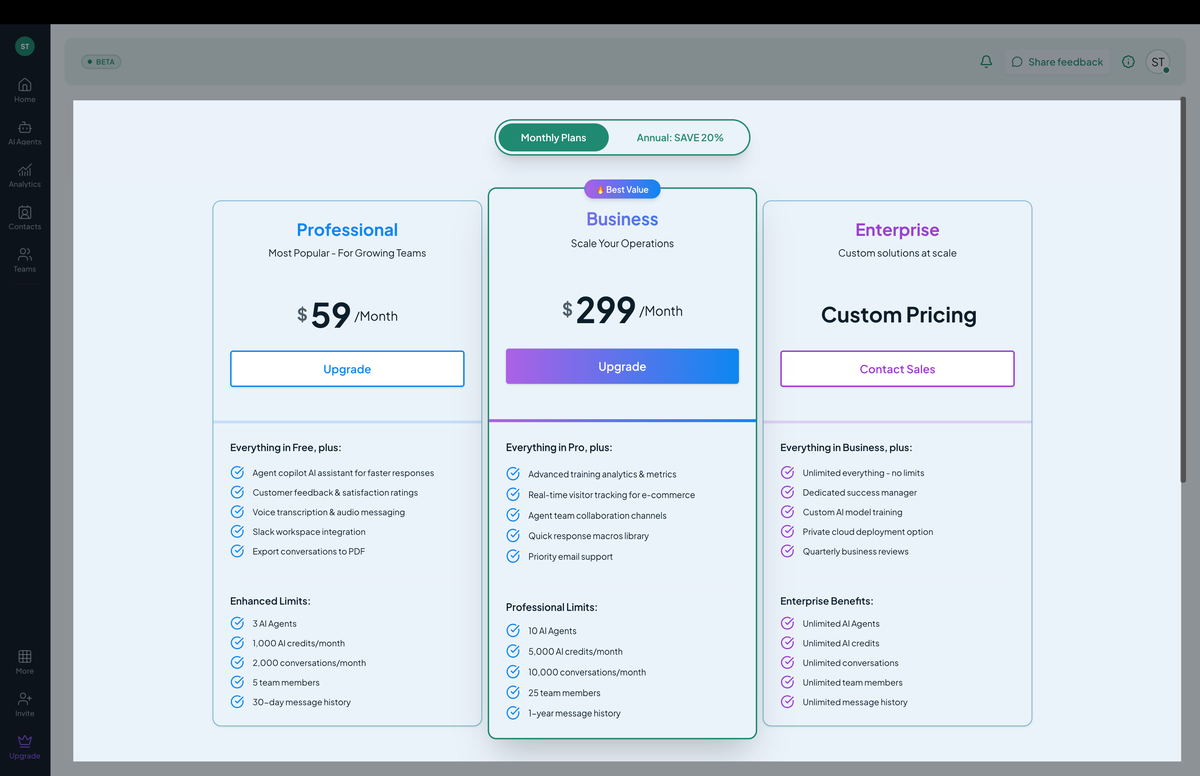 Screenshot: The plans grid with the current plan highlighted.
The current plan card highlights what you have:
- Plan name (Starter / Professional / Business / Enterprise).
- Monthly / annual cycle.
- Renewal date.
- Included quotas: messages, knowledge, members, action calls.
Step 2: Compare
Each plan card shows what’s included. Side-by-side comparison via Compare plans at the top — opens a feature matrix:
- Channels (web, email, Slack, WhatsApp, Messenger).
- Integrations (Calendly, Cal.com, Salesforce, Zendesk, Stripe, Shopify).
- Advanced features (AI actions, real-time sync, custom reports, SSO, SCIM).
- Support level (community, email, priority, dedicated).
Step 3: Upgrade
Click Upgrade on the plan you want.
You see:
- The new plan summary.
- Pro-rated charge (the difference between your current plan and the new one for the rest of the period).
- The new monthly/annual rate going forward.
Confirm. Hilal charges your saved card immediately for the pro-rated amount. The new plan limits apply instantly.
Step 4: Downgrade
Click Downgrade on a smaller plan.
Downgrades take effect at the end of your current billing cycle — you keep your higher-tier features until then. No refund for the unused portion.
If your current usage exceeds the smaller plan’s quotas, you’ll be warned. Either prune (delete chatbots, knowledge sources, members) or pick a higher plan.
Step 5: Change billing cycle
Annual billing typically saves ~20% over monthly. To switch:
- Monthly → annual: charged immediately for the year, less the credit for the unused portion of your current monthly cycle.
- Annual → monthly: takes effect at the end of the current annual term. No partial refund.
Click Switch to annual (or monthly) on your current plan card.
Payment methods
Settings → Billing → Payment methods:
- Add card.
- Update billing address.
- Set default card (multi-card setups).
Card information is processed by Stripe. Hilal Chatbot never stores raw card numbers.
Permissions
billing.read— see plan, usage, invoices.billing.update— change plan, add cards, update tax info.
By default, Owners and Admins have all of these.