Configure your chatbot
A chatbot has a Settings tab that combines every configuration for that bot in one place — identity, auto-close rules, response behavior, quick replies, escalation policy, credit limit, and destructive actions. This page walks through each section in the order it appears.
In this guide:
- Agent Identity
- Auto-Close Settings
- Behaviour Settings
- Quick Replies
- Escalation Policy
- Credit Limit
- Danger Zone
Open Settings
On the chatbot’s detail page, click Settings in the left rail.
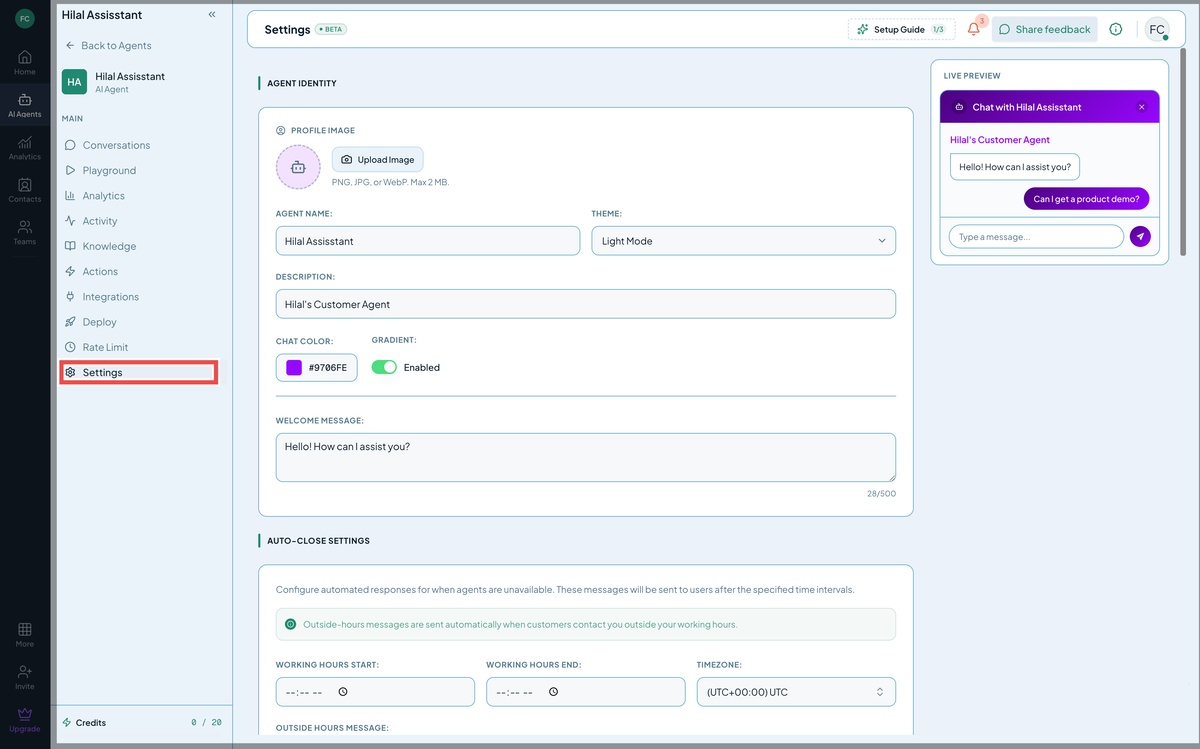 Screenshot: The Settings tab of an Agent.
Agent Identity
Controls the bot’s name, look, and greeting.
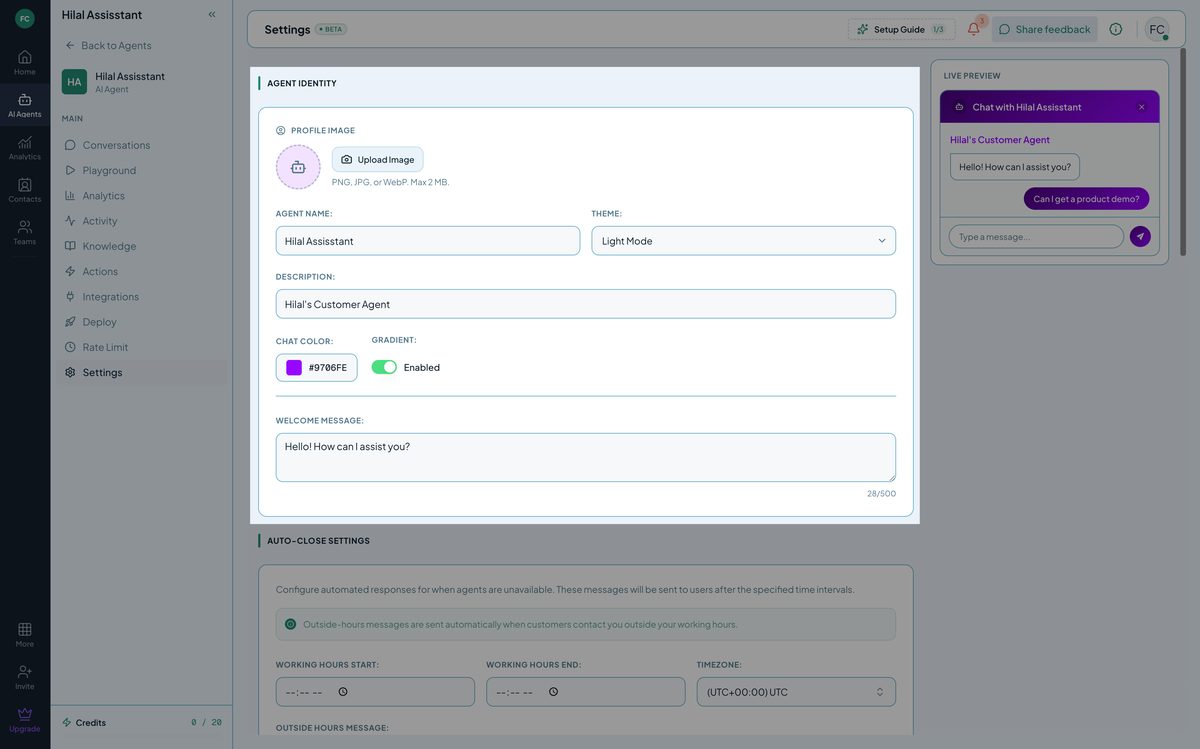 Screenshot: The Agent Identity section of the Settings tab.
| Field | What it does |
|---|---|
| Profile Image | PNG, JPG, or WebP, up to 2MB. Shown as the bot’s avatar in chat. |
| Agent Name | The chatbot’s display name, shown to users in the widget. |
| Theme | Light Mode or Dark Mode for the chat widget. |
| Description | A short internal note about what the bot does. Not shown to end-users. |
| Chat Color | Hex color for the widget header and accents. Gradient can be toggled on to blend the color into a gradient. |
| Welcome Message | The first message users see when they open the chat. Up to 500 characters. |
The Live Preview panel on the right updates as you edit, so you can check how changes look before saving.
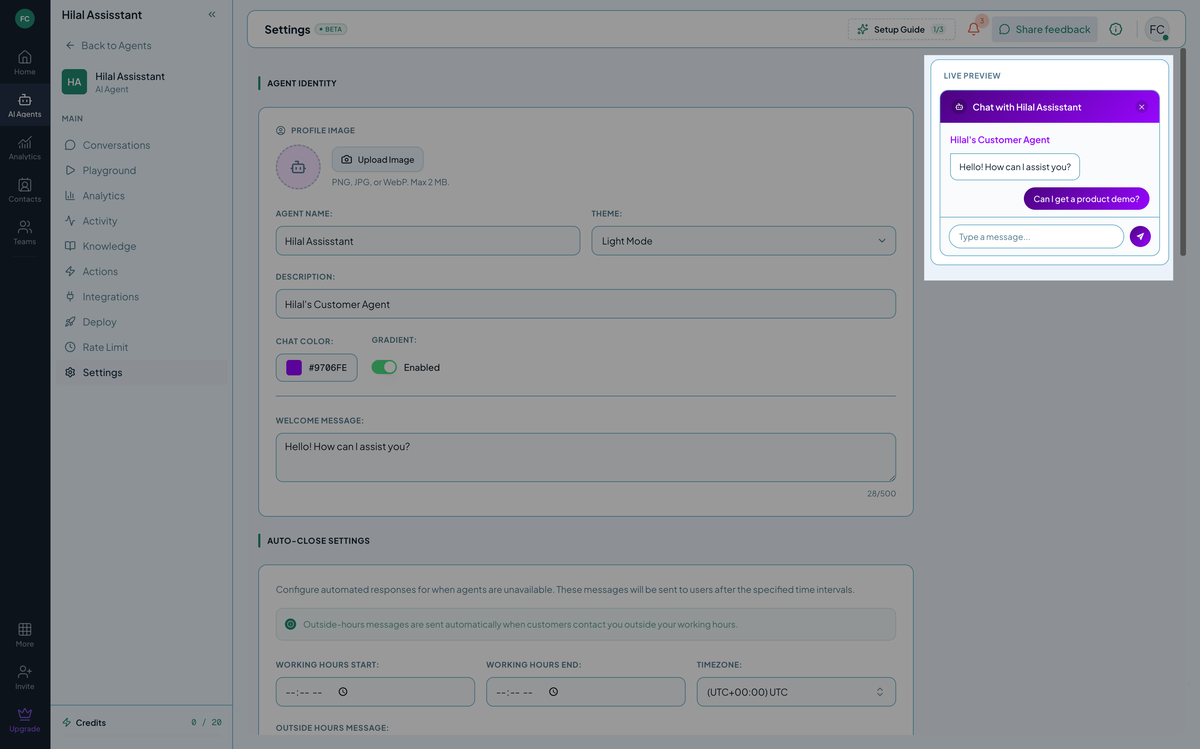 Screenshot: The Agent Preview section of the Settings tab.
Tips:
- Pick Chat Color from your brand palette, not a guess. A widget that clashes with the host page is the most common mistake here.
- Test Dark Mode before shipping. If your site supports a dark theme, switch Theme to Dark Mode and confirm the widget still reads cleanly.
- Keep the Welcome Message short. It’s a teaser shown before the chat opens — one sentence is plenty (“Hi! Ask us anything.”).
What not to put here:
- Sensitive metadata. Description and other fields here are just labels — don’t put API keys, customer IDs, or credentials in them.
- Behavior instructions. That belongs in Behaviour Settings, not Description or Welcome Message.
Auto-Close Settings
Configures automated responses for when agents are unavailable, and when to auto-close inactive chats.
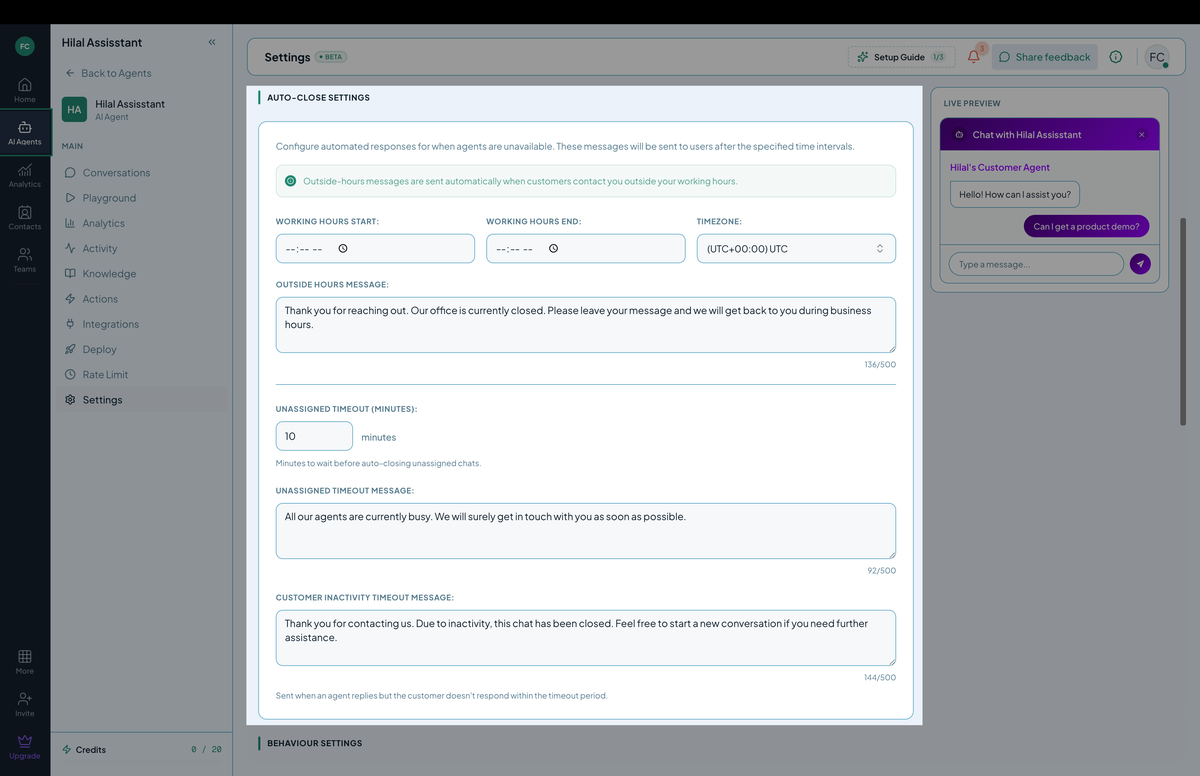 Screenshot: The Auto-Close Settings section of the Settings tab.
| Field | What it does |
|---|---|
| Working Hours Start / End | The window during which agents are considered available. |
| Timezone | The timezone your working hours are set in. |
| Outside Hours Message | Sent automatically when a customer contacts you outside working hours. Up to 500 characters. |
| Unassigned Timeout (minutes) | How long an unassigned chat waits before it’s auto-closed. |
| Unassigned Timeout Message | Sent when a chat is auto-closed due to the unassigned timeout. Up to 500 characters. |
| Customer Inactivity Timeout Message | Sent when an agent has replied but the customer doesn’t respond within the timeout period. Up to 500 characters. |
Tips:
- Set a realistic Unassigned Timeout. Too short auto-closes chats agents haven’t had a chance to see yet; too long lets unassigned chats pile up in the queue.
- Match Timezone to your actual support hours. A mismatched timezone will send the Outside Hours Message during hours you’re actually staffed, confusing customers.
- Keep timeout messages actionable. Tell the customer what to do next (start a new chat, expect a delay) rather than just apologizing.
Behaviour Settings
Controls how the bot talks and what instructions guide its responses.
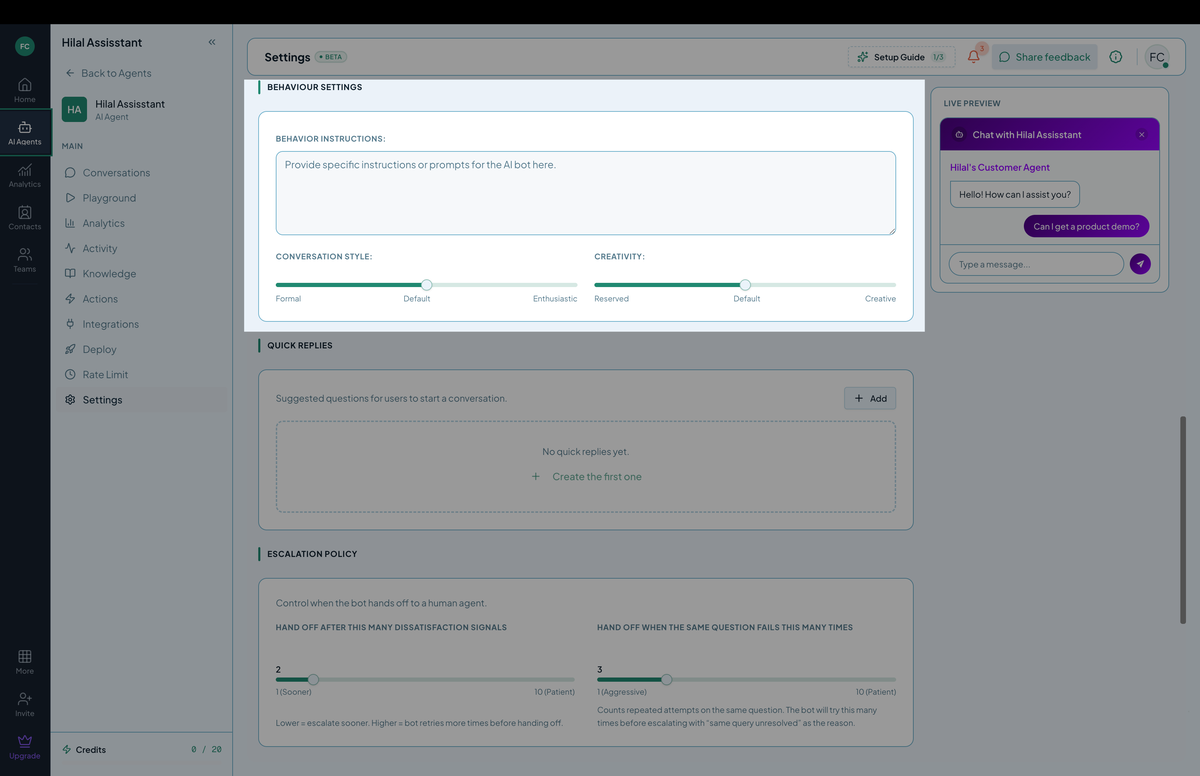 Screenshot: The Behaviour Settings section of the Settings tab.
| Field | What it does |
|---|---|
| Behavior Instructions | The instructions the AI sees on every turn — this is where you tell the bot who it is, how it should sound, and what it must not do. See guidance below. |
| Conversation Style | Slider from Formal to Enthusiastic. Default sits in the middle. |
| Creativity | Slider from Reserved to Creative. Controls how much the model varies its phrasing and takes liberties in responses. |
Writing good behavior instructions
A reliable set of instructions covers four things:
[ROLE]      — Who is the bot?
[TONE]      — How does it talk?
[SCOPE]     — What can / can't it answer?
[RULES]     — Hard prohibitions and required behaviors.
Example:
You are Pip, the support assistant for Acme Inc.

Tone: friendly, concise, no exclamation points unless apologizing.

Scope: answer questions about Acme products, billing, and orders.
Refuse politely if asked about competitors, legal advice, or anything
unrelated to Acme.

Rules:
- Never invent product features. If unsure, say "Let me check with a human."
- Never share order details without confirming the customer's email matches.
- Always offer to escalate to a live agent if the user types "human", "agent",
  or "talk to someone".
Common mistakes to avoid:
- Telling the bot to “always be helpful, accurate, and friendly.” The model already wants to do that. Generic instructions add tokens but no signal.
- Putting product knowledge in the instructions. Use Knowledge sources instead — they’re indexed, citable, and don’t blow your context budget.
- Forgetting refusal rules. “Don’t talk about competitors” prevents awkward conversations. Be explicit.
After saving, open the Playground and re-test. Watch for tone shifts, correct refusals on out-of-scope questions, and whether “talk to a human” phrases escalate as expected.
Common patterns:
| Goal | Settings |
|---|---|
| High deflection rate | Conversation Style toward Enthusiastic, Creativity toward Creative, instructions encouraging the bot to try multiple angles before giving up. |
| High customer satisfaction | Conversation Style toward Formal or Default, Creativity toward Reserved, instructions that favor a quick, accurate answer over a long one. |
| After-hours self-serve only | Instructions that point users to email or a help center when the bot can’t answer, paired with a longer Escalation Policy threshold (see below) so it isn’t handing off when no agent is available. |
Quick Replies
Suggested questions shown to users to help them start a conversation. Click Add to create one; if none are set, the widget shows no suggestions.
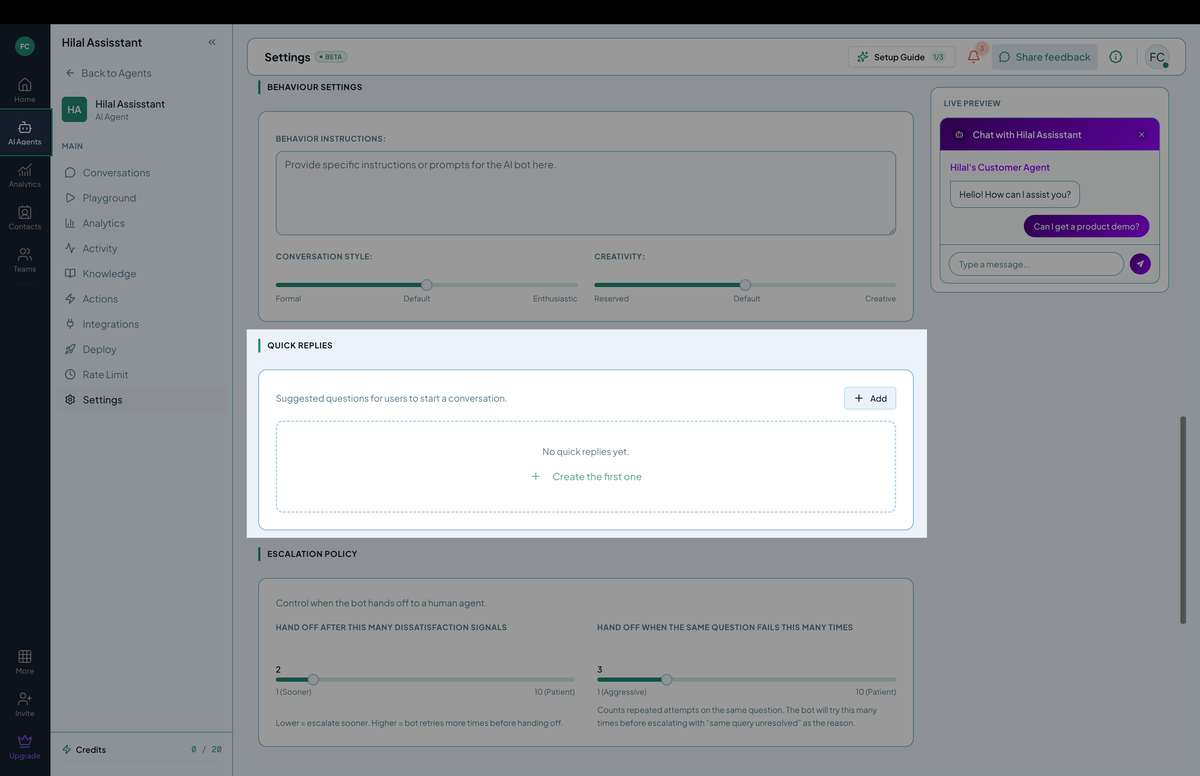 Screenshot: The Quick Replies section of the Settings tab.
Tips:
- Use your most common real questions, not generic ones — pull from your Activity log or Analytics to see what users actually ask first.
- Keep them short. Quick replies are buttons, not full sentences — aim for a phrase the user would tap, not type.
- Revisit periodically. As your knowledge base grows, the most useful starter questions may change.
Escalation Policy
Controls when the bot hands off to a human agent.
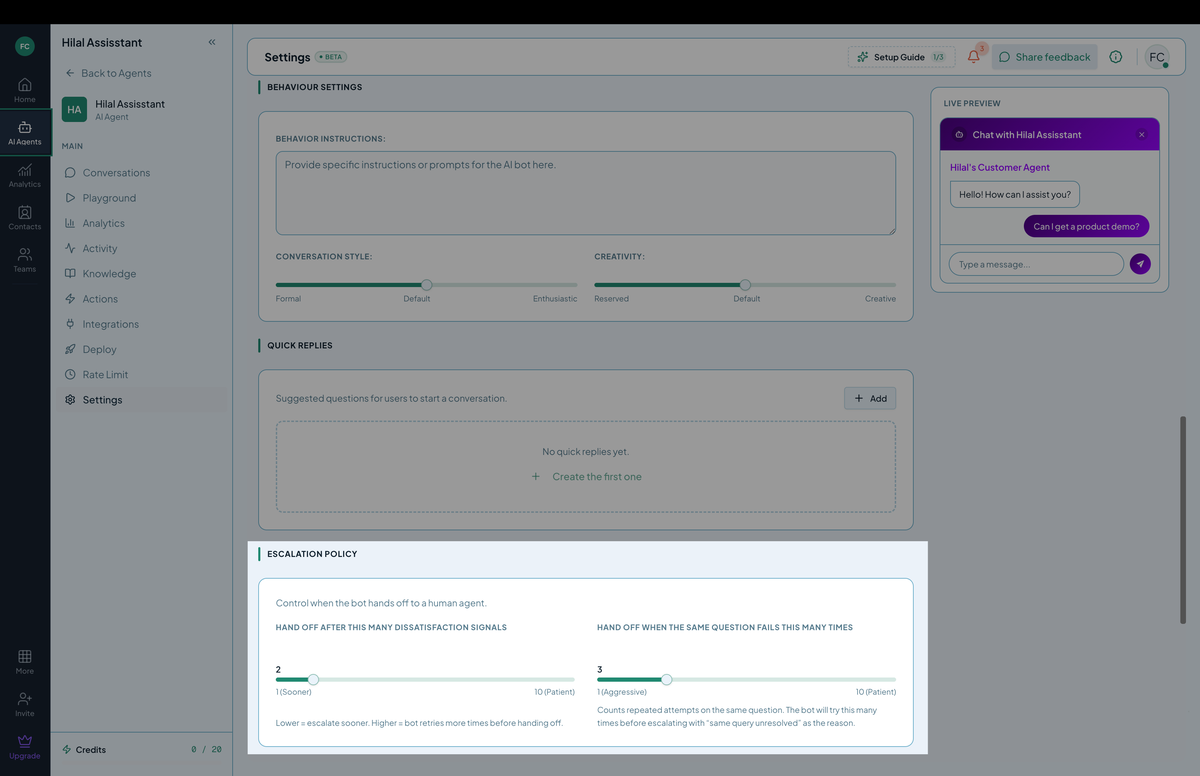 Screenshot: The Escalation Policy section of the Settings tab.
| Field | What it does |
|---|---|
| Hand off after this many dissatisfaction signals | Scale of 1 (Sooner) to 10 (Patient). Lower escalates sooner; higher lets the bot retry more before handing off. |
| Hand off when the same question fails this many times | Scale of 1 (Aggressive) to 10 (Patient). Counts repeated attempts on the same question before escalating with “same query unresolved” as the reason. |
Escalated conversations go to the Conversations tab, where agents assign and resolve them — see Conversations.
Tips:
- Lower both sliders for high-stakes bots (billing, account access) so users reach a human quickly rather than getting stuck with a bot that can’t help.
- Raise both sliders for low-stakes, high-volume bots (general FAQ) so the bot absorbs more of the load before escalating.
- Watch Activity for “same query unresolved” escalations. A spike usually means a knowledge gap, not a settings problem — check Knowledge base coverage first.
Credit Limit
Sets a Monthly Credit Limit for this chatbot. Usage against the limit is shown as “Used: X / Y” (or “Unlimited” if no cap is set).
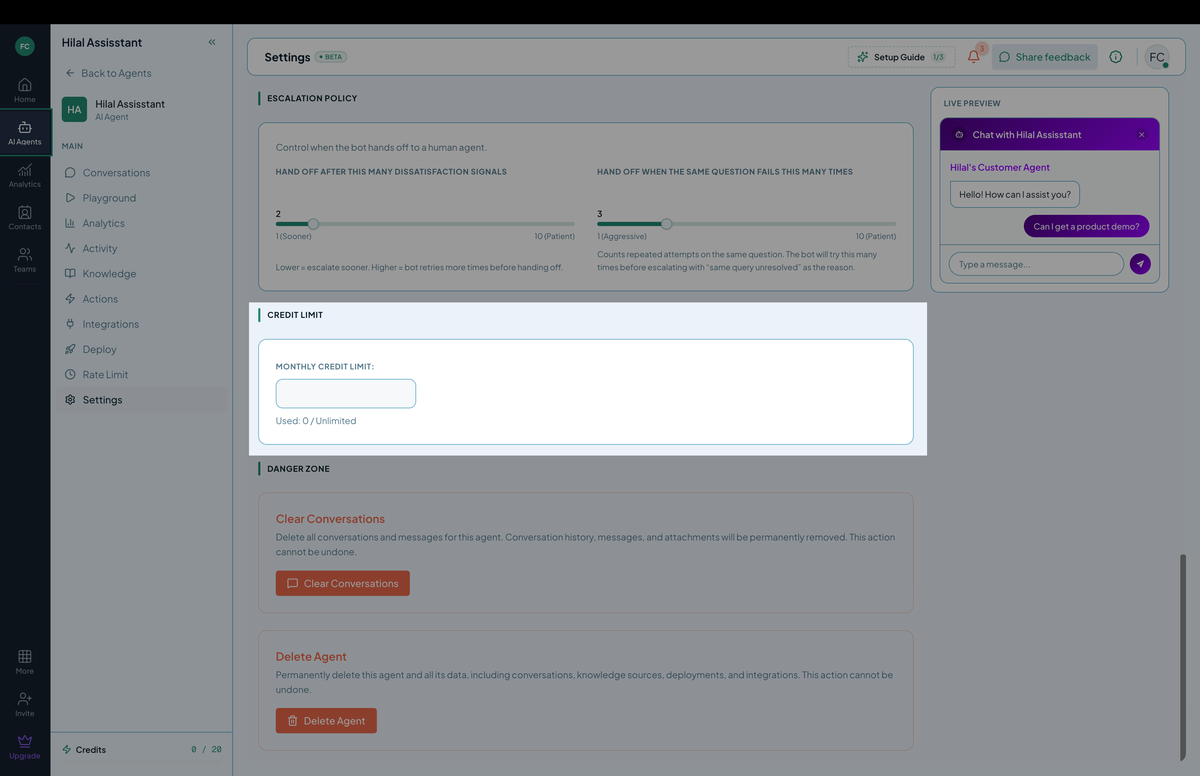 Screenshot: The Credit Limit section of the Settings tab.
Tips:
- Set a cap on bots you’re still testing to avoid surprise usage costs while you’re iterating on Behaviour Settings and Knowledge sources.
- Leave production bots unlimited unless you have a specific budget reason to cap them — an exhausted credit limit stops the bot from responding entirely.
Danger Zone
Destructive, irreversible actions:
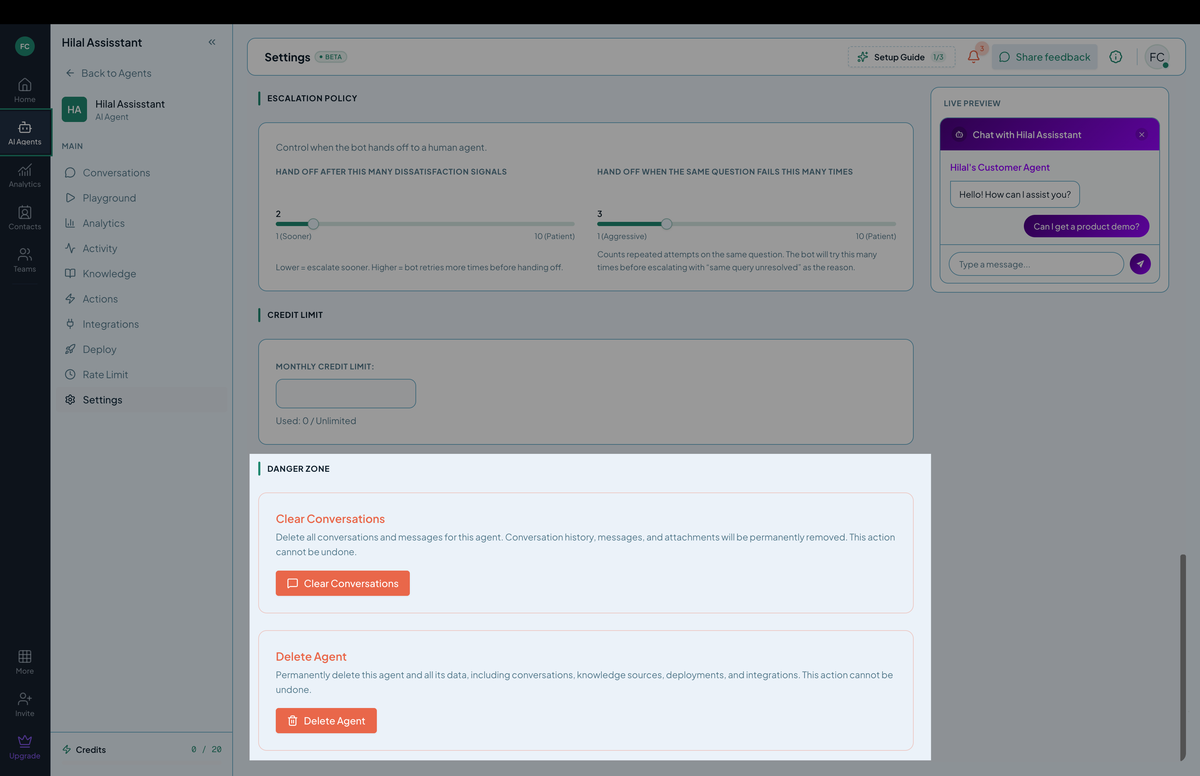 Screenshot: The Danger Zone section of the Settings tab.
- Clear Conversations — permanently deletes all conversations, messages, and attachments for this agent.
- Delete Agent — permanently deletes this agent and all its data, including conversations, knowledge sources, deployments, and integrations.
Both actions cannot be undone. Use with care.
Tips:
- Export before you clear. If you might need conversation history later, export it from Export history before using Clear Conversations.
- Double-check you’re on the right chatbot. Delete Agent removes everything — knowledge sources, deployments, integrations — with no recovery option, so confirm the chatbot name in the sidebar before confirming.