Bulk import & export
For migrations, marketing seeding, or external analysis, bulk operations let you move thousands of contacts at once.
In this guide:
- Bulk import a CSV
- Field mapping
- De-dupe rules
- Bulk export
- Limits and tips
Step 1: Open bulk import
On the Contacts page, click Import. Drag a CSV file into the dropzone, or click to browse.
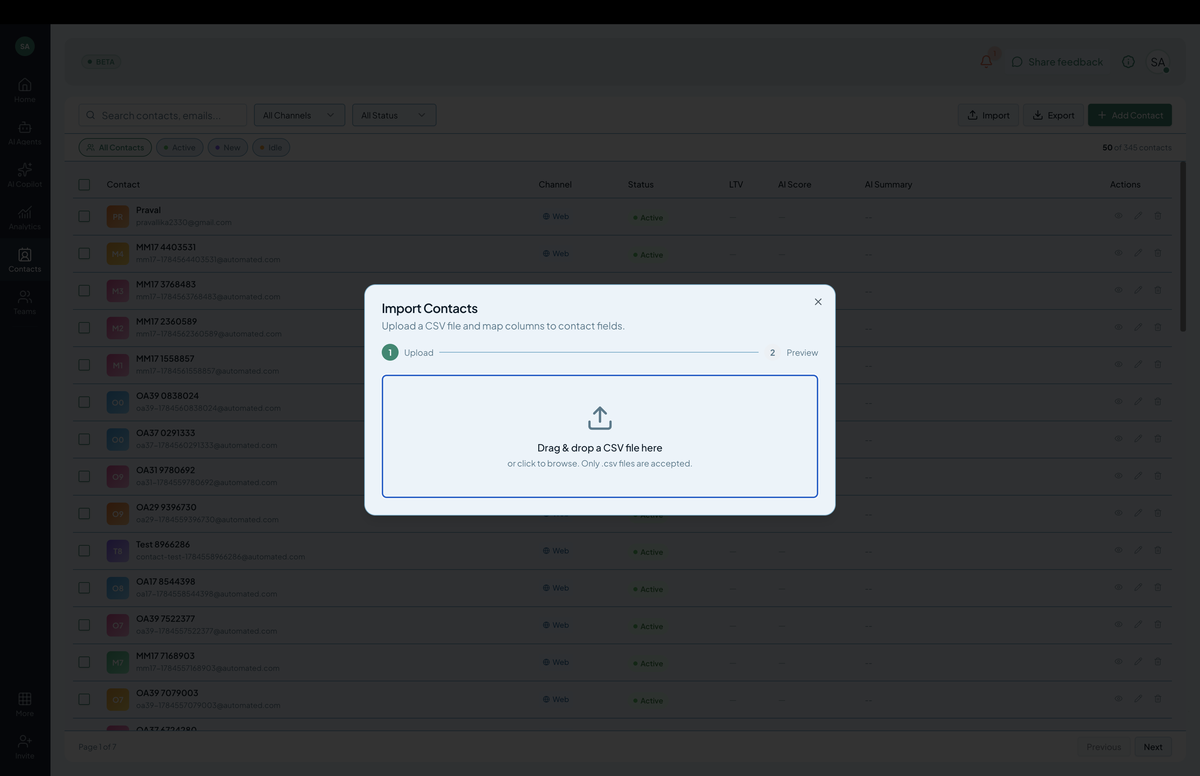 Screenshot: The bulk-import dropzone with a CSV file selected.
The CSV should have a header row. Standard columns Hilal Chatbot recognizes:
email(required for any non-anonymous contact)namephonetags(comma-separated)- Custom fields (anything else; treated as captured fields)
Step 2: Map fields
After upload, Hilal Chatbot shows a preview with auto-detected column mappings. Review and correct:
Customer Email→emailFull Name→namePlan Tier→ custom fieldplan_tier
Click Proceed.
Step 3: De-dupe
Before saving, Hilal Chatbot checks each row against existing contacts:
- Match by email → update existing contact (merge fields, append tags).
- No match → create new.
For full control, pick the strategy:
- Update on match — overwrite existing fields with CSV values.
- Append on match — only add new fields; existing values stay.
- Skip on match — only create new contacts.
Step 4: Confirm and import
Confirm the row counts (will create N, will update M). Click Import.
For small imports (≤ 1,000), runs immediately. For larger, queues and emails you when complete.
Bulk export
On the Contacts page, click Export. Pick fields:
- Identity (name, email, phone)
- Tags
- First/last seen
- Custom fields
- Conversation count
- External IDs
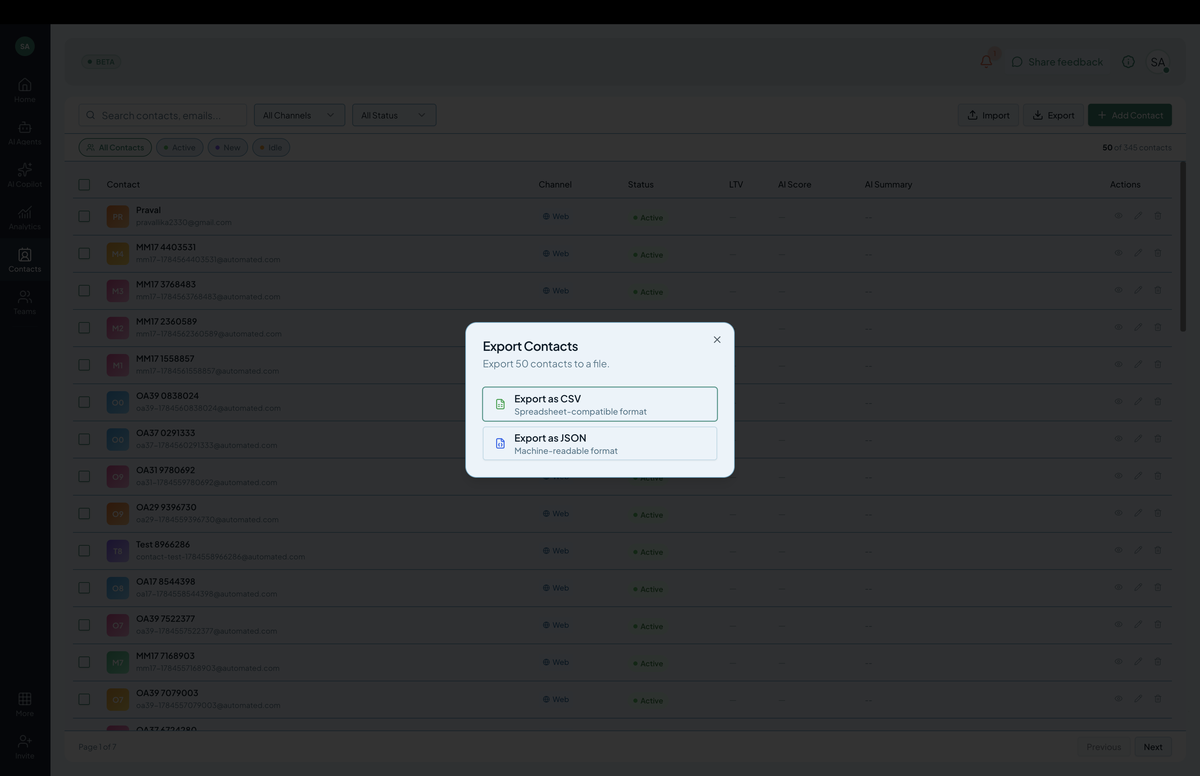 Screenshot: The bulk-export menu with CSV and JSON options.
Click Export → CSV or JSON. Same flow as conversation exports — small downloads inline, large queue and email.
Limits
- Per-import row limit — depends on plan, typically 50,000.
- File size — typically 50 MB.
- Rate limit — 1 bulk import every 10 minutes per organization.
For larger migrations, contact support — Enterprise plans support direct database imports.
Tips
- Always export before import. A snapshot helps if you need to roll back.
- Test with 10 rows first. Mapping errors are easier to spot at small scale.
- Tag imports. Add a tag like
imported-2026-05-01so you can filter to the imported batch later.
Common pitfalls
- Duplicate emails in CSV → Hilal Chatbot keeps the last row (rows above are overwritten).
- Invalid email formats → those rows are skipped; an error report downloads.
- Tags not splitting → ensure tags column uses comma separation, not semicolons.