Export conversation history
Sometimes you need conversations outside of Hilal Chatbot — for compliance review, audit, business intelligence, or just record-keeping. The Activity tab supports both CSV (for spreadsheets / BI) and PDF (for legal / audit).
In this guide:
- Open the Activity tab
- Filter the conversations to export
- Pick CSV or PDF
- What’s included
Step 1: Open the Activity tab
On any chatbot detail page → Activity in the left rail.
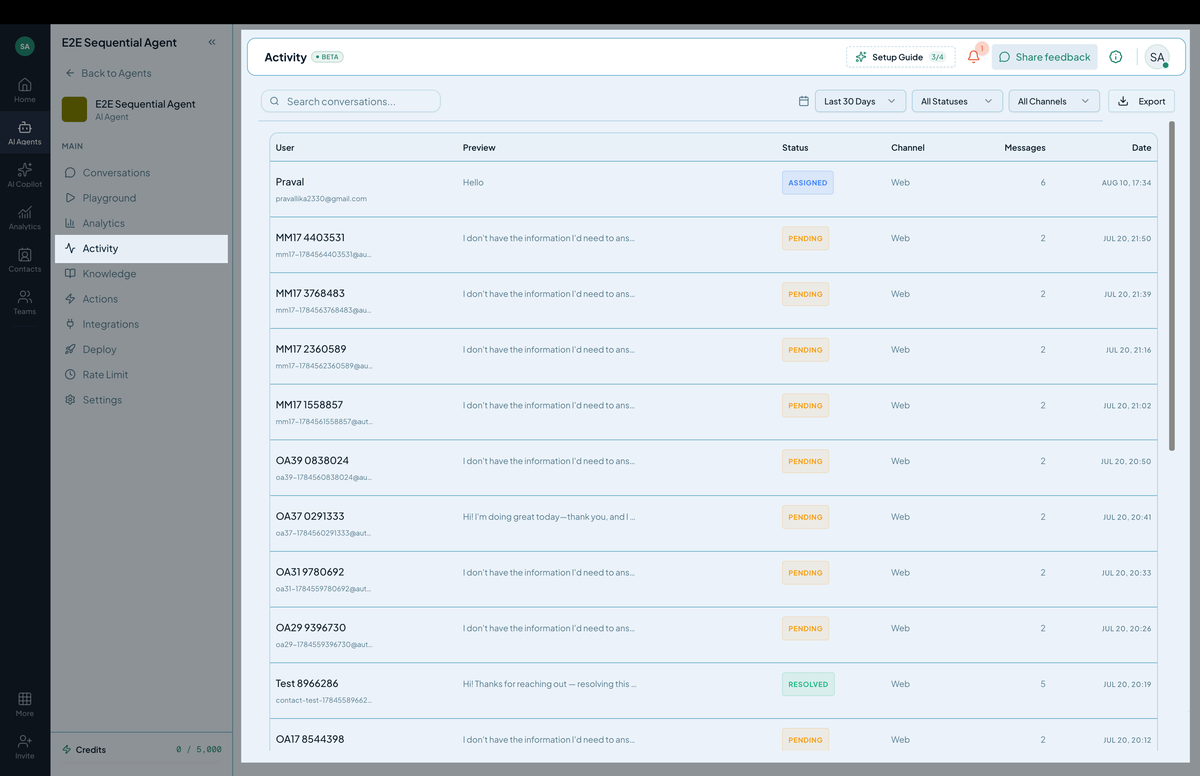
You see a table of every conversation this chatbot has had: timestamp, channel, customer, message count, status.
Step 2: Filter
Above the table:
- Date range — last 7 days, last 30, custom.
- Channel — web, email, Slack, etc.
- Status — open, solved, abandoned.
- Tags — your custom labels.
- Search — message text or customer info.
The export operates on the filtered set, not the full history. Filter first, then export.
Step 3: Click Export
Top right → Export → pick:
- CSV — one row per conversation with summary fields, plus an optional second sheet for messages.
- PDF — formatted printable report; one section per conversation.
- JSON - Machine readable Format
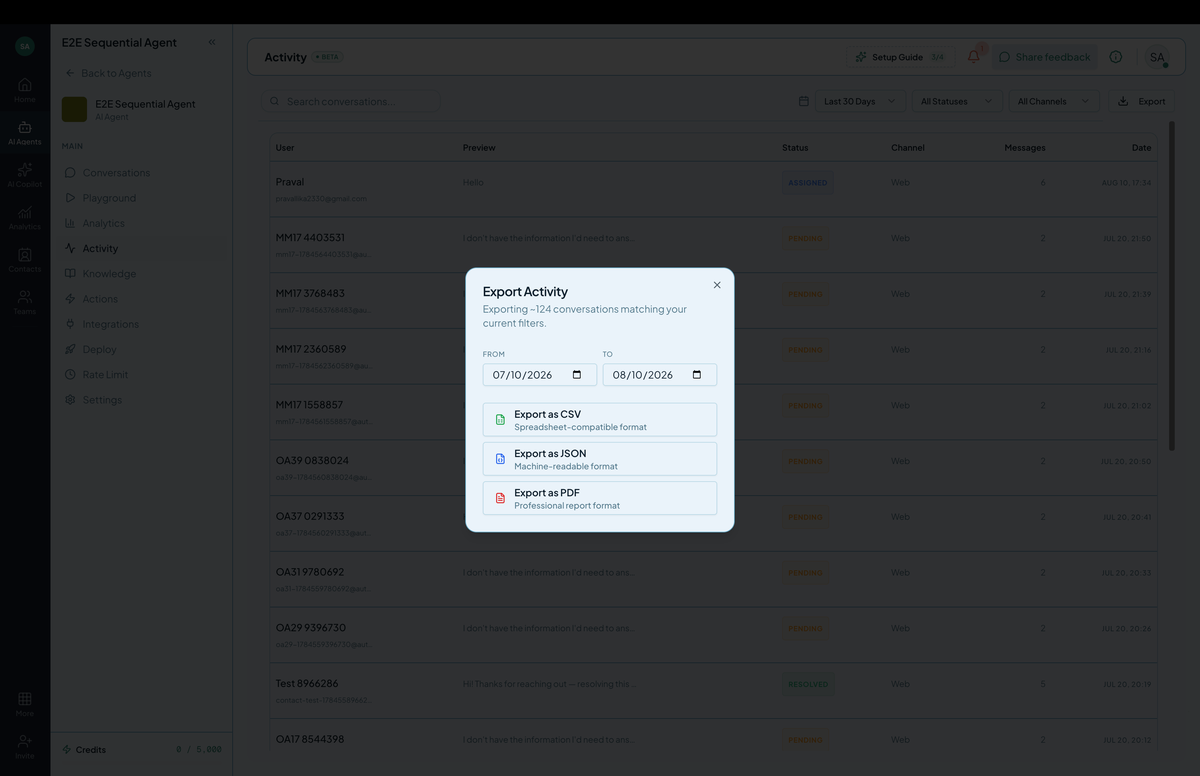 Screenshot: The Export menu with CSV,PDF and JSON options.
Step 4: Wait and download
For small filters, the export downloads immediately. For larger ones (10,000+ conversations), it queues and you receive an email when ready.
Permissions
conversations.read— to view.conversations.export— to download.
Compliance considerations
- PII: exports contain customer messages and emails. Handle securely; don’t email raw exports to third parties.
- Retention: per your plan, exports may be capped to the retention period.
- GDPR: customers can request deletion of their data — see Settings → Privacy → Subject access. Deleted data is also removed from future exports.
Tips
- Schedule recurring exports for monthly reporting (Enterprise plans support scheduled exports to S3/SFTP).
- Filter before exporting — full-history exports are slow and bulky.
- Pair CSV exports with Custom reports for deeper analysis.