Test it in the Playground
The Playground is a private chat with your bot. Use it to verify the bot answers correctly before customers see it. The conversation here doesn’t count toward your conversation analytics or your billable message quota in the same way live conversations do.
In this guide:
- Open the Playground
- Send a few questions
- Adjust model and temperature
- Decide whether to keep going or fix something
Prerequisites
- A chatbot with at least one trained knowledge source. → Add your first knowledge source
Step 1: Open the Playground
On the chatbot detail page, click Playground in the left rail.
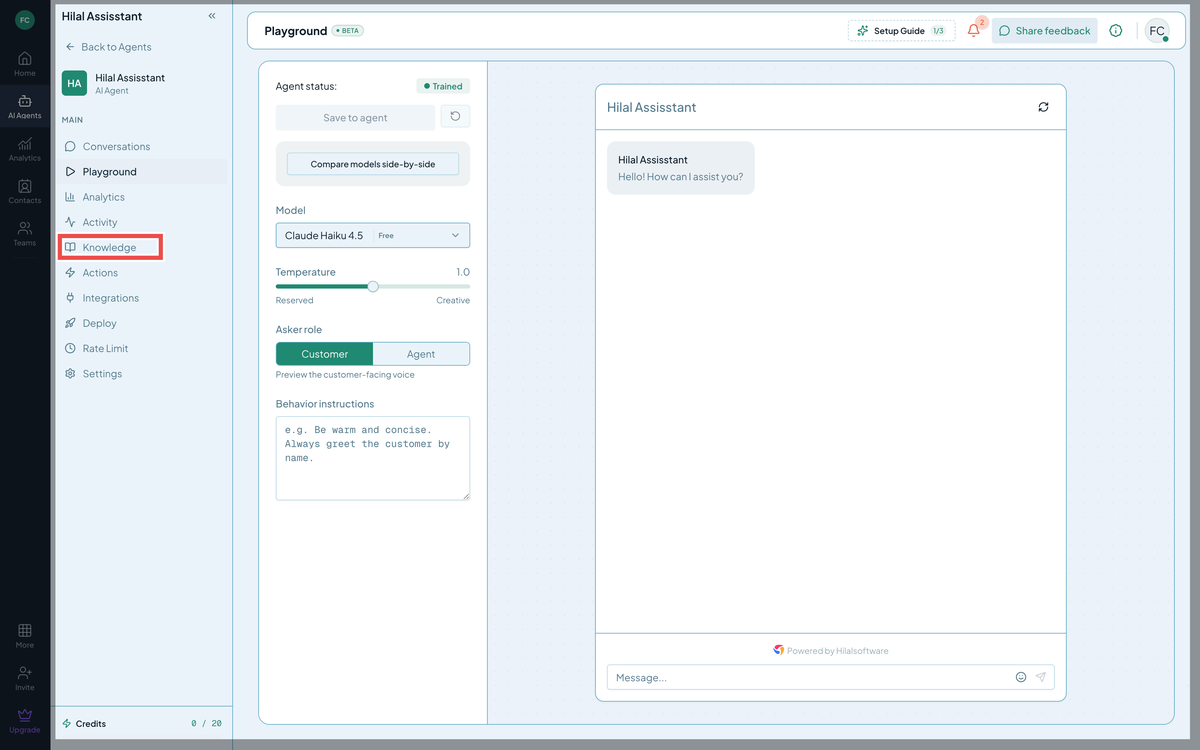 Screenshot: The Playground with one user message and the AI reply.
You’ll see the chat UI on the left and a settings panel on the right.
Step 2: Send a few questions
Type a question your bot should be able to answer (something covered by the knowledge source you added) and hit Enter. Watch the typing indicator, then read the reply.
A good first sweep:
- Ask a simple, direct question that should clearly hit one source.
- Ask a follow-up that requires understanding the previous turn.
- Ask something off-topic that the bot should refuse — make sure it doesn’t hallucinate.
If the answers look right, great. If not, the next section helps you adjust.
Step 3: Adjust model and temperature
The settings panel on the right exposes:
- Model — pick a different LLM. Bigger models are slower but smarter for nuanced questions; smaller models are faster and cheaper. Default is sensible for most cases.
- Temperature — 0 to 2. Lower = more deterministic, higher = more creative. For factual support, keep this low (0.2–0.5). For creative writing, raise it.
- System prompt template — preset personalities (Customer Support, Coding Assistant, Creative Writer, AI Agent) or a custom prompt. → Prompt templates
Settings here are scoped to the Playground. They don’t affect production until you save them as the bot’s defaults.
Step 4: Compare two models
If you can’t decide between models, switch to Compare mode — same input, two side-by-side responses. → Compare models
Step 5: Decide
Three outcomes:
- Answers look great. Clear the test conversation and move on to deploy.
- Bot answers but tone is off. Fix in Behaviour Instructions — see Behaviour Settings.
- Bot doesn’t know things it should. Add or update knowledge sources — see Knowledge base.
Tip: The Playground supports clearing history. Click the trash icon (or Clear history) to start over with the same settings.
Troubleshooting
- Replies are extremely slow. A bigger model or very long context can take 10+ seconds. Pick a smaller model for testing.
- Bot returns “I don’t know” for content I just trained on. Source might still be training — check Knowledge base for the
completedstatus. If it is trained, try rephrasing the question to use the same vocabulary the source uses.