Upload documents
Documents are the second most common knowledge source. Use them for content that doesn’t live on a public website — internal handbooks, exported wikis, product manuals.
In this guide:
- Supported formats and sizes
- Upload a single document
- Upload many at once
- What happens after upload
- Troubleshooting
Supported formats
| Format | Notes |
|---|---|
| Text-based PDFs only. Scanned/image PDFs won’t extract — OCR them first. | |
| DOCX | Microsoft Word format. Tables, headings, and lists are preserved. |
| DOC | Legacy Microsoft Word format. |
| TXT | Plain text. Best for raw exports. |
| MD | Markdown. Formatting (headings, lists, links) is preserved. |
| HTML | Web page markup. Tags are stripped/parsed for text content. |
| XLS | Legacy Microsoft Excel format. |
| XLSX | Microsoft Excel format. Sheet and column structure is preserved. |
| CSV | Comma-separated values. Best for tabular/raw data exports. |
| PPT | Legacy Microsoft PowerPoint format. |
| PPTX | Microsoft PowerPoint format. Slide text and notes are extracted. |
Per-file size limits depend on your plan; in most plans single files cap at 25 MB. Larger files: split into sections and upload as multiple sources.
Step 1: Upload
Open Knowledge base → Add knowledge source → Document.
Drag a file into the dropzone, or click to browse.
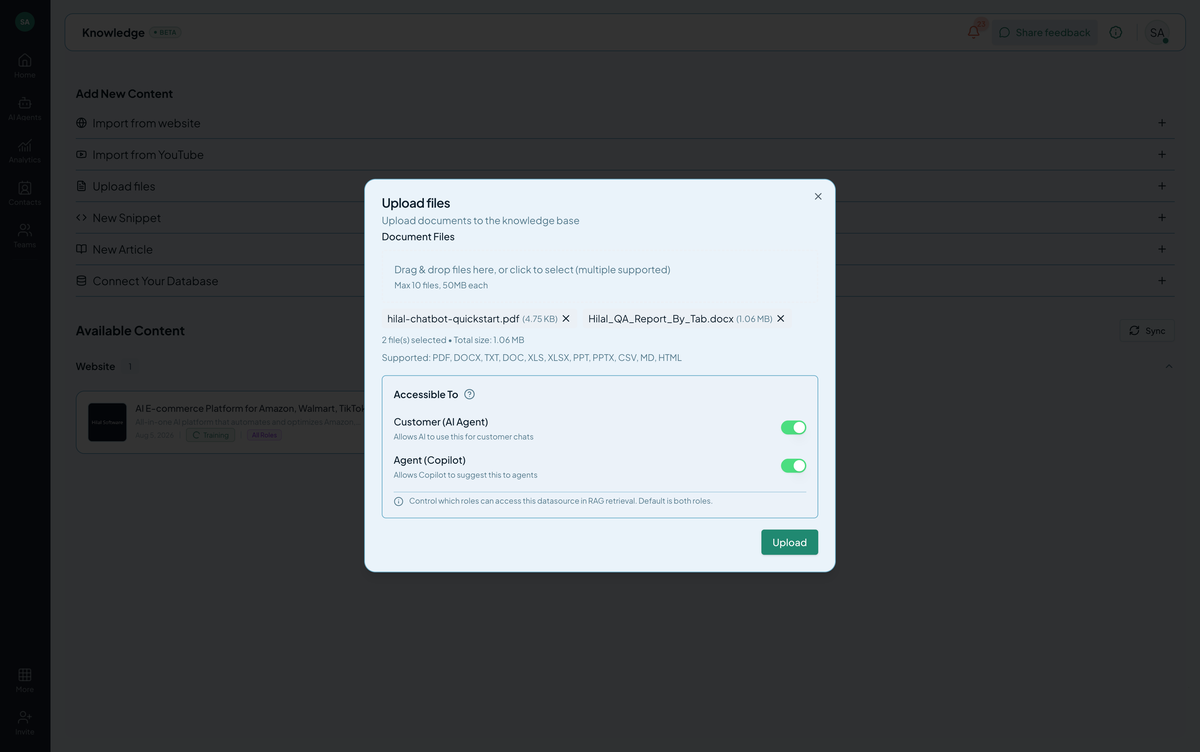 Screenshot: The document upload dropzone with a file selected.
Click Add. The file uploads, the backend extracts text, and training begins.
Step 2: Upload many at once
Select multiple files in the file browser (Cmd/Ctrl-click on macOS / Windows). Each becomes its own source — they show up as separate rows so you can manage them independently.
Filename becomes the source title. Rename later by editing the source.
Step 3: Verify extraction
After status reaches trained, click the source row. You’ll see:
- Filename
- Page count (PDFs) or word count
- A preview of the first extracted text — your sanity check that the document came through readably
Step 4: Update a document
Documents are immutable in storage — to update, delete the old source and upload the new file. There’s no in-place edit (unlike Snippets and articles).
Troubleshooting
- “No text extracted.” Likely a scanned/image PDF. Run through an OCR tool (Adobe Acrobat, ABBYY, or open-source
ocrmypdf) first. - Tables look garbled. Complex multi-column or nested tables don’t always extract cleanly. Convert to a simpler format or save the table as a CSV/text export.
- File too large. Split into sections at chapter boundaries.