Sync Google Drive
Google Drive sync turns a Drive folder into a knowledge source. Files in that folder train automatically; new files appear, deleted files drop out.
In this guide:
- Connect a Google account
- Pick a folder
- What gets synced
- Disconnect or change scope
Step 1: Connect a Google account
Open Knowledge base → Add knowledge source → Google Drive.
If this is the first time, you’ll be redirected to Google’s OAuth screen to grant Hilal Chatbot read-only access to your Drive. We never request write or share permissions.
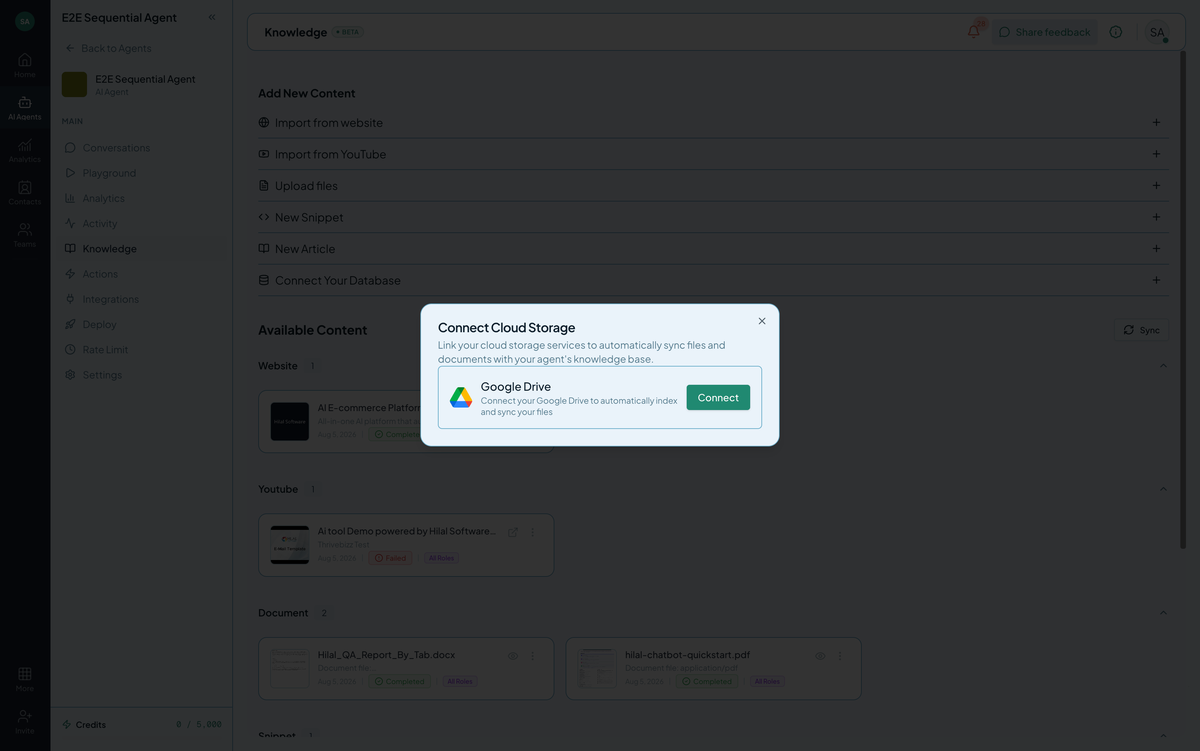 Screenshot: The Google Drive folder picker after OAuth.
After granting access, you’re redirected back to the source modal.
Step 2: Pick a folder
The picker shows your Drive folders. Select one. The bot will train on every supported file in that folder (and its subfolders, configurable).
Supported file types:
- Google Docs
- Google Sheets (text content; complex spreadsheets extract poorly — see Limitations)
- Google Slides
- PDF, DOCX, TXT, DOC, XLS, XLSX, PPT, PPTX, CSV, MD, HTML (treated as if uploaded directly)
Click Add.
Step 3: Watch initial sync
The first sync indexes every file. A folder with 20 docs typically completes in 2–5 minutes. Status mirrors a single source — you’ll see one Drive row that aggregates the whole folder.
What gets synced
Files in the selected folder, recursively. Files outside the folder, files in shared drives you don’t own (depending on permissions you granted), and unsupported file types are skipped.
Step 4: Ongoing sync
Drive sources stay current automatically. When you:
- Add a file → indexed on next sync.
- Edit a file → re-indexed on next sync.
- Delete a file → removed from the index.
Default sync cadence is daily.
Step 5: Disconnect
To revoke access, open the source row → Disconnect. Your Google credentials are removed from Hilal Chatbot. You can also revoke from your Google Account settings — disconnects there propagate.
Limitations
- Complex spreadsheets: cells, formulas, and charts don’t extract cleanly. For spreadsheet content, export to CSV/TXT and upload as a Document.
- Read-only: the bot can’t modify Drive files. (For an action that creates a Drive file, you’d build a custom AI action — separate feature.)
- Folder size: very large folders (10k+ files) may take an hour to do an initial sync. Re-syncs are incremental.
Troubleshooting
- OAuth never returns. Pop-up blocker likely; allow pop-ups for the Hilal Chatbot domain and try again.
- Google says “access denied.” Your Google Workspace admin may restrict third-party apps. Ask them to allow Hilal Chatbot, or use a personal account.
- Some files missing from index. Check that the file types are supported and you have read access. Files restricted by sharing rules don’t sync.