YouTube transcripts
If you have product walkthroughs, tutorials, or webinars on YouTube, Hilal Chatbot can use the transcript as a knowledge source. The bot won’t watch the video — it’ll cite the transcript text.
In this guide:
- Add a YouTube source
- What gets extracted
- Limitations
- Troubleshooting
Step 1: Add the source
Open Knowledge base → Add knowledge source → YouTube.
Paste the YouTube video URL.
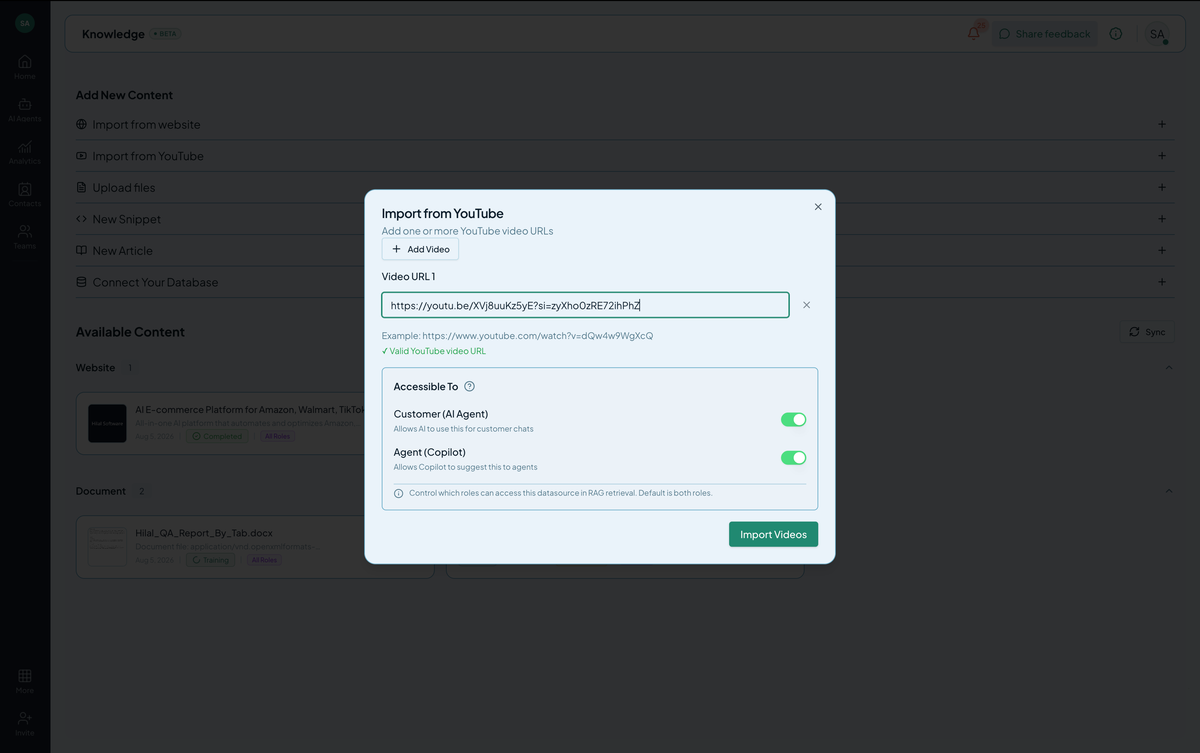 Screenshot: The YouTube source input with a video URL.
Click Add. Hilal Chatbot fetches the official transcript (auto-generated or human-uploaded), processes it, and trains.
What gets extracted
- The transcript text — what’s said in the video.
- The video title and channel name as metadata (for citation context).
What’s not extracted:
- Visual content. The bot can’t describe what’s on screen.
- Diagrams or code shown but not narrated.
- Music or non-speech audio.
Limitations
- Only public videos. Private or unlisted videos can’t be fetched. Either make the video public, or download the transcript and upload it as a text Document.
- Only videos with transcripts. If the channel has disabled auto-captions and not uploaded one, there’s nothing to extract.
- One video per source. To train on a playlist, add each video as a separate source. (For 10+ videos, consider exporting transcripts in bulk and uploading as documents.)
Tips
- Curate, don’t dump. Adding 50 videos worth of transcripts will dilute the index. Pick the few that truly answer customer questions.
- Pair with metadata. Add a Snippet that summarizes each video — helps the bot decide when to cite it.
Troubleshooting
- “No transcript available.” The video has no captions. The bot can’t extract anything.
- Transcript looks garbled. YouTube auto-captions can be inaccurate, especially for technical or non-English content. If the auto-caption is bad, your bot’s answers will be too.
- Wrong video extracted. Re-check the video ID — copy directly from the YouTube URL.