Roles & permissions
Hilal Chatbot uses a two-tier permission model: a small set of roles for everyday assignment, plus a flexible feature × action matrix for fine control.
In this guide:
- The three roles
- Feature × action matrix
- How roles map to permissions
- Per-chatbot overrides
- Best practices
The three roles
| Role | Best for |
|---|---|
| Owner | The 1–2 people responsible for the org. Can do everything, including delete the organization. |
| Admin | Operations leadership. Full feature access except deleting the org. |
| Member | Everyone else. Use chatbots, see conversations they have access to, basic feature use. |
A new organization has one Owner — the person who created it. Add more from Settings → Members.
Feature × action matrix
Under the hood, every action in Hilal Chatbot has a feature and an action verb:
FEATURES.CHATBOT × ACTIONS.READ // see chatbots
FEATURES.CHATBOT × ACTIONS.CREATE // create chatbots
FEATURES.CHATBOT × ACTIONS.UPDATE // edit chatbots
FEATURES.CHATBOT × ACTIONS.DELETE // delete chatbots
FEATURES.DATASOURCE × ACTIONS.CREATE // add knowledge
FEATURES.BILLING × ACTIONS.UPDATE // change plan
FEATURES.MEMBERS × ACTIONS.INVITE // invite teammates
... and so on for every feature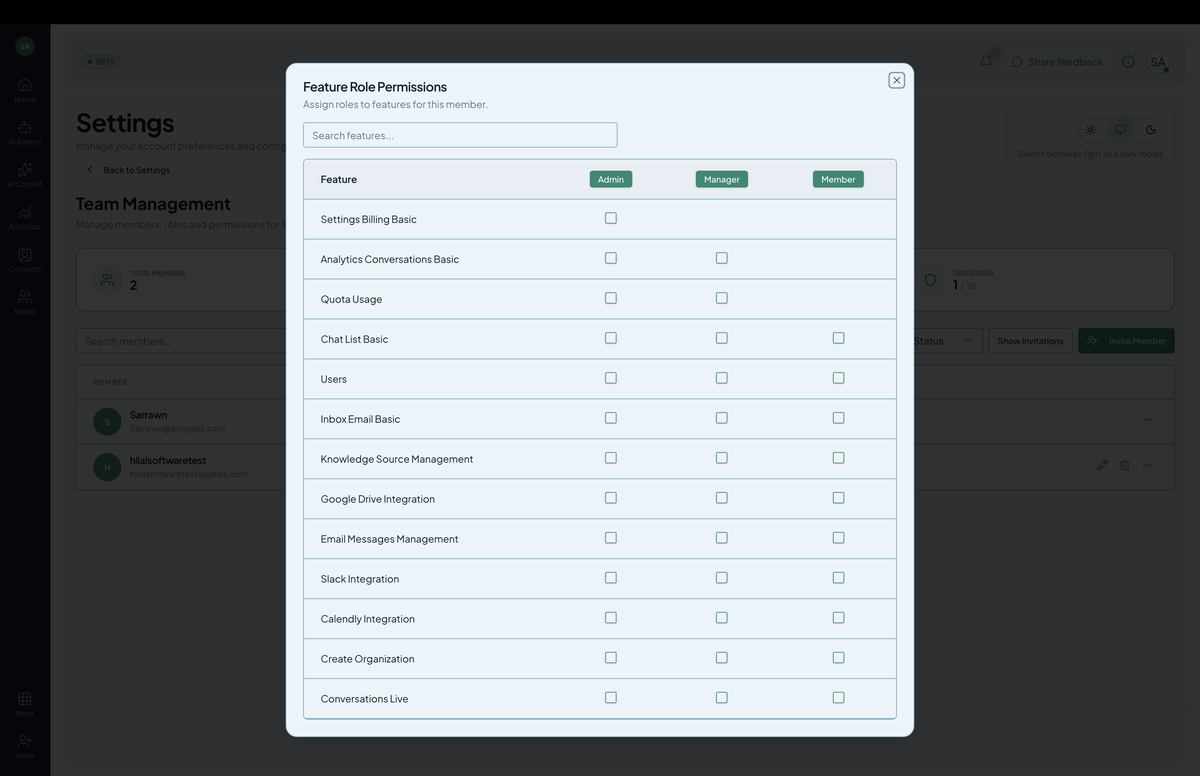 Screenshot: The roles matrix showing which actions each role can perform.
How roles map to permissions
| Feature | Owner | Admin | Member |
|---|---|---|---|
| Chatbot management | All | All | Read + Test |
| Knowledge base | All | All | Read |
| Conversations | All | All | Read + Respond |
| Contacts | All | All | Read |
| Analytics | All | All | Read |
| Members | All | All except Owner-promote | Read |
| Billing | All | All | Read |
| Integrations | All | All | Read |
| Webhooks | All | All | Read |
| Org settings | All | Most | Read |
| Delete organization | Yes | No | No |
The matrix above is the default. Custom permissions can override on Enterprise plans.
Per-chatbot overrides
Beyond org roles, you can grant or restrict access on individual chatbots.
Examples:
- A Member can be
read-only on most bots andupdateon one specific bot they own. - An Admin can be denied access to a specific chatbot for confidentiality reasons.
Per-chatbot rules can only narrow, never broaden — a Member can’t get delete on a chatbot via per-chatbot permissions.
How permissions are enforced
- UI hides features the current user can’t access (e.g., the Create button doesn’t appear if you don’t have
agent.create). - API returns 403 for unauthorized requests.
- Audit log records denials for review.
Permission caching
Permissions are cached in your browser session for performance. After a role change, the affected user may need to refresh once for the change to take effect — the system tries to invalidate proactively, but a hard refresh is the universal fix.
Best practices
- Two Owners minimum. Solo Owner = lockout risk if they leave.
- Default new hires to Member. Promote when needed.
- Use per-chatbot permissions sparingly. They’re powerful but easy to forget about.
- Review the Members list quarterly. Remove people who left.
- For agency / consulting: give clients per-chatbot read access only. Keep them out of org settings.
SSO group mapping (Enterprise)
If you’re using SSO with SAML/OIDC, you can map IdP groups to roles:
- IdP group
chatbot-owners→ Hilal Owner. - IdP group
chatbot-admins→ Admin. - All other authenticated users → Member.
Configure in Settings → SSO.