Prompt templates
The Playground gives you a Behavior instructions box to write your agent’s system prompt. Edit it, send a few messages to test, then save back to production via Behaviour Settings.
In this guide:
- The Behavior instructions field
- Writing your instructions
- Save back to production
The Behavior instructions field
Every agent has a Behavior instructions box in the Playground. On a new agent it starts empty, with placeholder example text to guide you:
e.g. Be warm and concise. Always greet the customer by name.
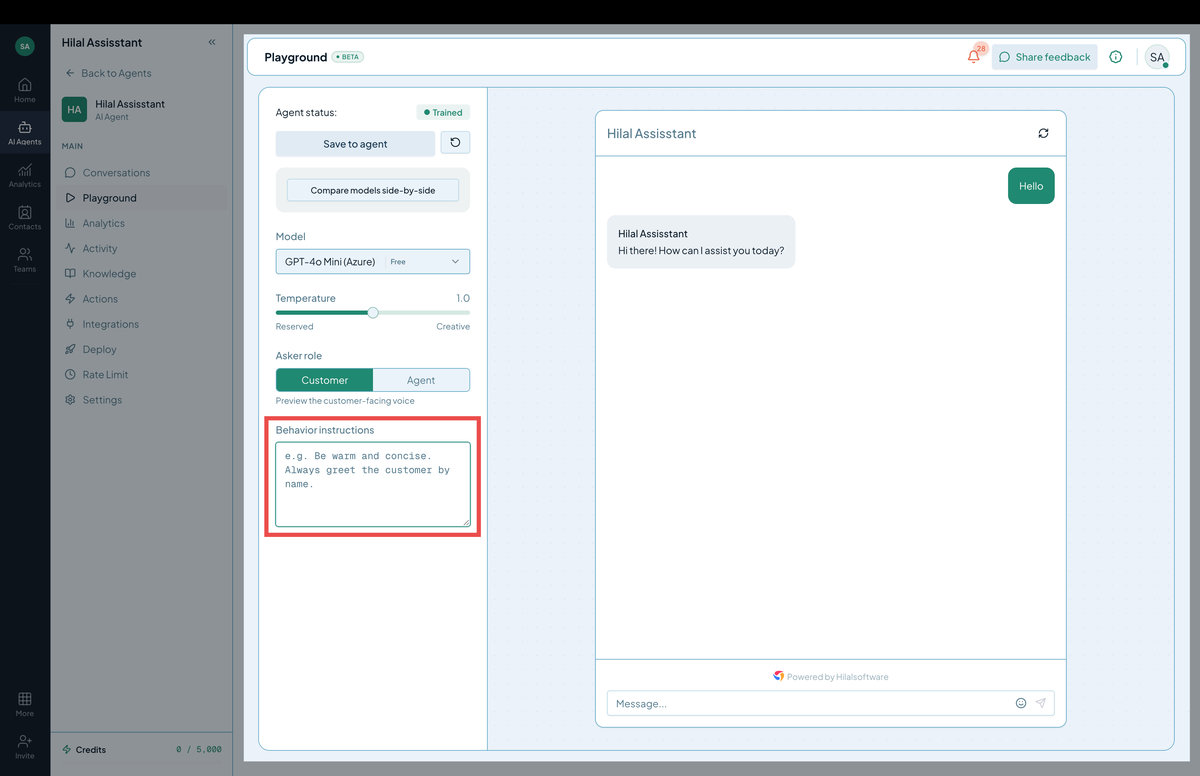 Screenshot: The empty Behavior instructions box with placeholder text.
Once an agent has been configured and saved, this box holds its actual instructions — for example, an agent might be set up with a structured prompt like:
- Role & Scope You are a support assistant that answers exclusively using the content in the uploaded knowledge base for this …
Step 1: Write your instructions
Type directly into the Behavior instructions box:
- Add product-specific context: company name, industry, user role.
- Add hard rules: never share account info without verification, never discuss competitors, escalate on the keyword “human.”
- Adjust tone: formal vs. casual.
Use Asker role (Customer / Agent) above the box to preview how the agent responds from each perspective.
See Behaviour Settings for the full structure of a good system prompt.
Step 2: Test it
Send a few messages in the chat preview on the right to see how the agent responds with your instructions. Use Compare models side-by-side if you want to test the same instructions against multiple models before saving.
Step 3: Save back to production
When the instructions are producing the answers you want, click Save to agent. This updates the chatbot’s production Guidelines. The reset icon next to it discards unsaved changes and reverts to what’s currently live.