Test conversations
The Playground is the fastest way to verify quality. It chats with your bot using the same backend as production but doesn’t show up in conversation analytics or affect end-users.
In this guide:
- Open the Playground
- Send messages and read replies
- Adjust model and temperature
- Save settings to production
- Clear history
Step 1: Open the Playground
On your chatbot detail page, click Playground in the left rail.
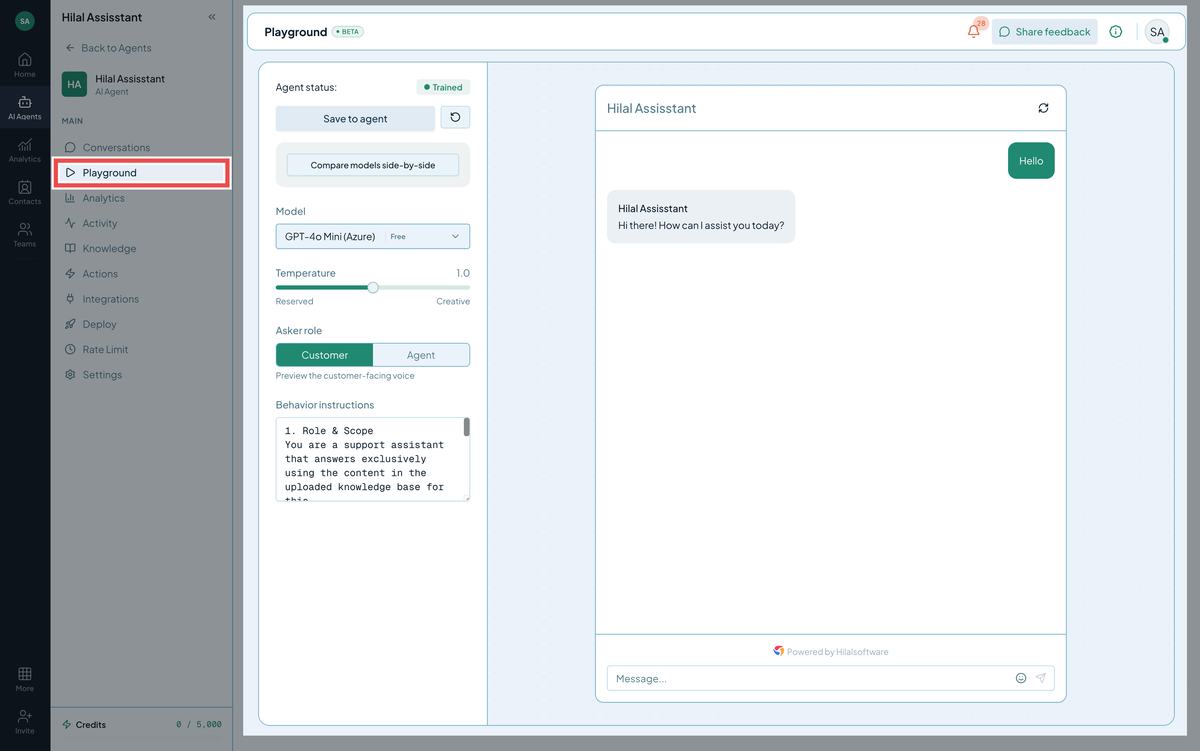 Screenshot: The Playground showing chat on the left and settings on the right.
Step 2: Send messages
Type a question and hit Enter. The bot replies with a typing indicator while it generates. Cite-able answers show inline source references — click any reference to see which knowledge source produced it.
A useful test sweep:
- A canonical question the bot should answer crisply.
- A follow-up that requires understanding the previous turn.
- An out-of-scope question the bot should refuse.
- A question worded unusually — synonyms, slang — to check retrieval breadth.
Step 3: Adjust model and temperature
The settings panel exposes:
- Model — pick the LLM. Bigger models cost more and are slower but understand nuance better; smaller models are fast and cheap.
- Temperature (0–2) — randomness. 0–0.3 for factual support; 0.7–1.0 for creative copy; above 1.5 only for brainstorming.
- System prompt template — see Prompt templates.
These changes apply to the next message in the Playground only. They do not affect production until you click Save as defaults.
Step 4: Save settings to production
When you’re happy with model + temperature + system-prompt combination, click Save as defaults. New production conversations will use these settings starting now. Existing conversations keep their original settings.
Tip: Don’t save until you’ve sent at least 5–10 test messages. Settings that look fine on one question often surprise you on another.
Step 5: Clear history
Click the trash icon (or Clear history) to wipe the test conversation and start fresh. The Playground also clears automatically when you switch chatbots or sign out.
Pro tips
- Test variations of customer language. Real users don’t ask the way you do. Type the way they do — fragments, typos, lowercase.
- Watch token usage. A reply that uses 1500 tokens is fine; one that uses 4000 is going to be slow and expensive in production. Tune
max tokensand prune knowledge if needed. - Re-test after every Guidelines change. Even a small system-prompt edit can shift behavior unpredictably.
Troubleshooting
- No reply, just spinner. Check Behavior → Response timeout. Or your selected model may be temporarily unavailable — switch and retry.
- Bot says “I don’t know” but the source is right there. Verify the source status is
trained(notpending). Re-phrase to use the same vocabulary as the source. - Bot replies sound generic. Your Behavior Instructions may be empty or contradictory. → Behaviour Settings