Shopify
Once the chatbot is created and customized, the next step is to install it on your website. Depending on your platform, you can choose either Shopify, WordPress or Custom for the integration.
After finalizing your chatbot setup, you will be redirected to a page that manages the installation process for both Shopify. This page allows you to configure and deploy the chatbot to your website.
Store Domain
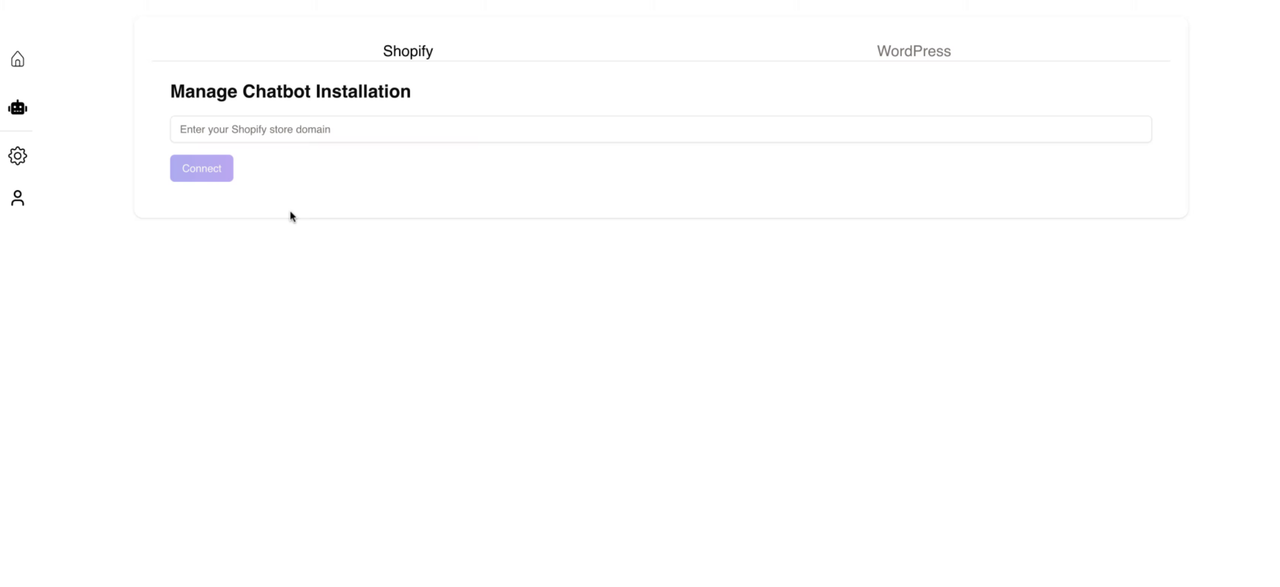
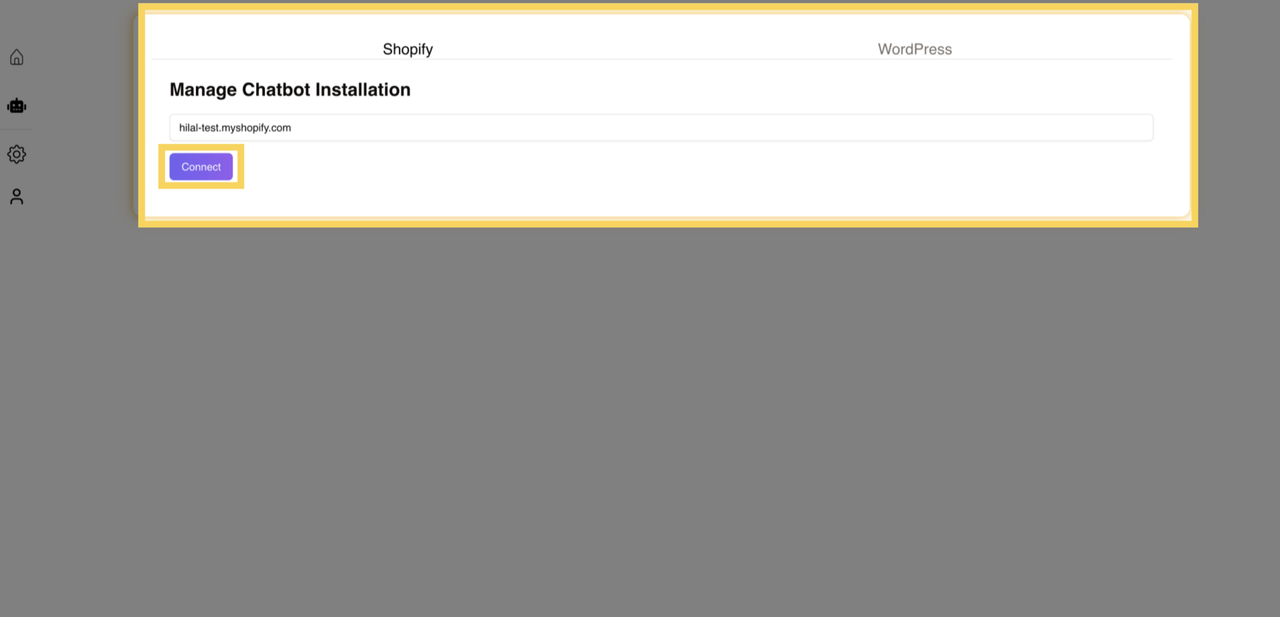
On the installation page, you’ll be prompted to enter your Shopify store domain. This is the URL of your store where the chatbot will be integrated.
After entering the domain, click Connect. This will initiate the connection between your chatbot and the Shopify store.
Grant Permissions
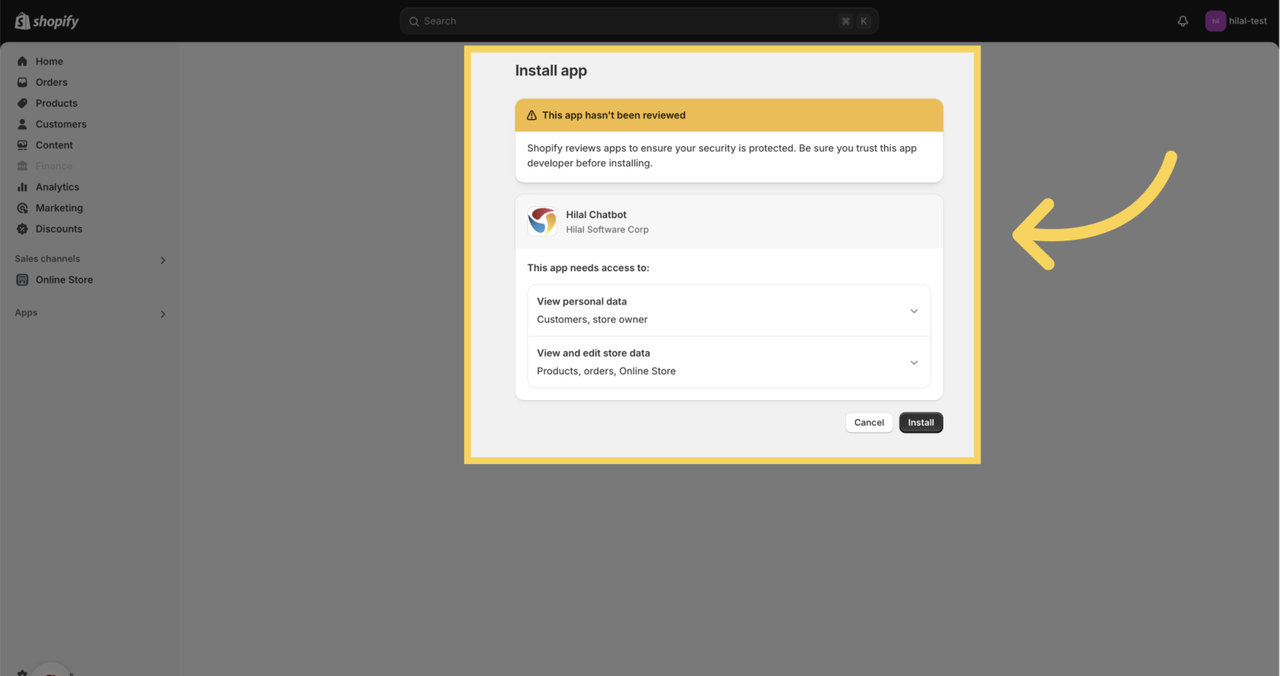
The chatbot will request access to certain data in your Shopify store, such as:
View Personal Data: This includes customer details and store owner information.
View or Edit Store Data: This includes access to product information, online store data, and related configurations.
Review the requested permissions. By agreeing to these permissions, you are allowing the chatbot to interact with your Shopify store’s backend and personalize the experience for customers.
Once you’ve reviewed the permissions and are satisfied, click Install to proceed with the installation. This will finalize the connection and deploy the chatbot to your store.
Managing Chatbot
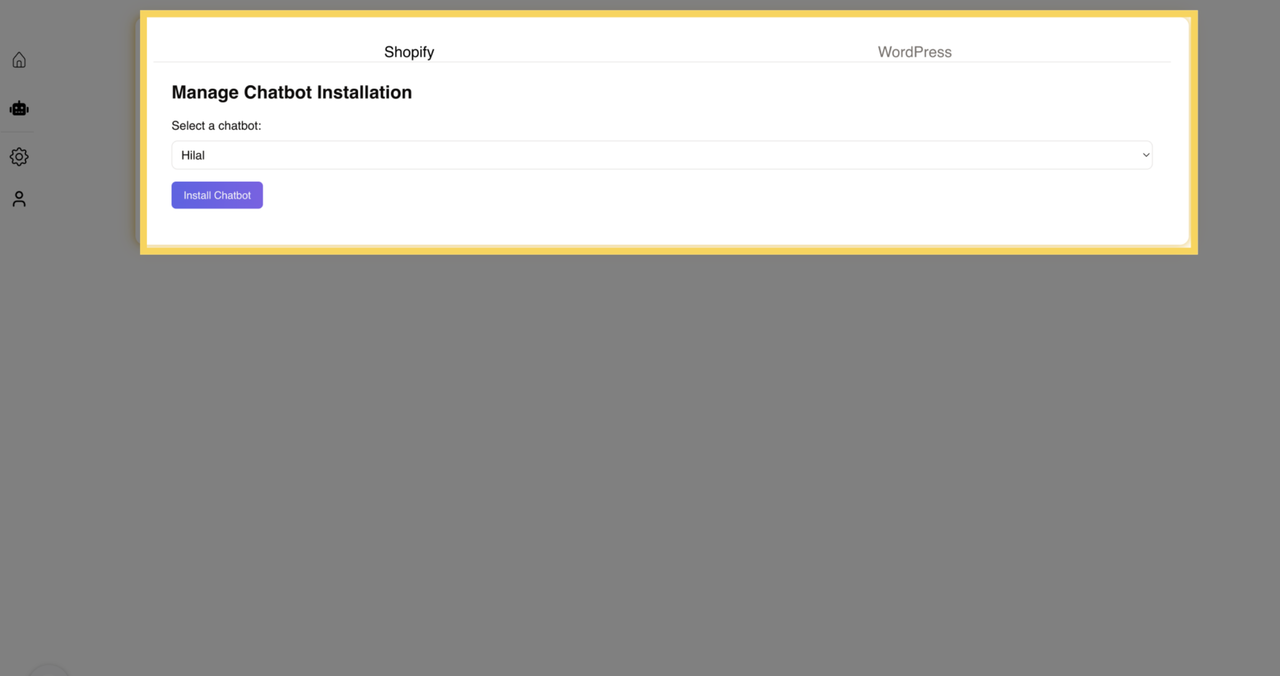
After the chatbot is installed, you will be prompted to manage chatbot installation. Here, you can select the specific chatbot you want to install from a list of available options.
- Select Desired Chatbot:
Choose the chatbot that you’ve configured earlier. This ensures that the correct version of your chatbot is deployed to your store.
Installation Complete
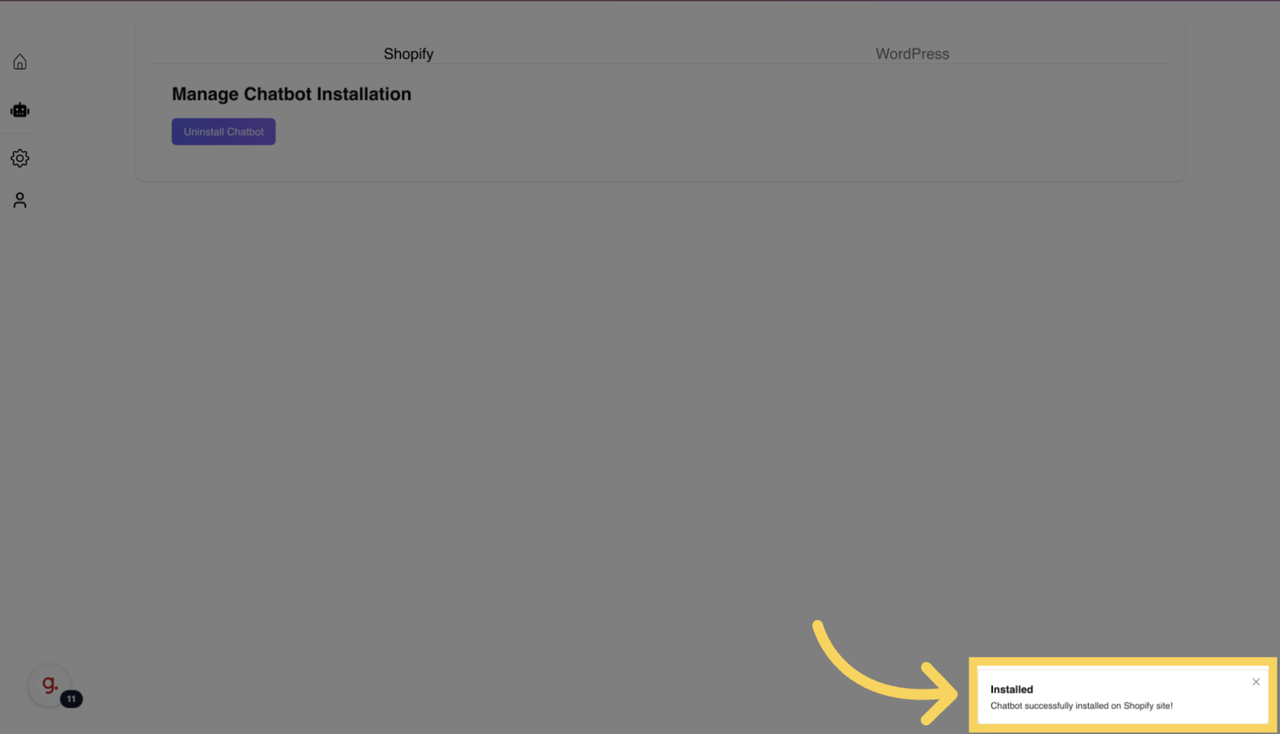
Once you’ve selected your chatbot and confirmed the setup, the installation is complete. The chatbot will now be live and visible on your Shopify store.
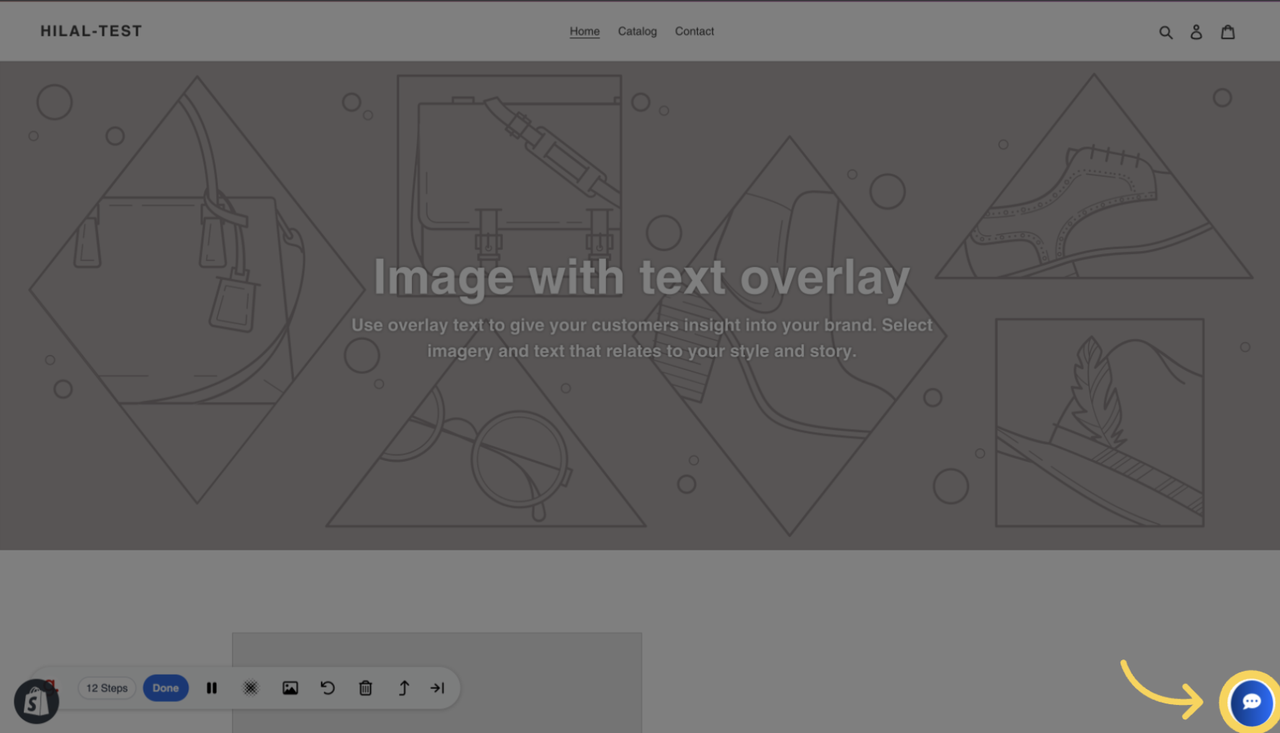
Viewing Chatbot on Store
Once installed, you can visit your store’s front end to verify that the chatbot is functioning as expected. The chatbot will be visible to customers, ready to assist with queries, product recommendations, and more.