Slack Integration
Connect your chatbot to Slack to answer questions, respond to mentions, and assist your team directly inside your workspace.
Once connected, your chatbot can reply to messages using your knowledge base — without leaving Slack.
What You Can Do with Slack Integration
After connecting Slack, your chatbot can:
- Respond when mentioned using @bot-name
- Answer questions in Slack threads
- Help teammates using your knowledge base
- Keep conversations organized and contextual
This makes it easy for teams to get answers without switching tools.
Before You Start
Make sure you have:
- A chatbot already created in the platform
- Permission to install apps in your Slack workspace
- Access to the Slack workspace you want to connect
Connecting Slack
Follow these steps to connect your chatbot to Slack.
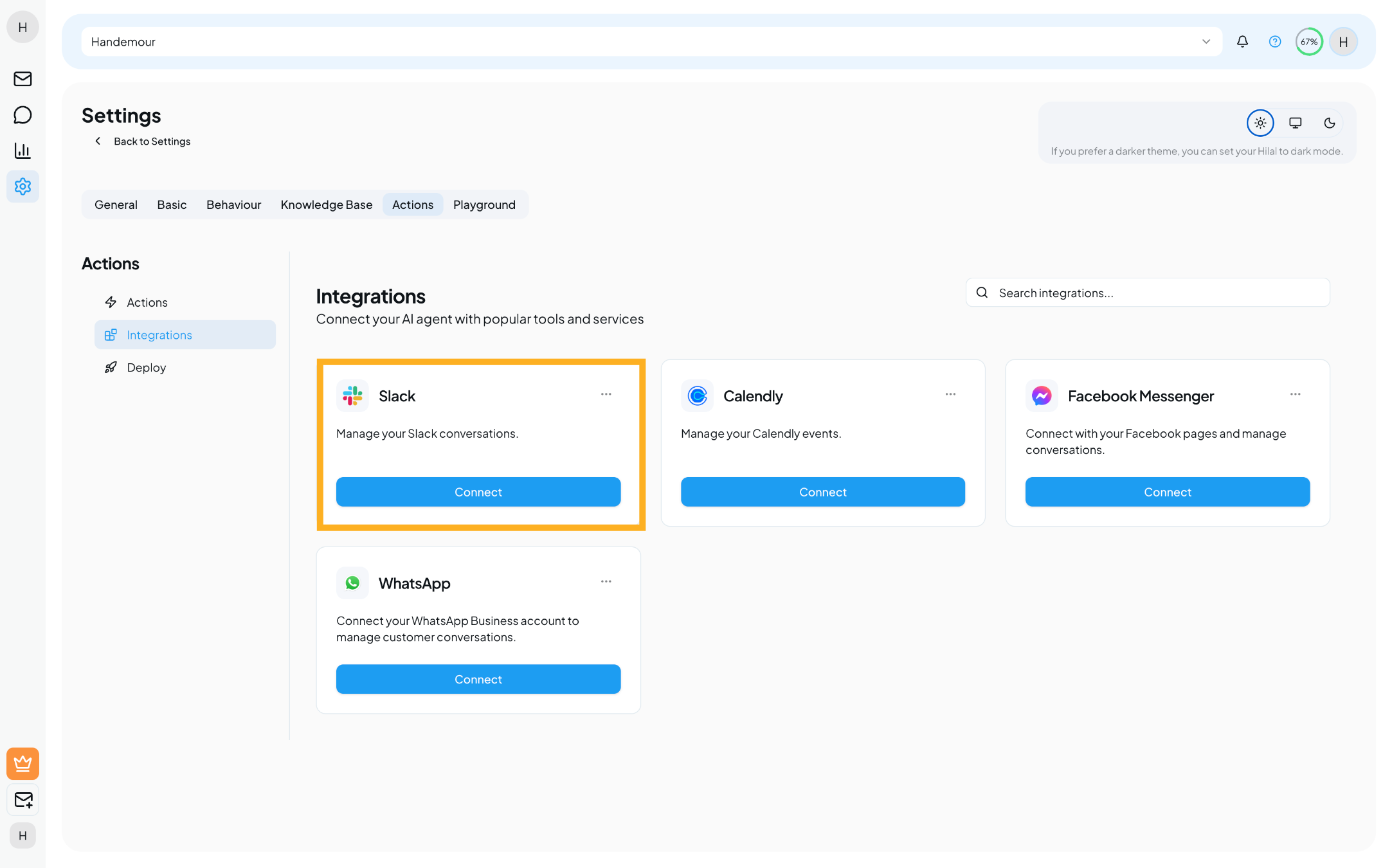
Step 1: Open Integrations
- Go to your chatbot
- Navigate to the Integrations section
- Find Slack
- Click Connect
Step 2: Choose Your Slack Workspace
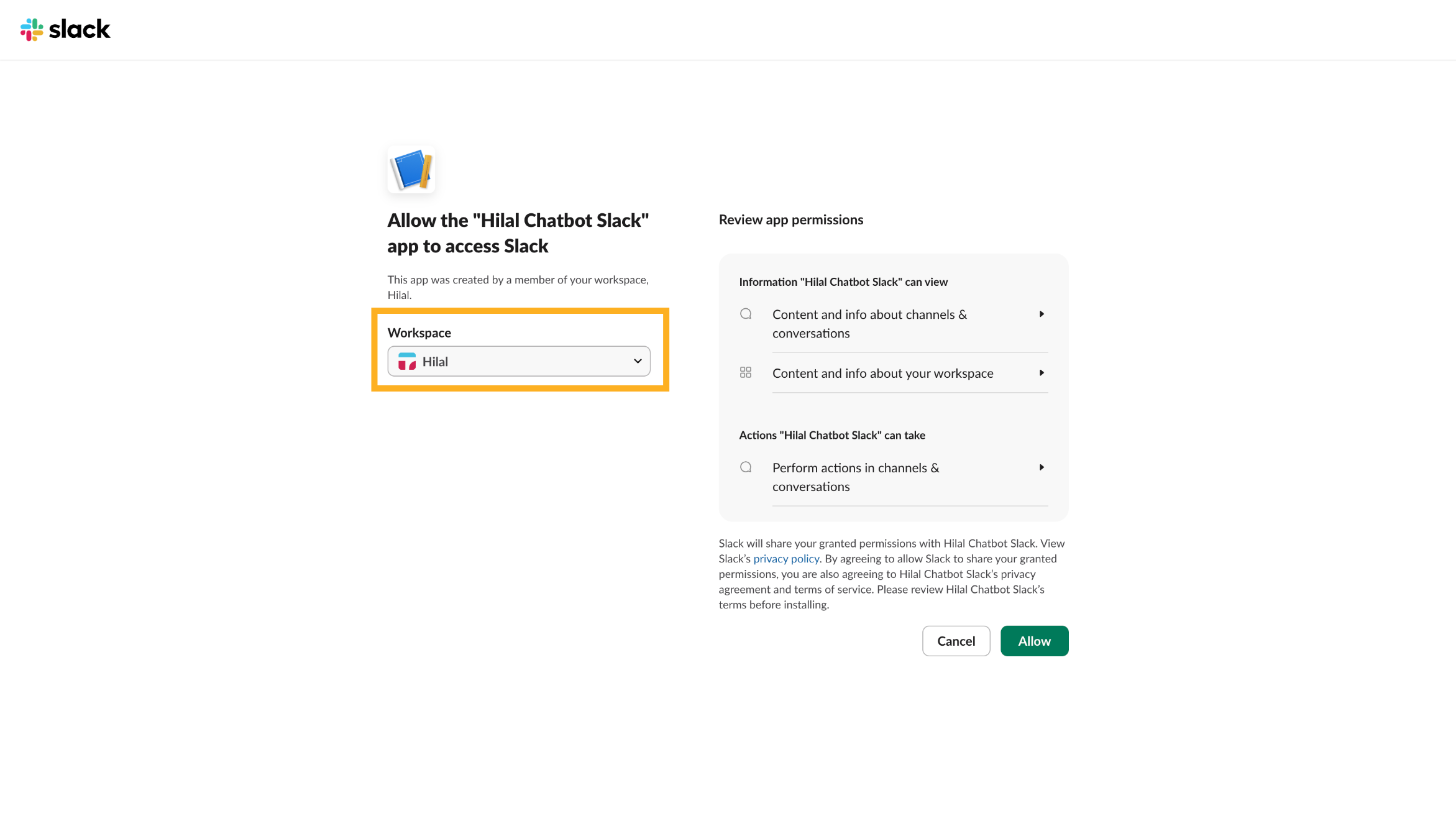
You’ll be redirected to Slack.
- Select the Slack workspace you want to connect
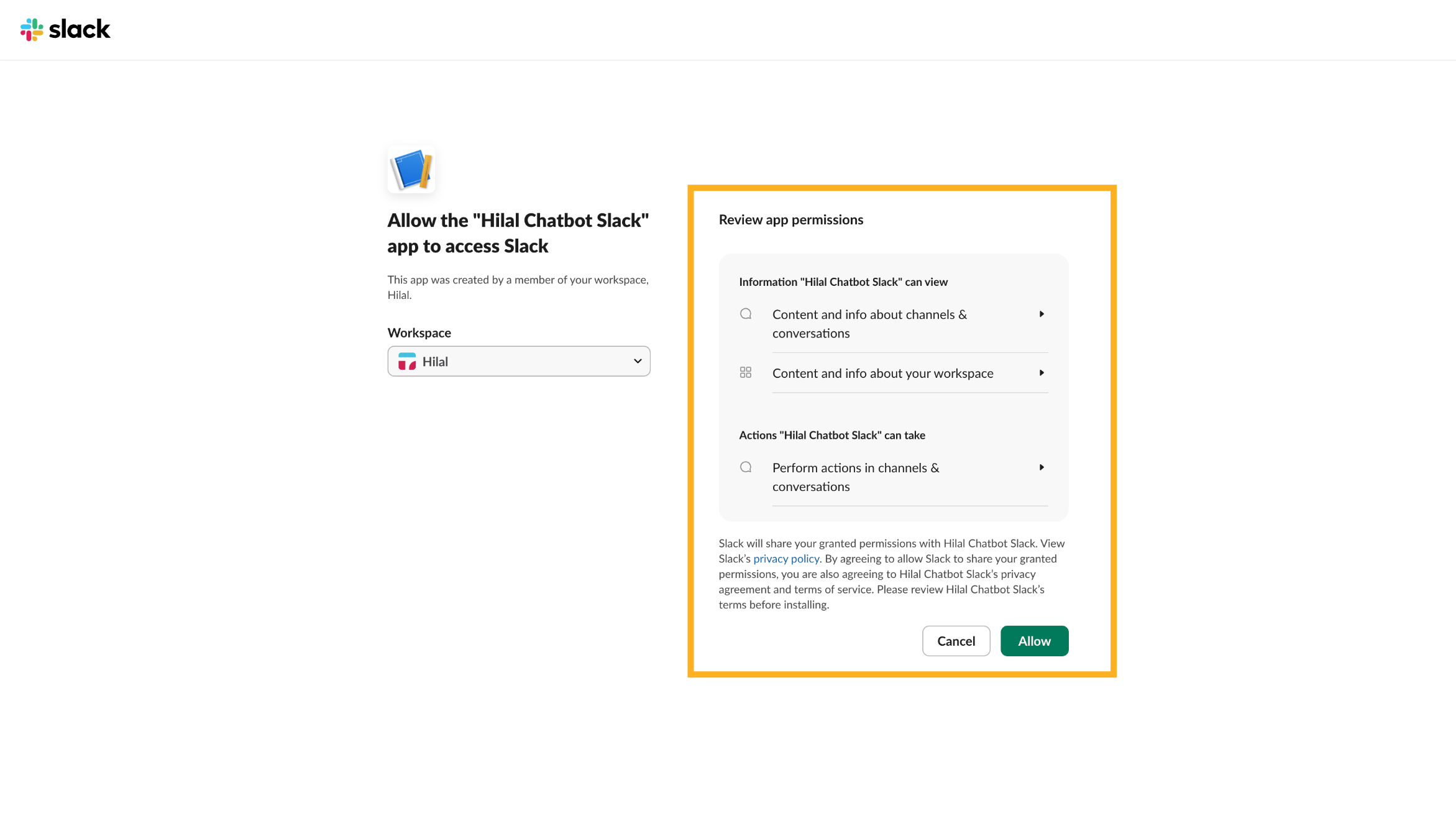
- Review the permissions requested by the chatbot
Slack will clearly show:
- What information the app can view
- What actions the app can perform
Step 3: Allow Access
Click Allow to complete the connection.
Once approved:
- The Slack workspace is connected
- The chatbot is installed in your workspace
- You’ll be redirected back to the platform
If you click Cancel, the integration will not be completed.
What Happens After Connecting?
After a successful connection:
- Your chatbot becomes available in the selected Slack workspace
- Team members can start interacting with it immediately
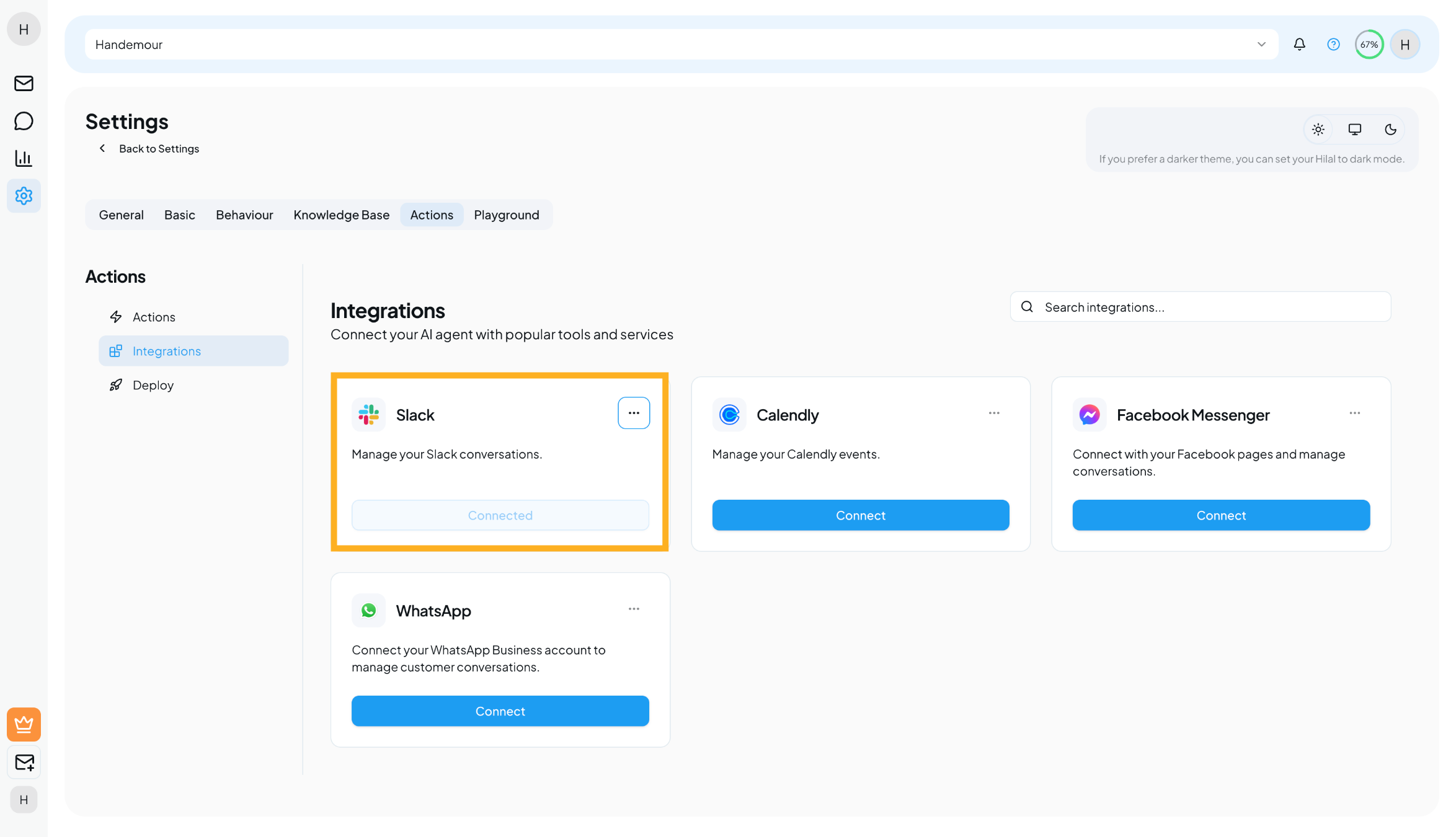
- The integration appears as Connected in the Integrations list
No additional setup is required to start using it.
How to Use the Chatbot in Slack
Mention the Bot in a Channel
In any channel where the bot is present, type:
@YourBotName Your question here
The chatbot will reply in a thread to keep conversations organized.
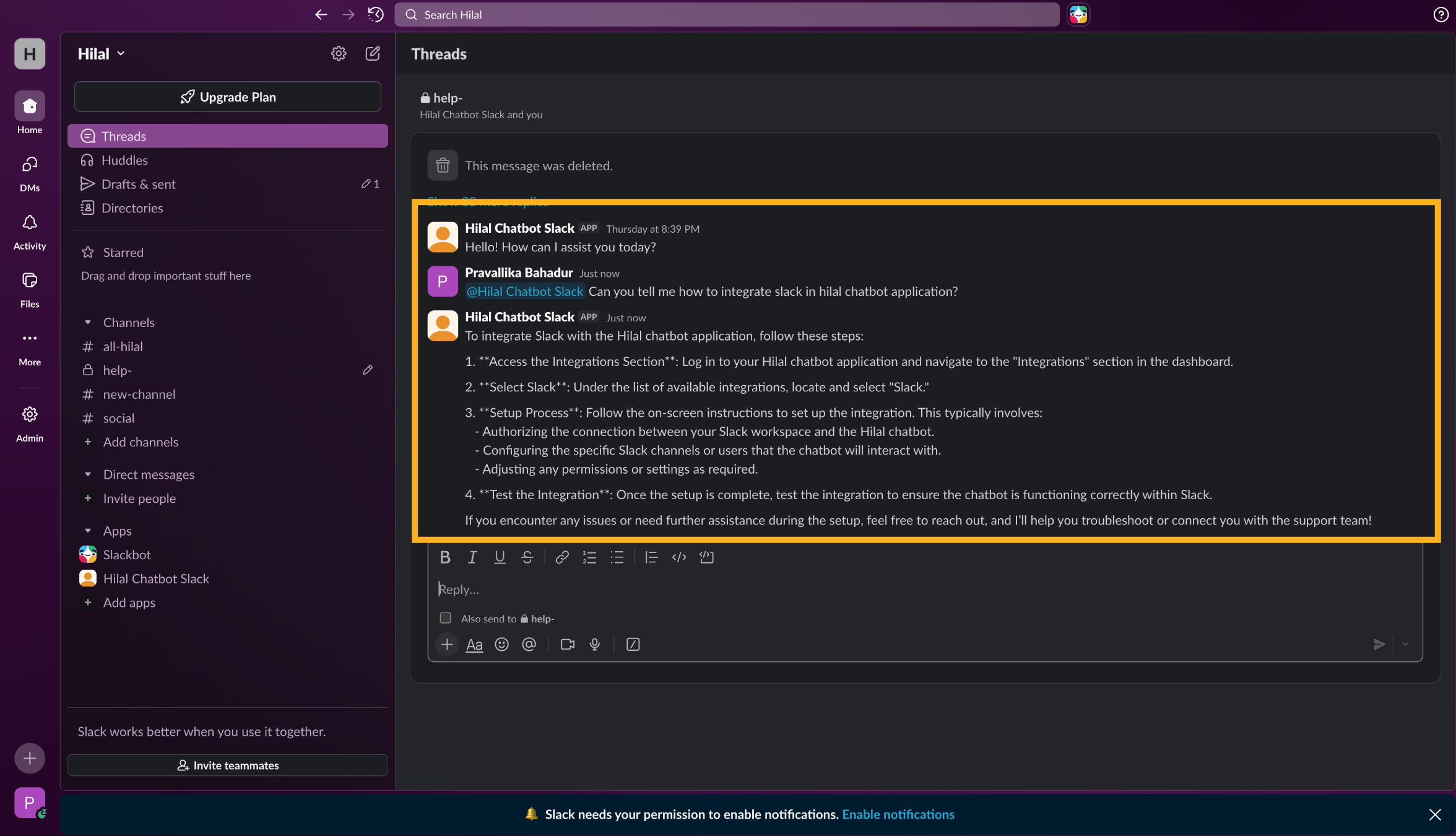
Continue the Conversation
Reply in the same thread to:
- Ask follow-up questions
- Get more detailed answers
- Maintain conversation context
Each thread is treated as a separate conversation.
Managing the Slack Integration
You can manage your Slack connection anytime from the Integrations section.
See whether the integration is:
- Connected
- Disconnected
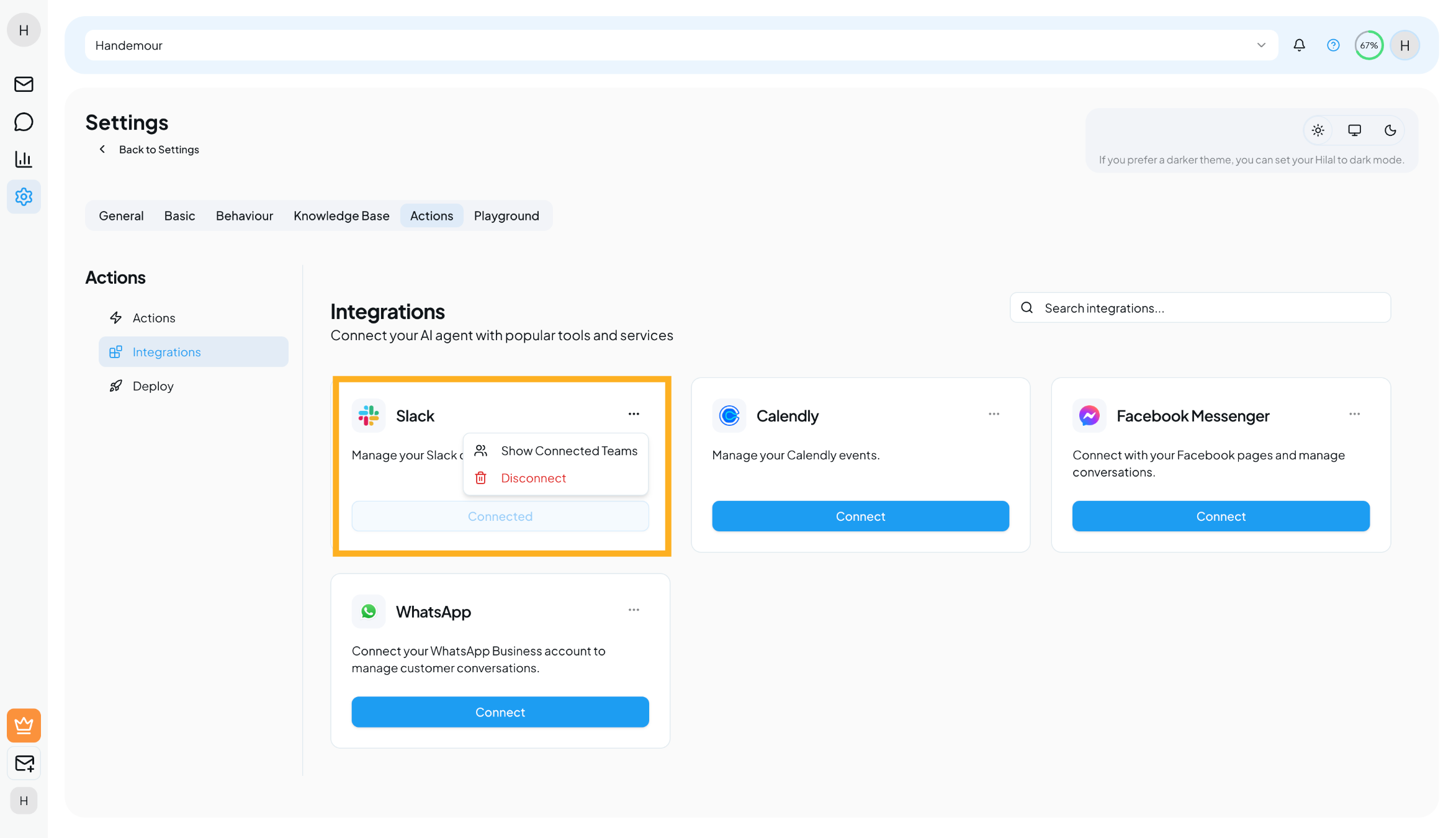
Disconnect Slack
If you no longer want the chatbot connected to Slack:
- Open Integrations
- Select Slack
- Click Disconnect
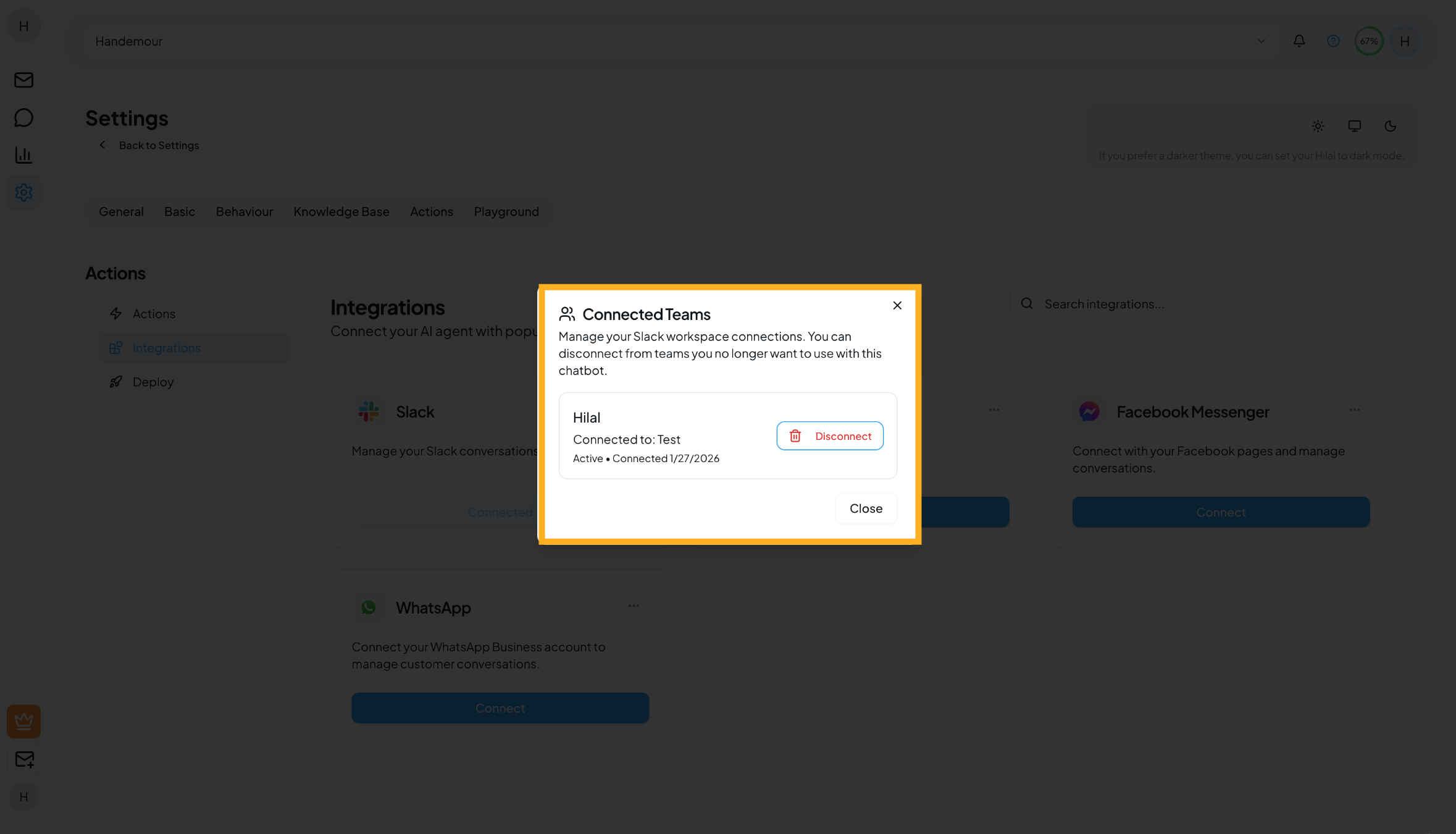
Once disconnected:
- The chatbot stops responding in Slack
- The Slack app access is revoked
You can reconnect at any time.
Best Practices
- Invite the bot only to relevant channels
- Use clear, direct questions for better responses
- Keep your knowledge base updated for accurate answers
- Use threads to keep conversations clean and readable
What’s Next?
After connecting Slack, you may want to:
- Improve responses by updating your Knowledge Base
- Test conversations in different channels
- Connect other integrations like Calendly or Google Drive