AI & Agent Support
Initiating the Chat for Assistance
When users need help or support, they can click on the Chat icon available on the website or platform.
This action opens the chatbot interface, designed with the theme and features you configured during setup.
Provide details to start the Live Chat
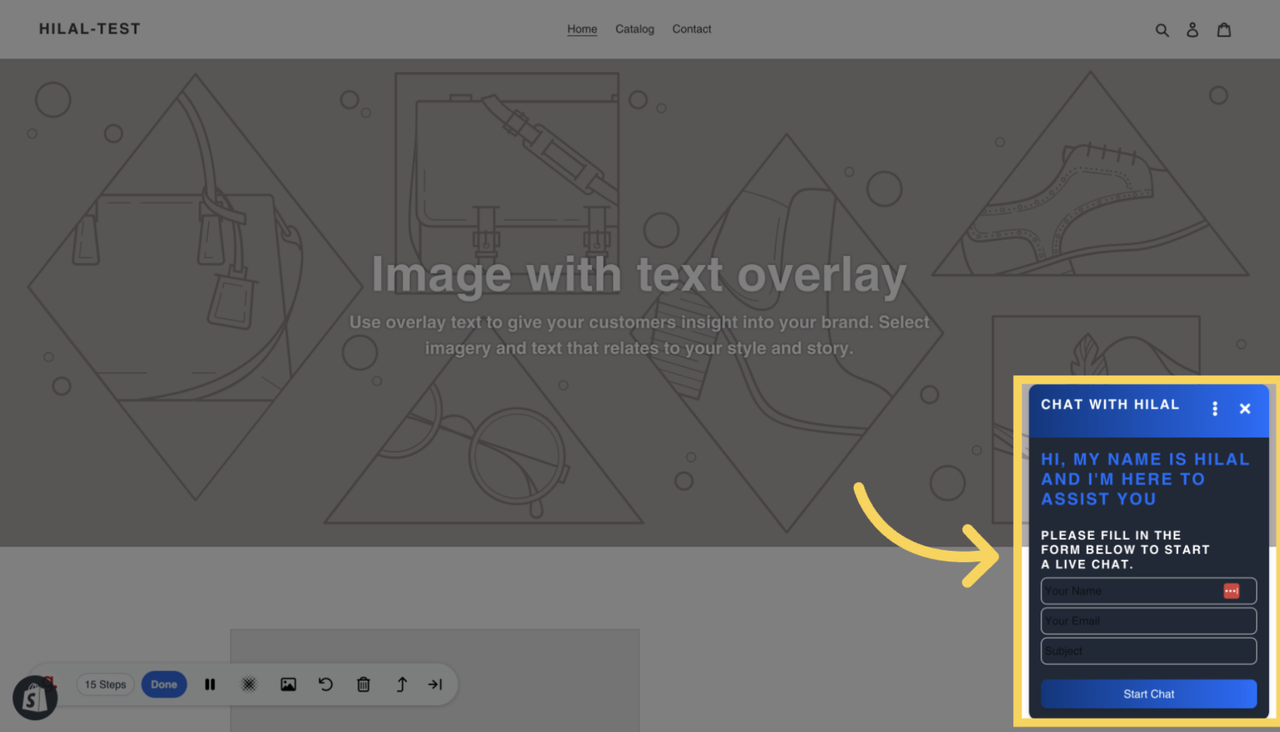
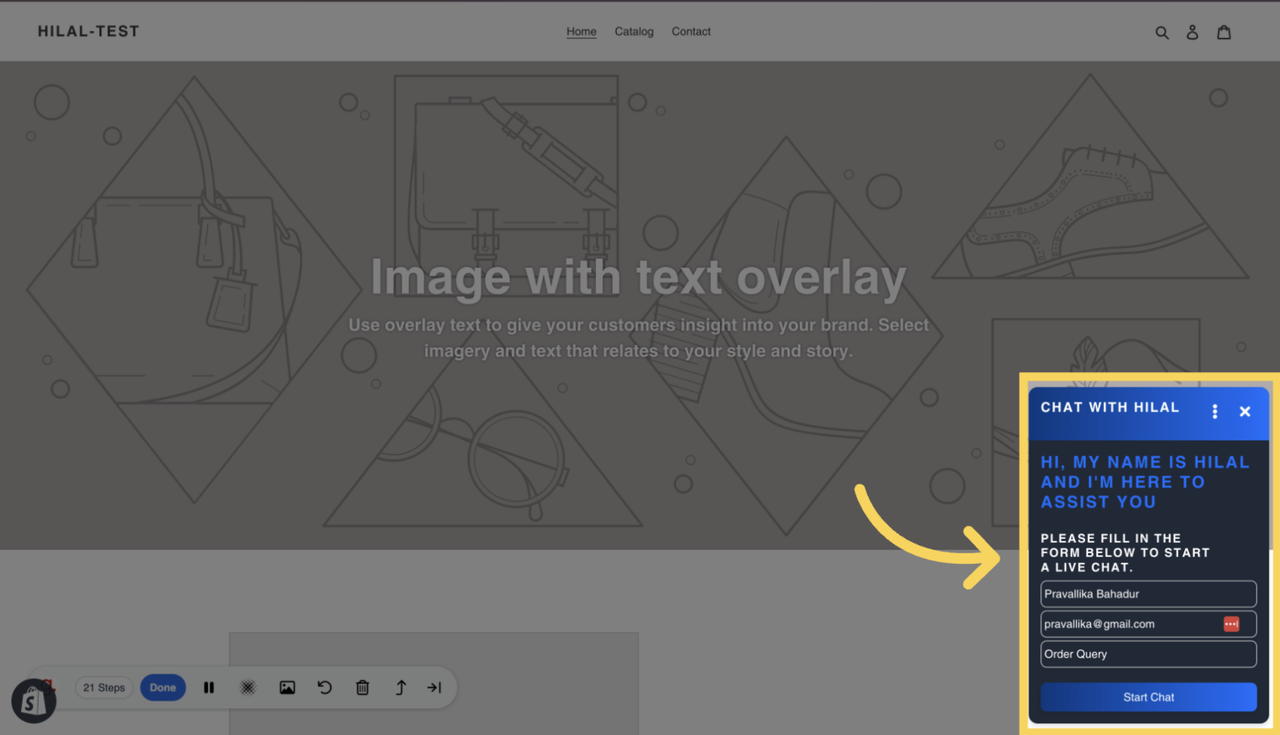
Before starting the conversation, users will be asked to provide some basic information:
Name: Enter your full name so the chatbot or human agent can address you properly.
Email: Provide a valid email address. This ensures follow-up communication if needed and helps keep a record of the interaction.
Subject: Describe what your query is about. For example, it could be related to a product, a service issue, or general inquiries.
Once all the details are filled out, click the Start Chat button to initiate the conversation.
Engaging with Chatbot
After starting the chat:
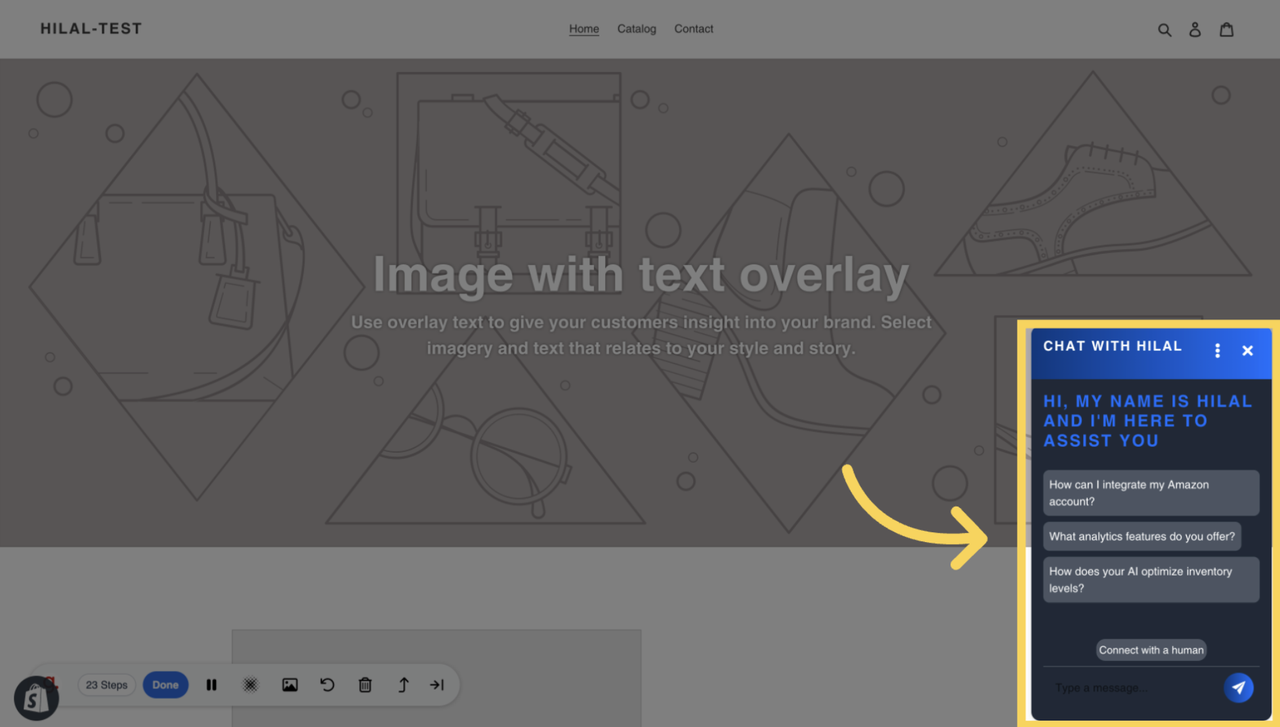
Welcome Message: You will be greeted by the chatbot with the welcome message configured during its setup.
Quick Reply Prompts: A list of predefined Quick Reply Prompts will be displayed. These options are designed to provide instant answers to common questions.
Selecting a Quick Reply Prompt:
Click on any of the quick reply options to receive instant assistance. The chatbot will respond with accurate and concise information based on your query.
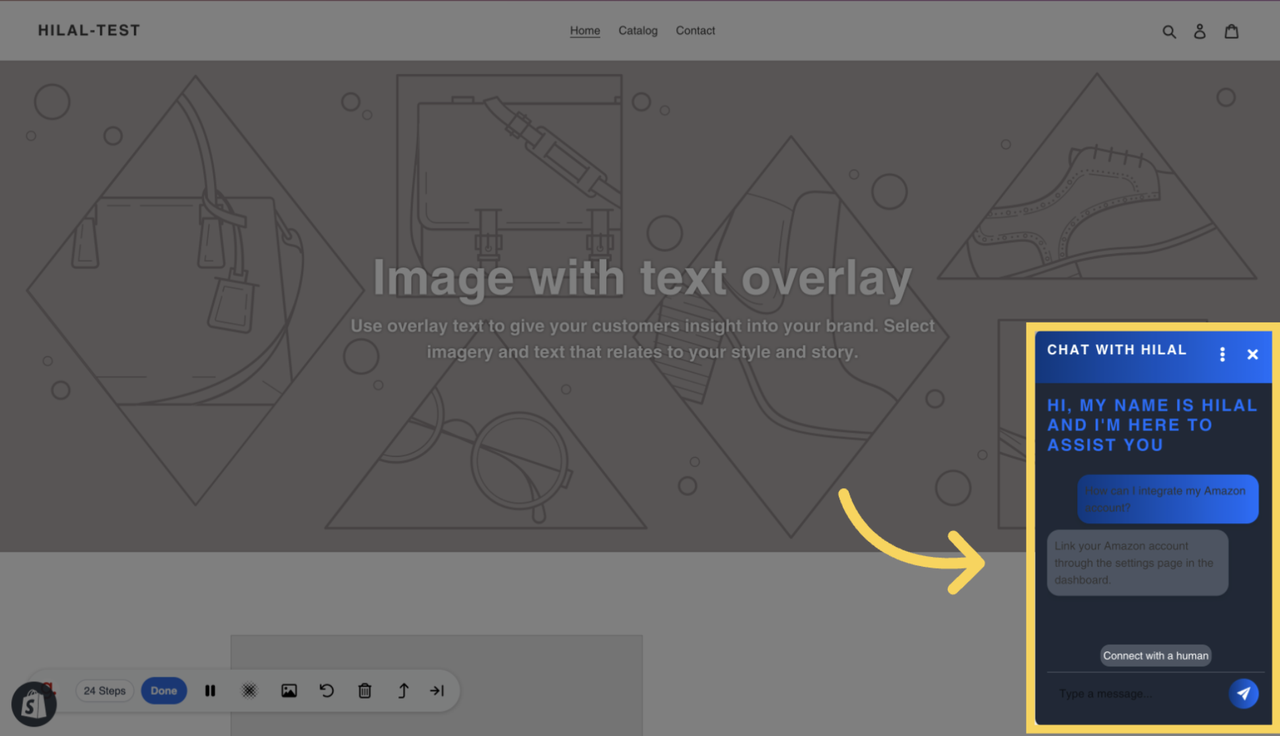
Connecting with a Human Agen
If the AI-powered assistance does not fully address your concern, you can click on the Connect with a Human option available in the chatbot interface.
Transition to a Live Agent:
The chatbot will transfer the chat session to a human agent, who will assist you further.Seamless Interaction:
The human agent will have access to the information you provided during the initial chat, ensuring a smooth and efficient transition.
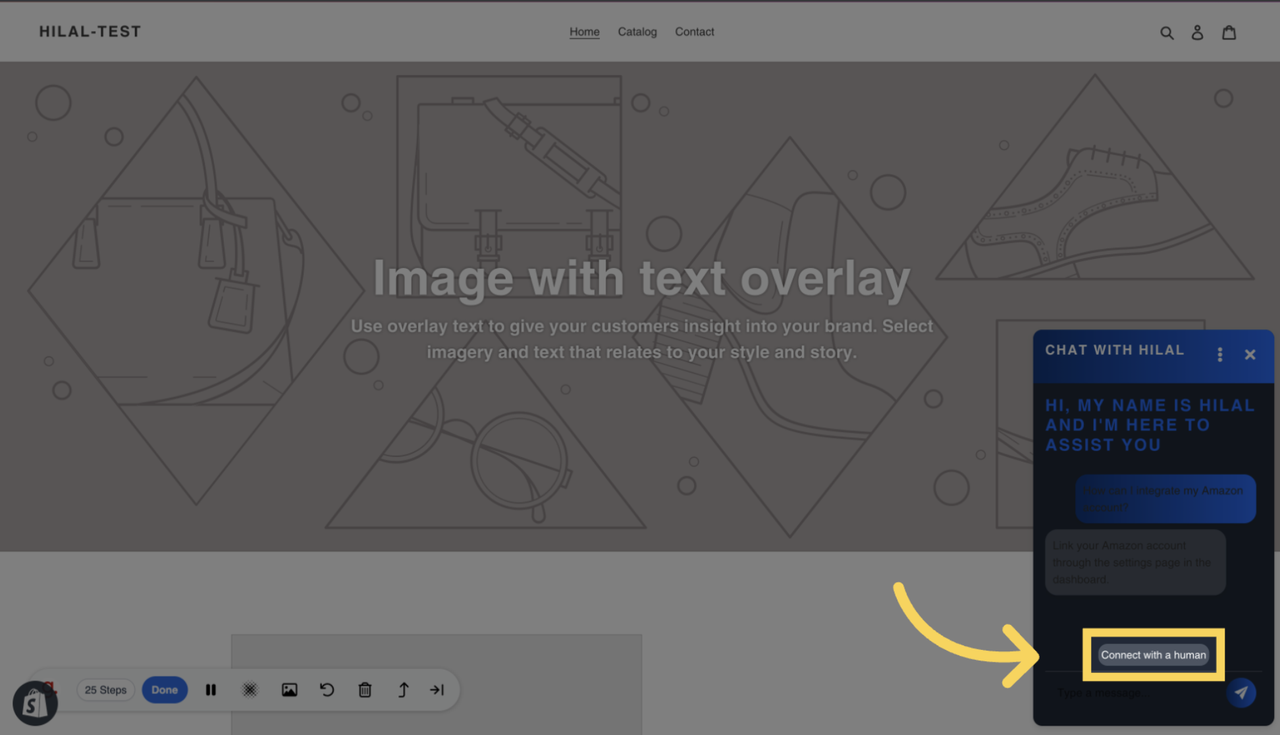
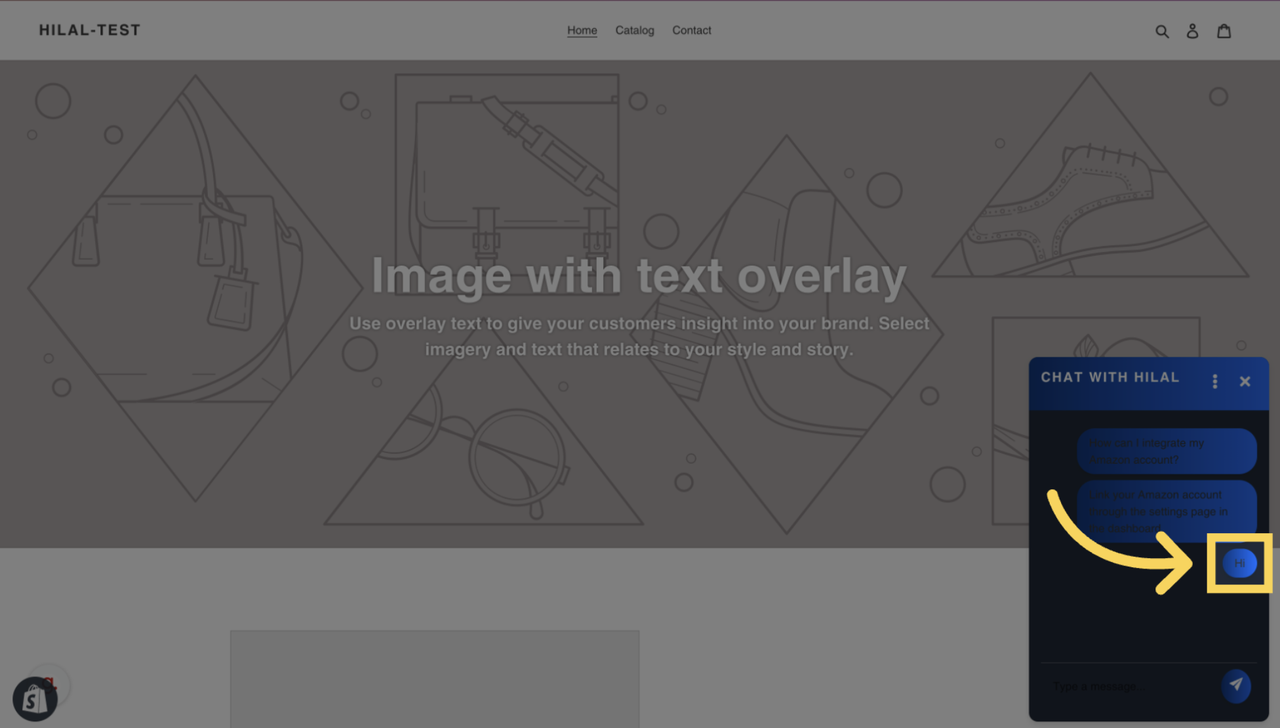
Sending Messages to the Human Agent
Once connected to a human agent, you can start typing your messages in the chat input box.
The agent will respond to your queries in real time, ensuring a personalized and detailed resolution to your issue.
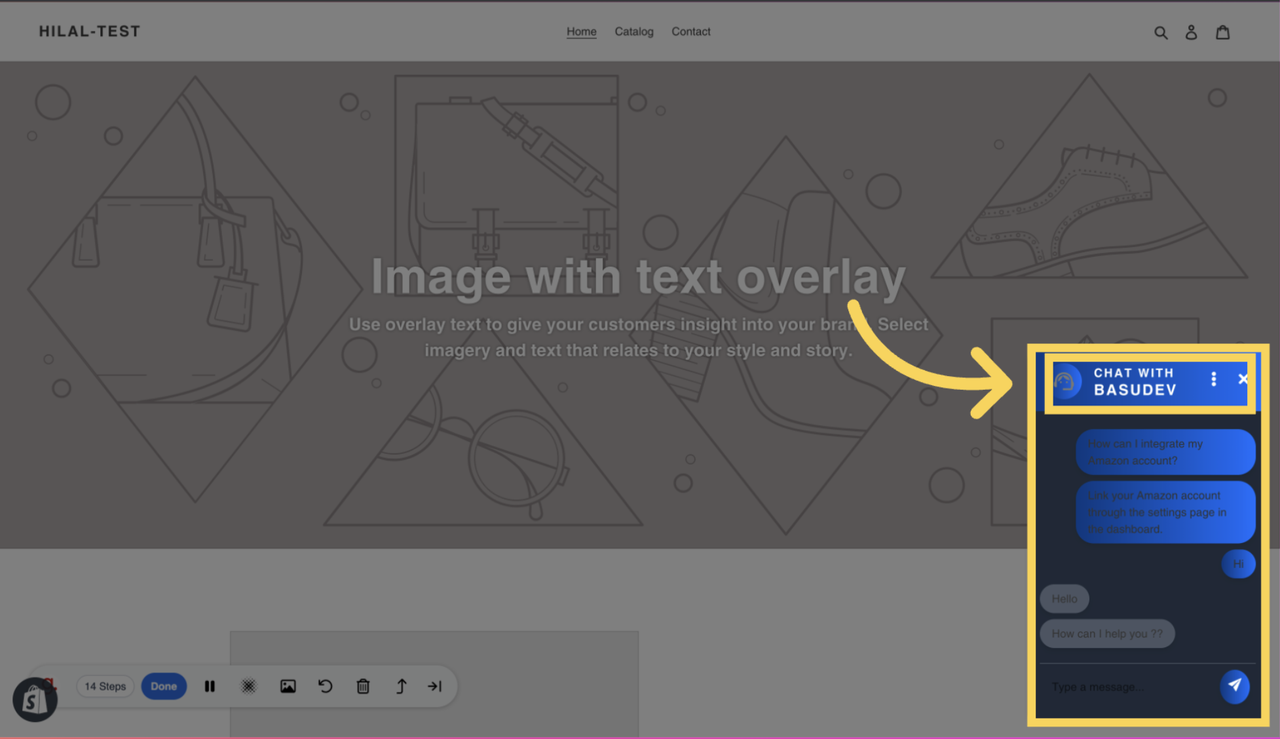
Assigning an Agent for your Assistance
After your request is transferred to a human agent, the chatbot’s name will automatically change to the assigned agent’s name.
This ensures that you are aware of the specific agent handling your query, providing a seamless and professional support experience.
Completing the Support Session
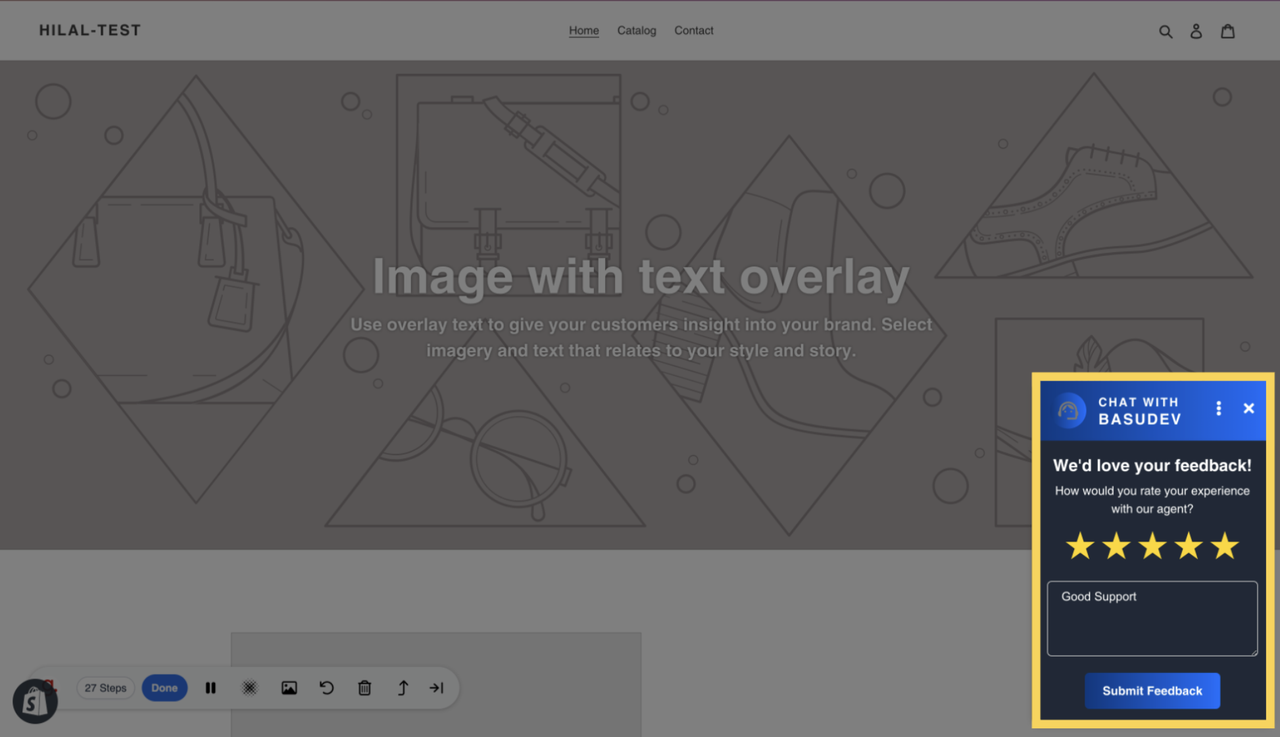
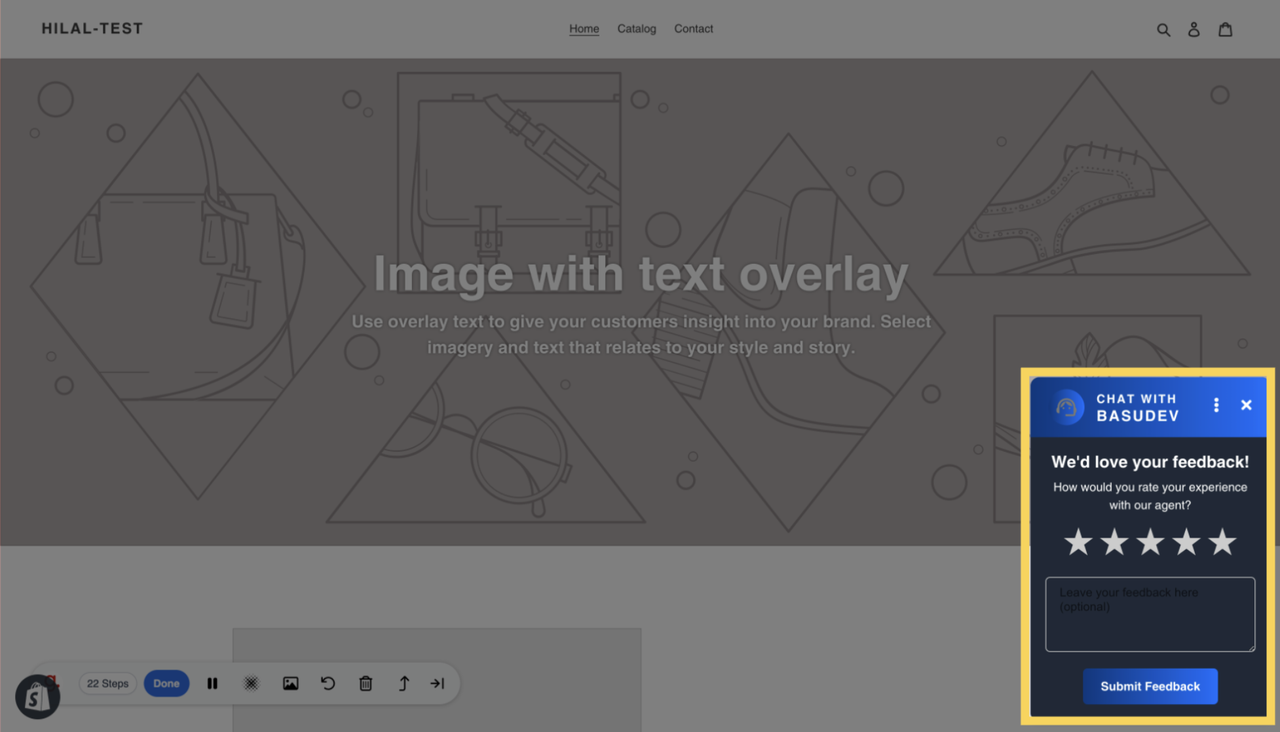
Once your query is resolved, the chatbot interface will prompt you to submit ratings and feedback.
Rating the Experience: Provide a rating (usually on a scale of 1 to 5) to evaluate your experience with the chatbot and the support team.
Feedback Submission: Enter any additional feedback or suggestions for improvement in the provided text box.
End of Interaction
After submitting your feedback, the chat session will end. You can always return to the chatbot for further assistance or queries.
Email Follow-Up: You will receive a follow-up email summarizing the chat or providing additional details related to your query.