Contacts
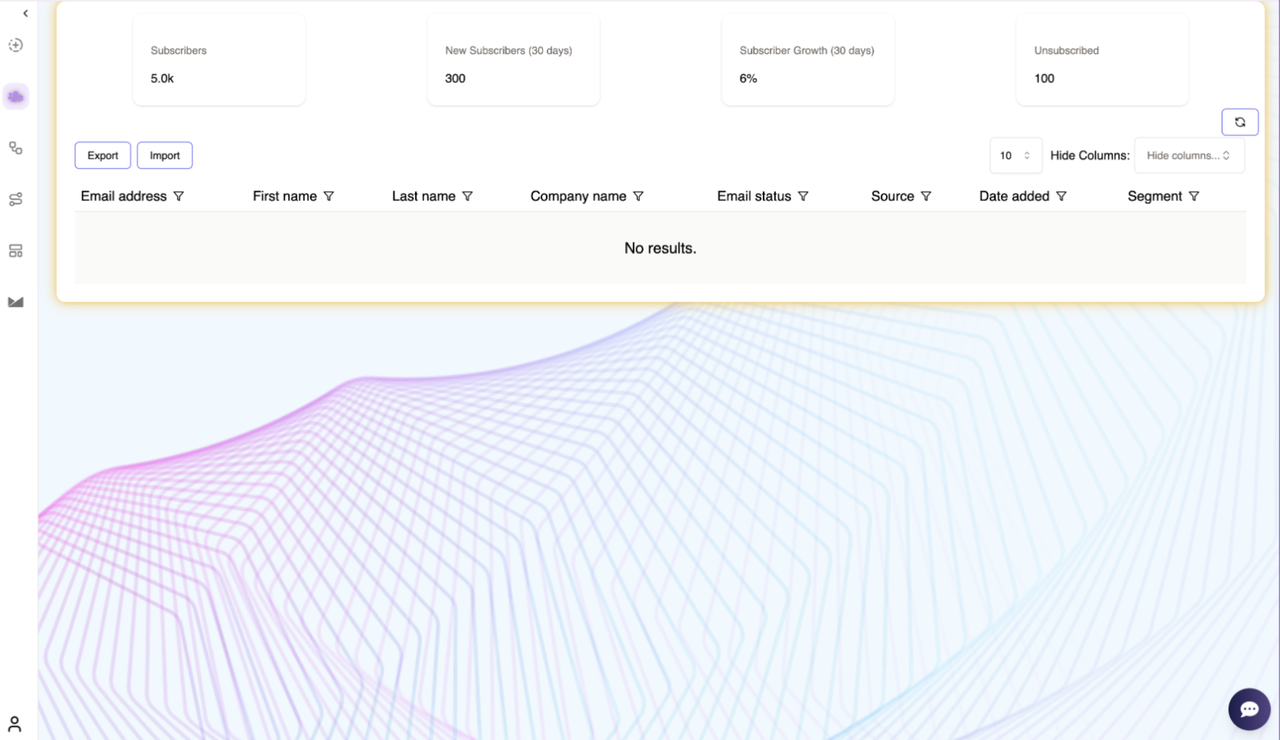
The Contacts provides a centralized view of all subscribers, allowing users to manage and analyze their contact lists effectively. This page displays key subscriber information and offers tools to import, export, and organize data efficiently.
Subscriber Overview
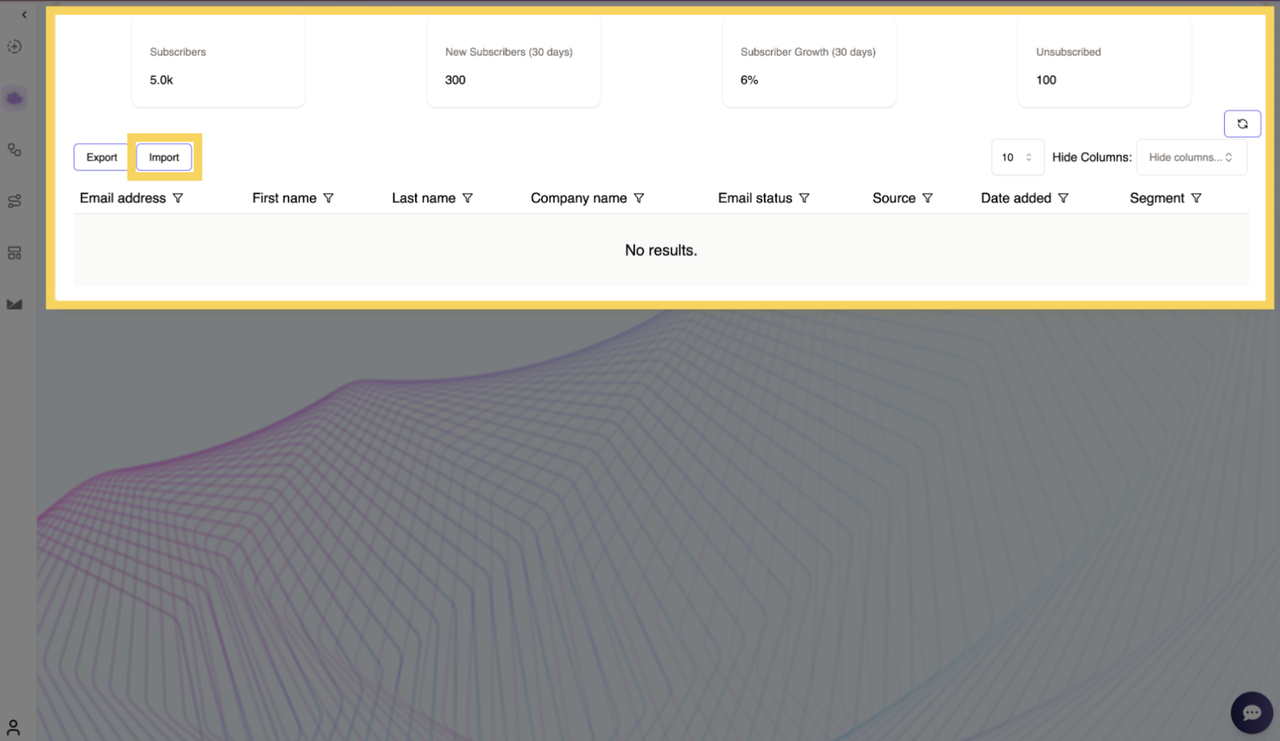
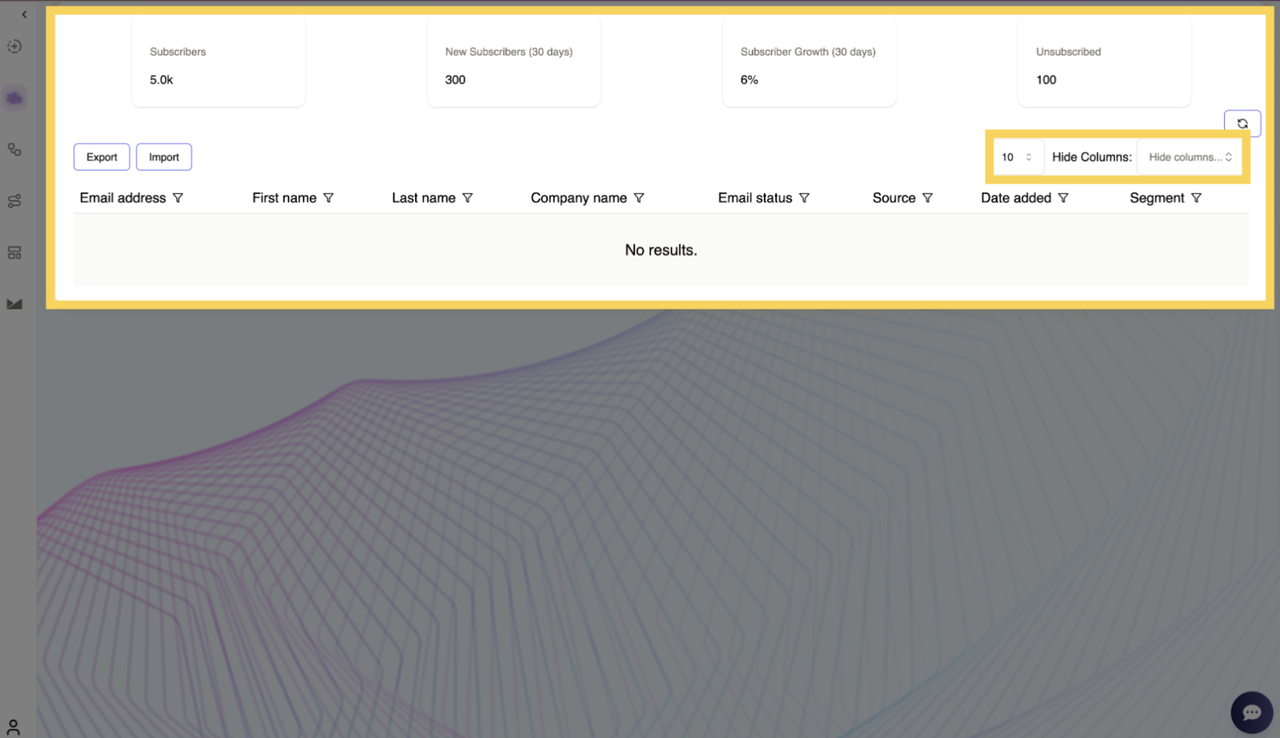
This section displays key metrics related to subscribers activity:
- Subscribers – Displays the total number of contacts in the system.
- New Subscribers (30 days) – Shows how many new contacts were added in the past 30 days.
- Subscriber Growth (30 days) – Represents the percentage increase in subscribers over the past month.
- Unsubscribed – Indicates the number of users who have opted out of communications.
These metrics help track the growth and engagement of the subscriber base.
Contact Management
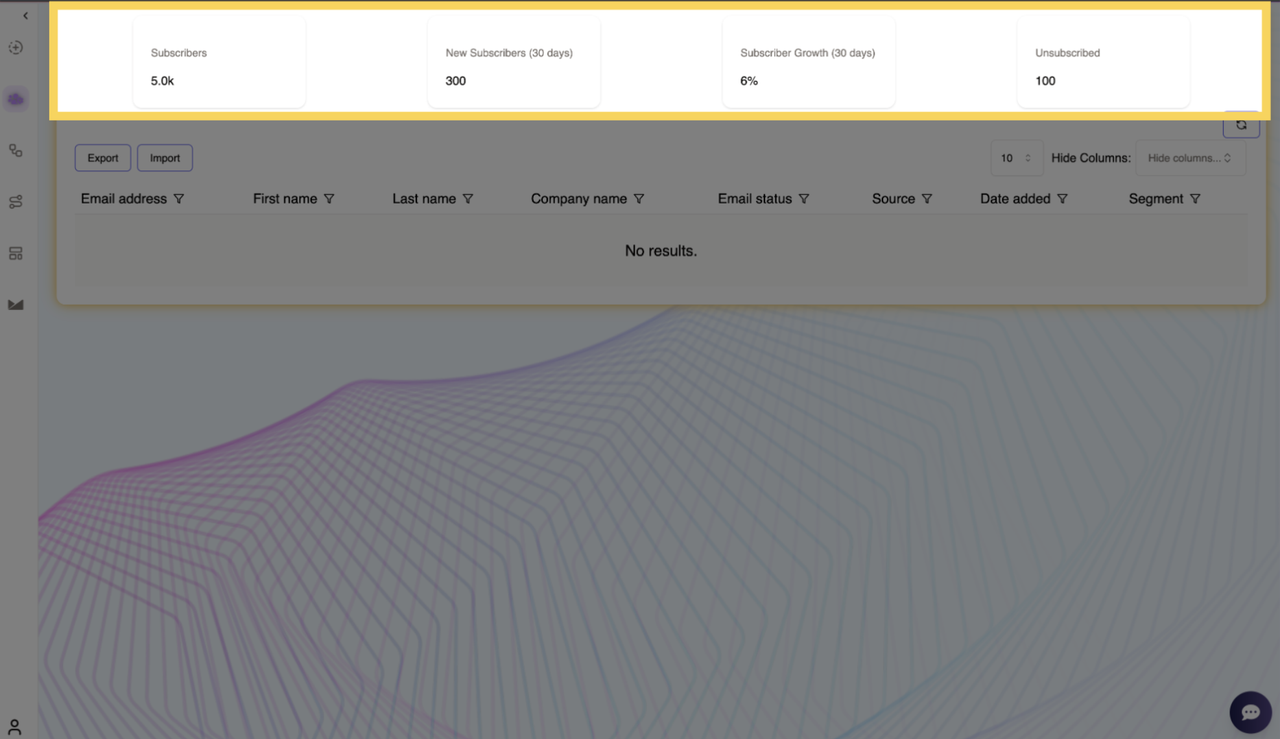
A structured table below the metrics section displays detailed subscriber information, including:
- Email Address – The primary contact email.
- First Name & Last Name – Subscriber’s name for personalization.
- Company Name – The associated organization or business (if applicable).
- Email Status – The current status of the subscriber (e.g., active, bounced).
- Source – Indicates how the contact was acquired (e.g., sign-up form, manual upload).
- Date Added – Shows when the subscriber was added to the system.
- Segment – Displays assigned subscriber segments for targeted communication.
This structured format ensures easy organization and filtering of contacts.
Exporting Contacts
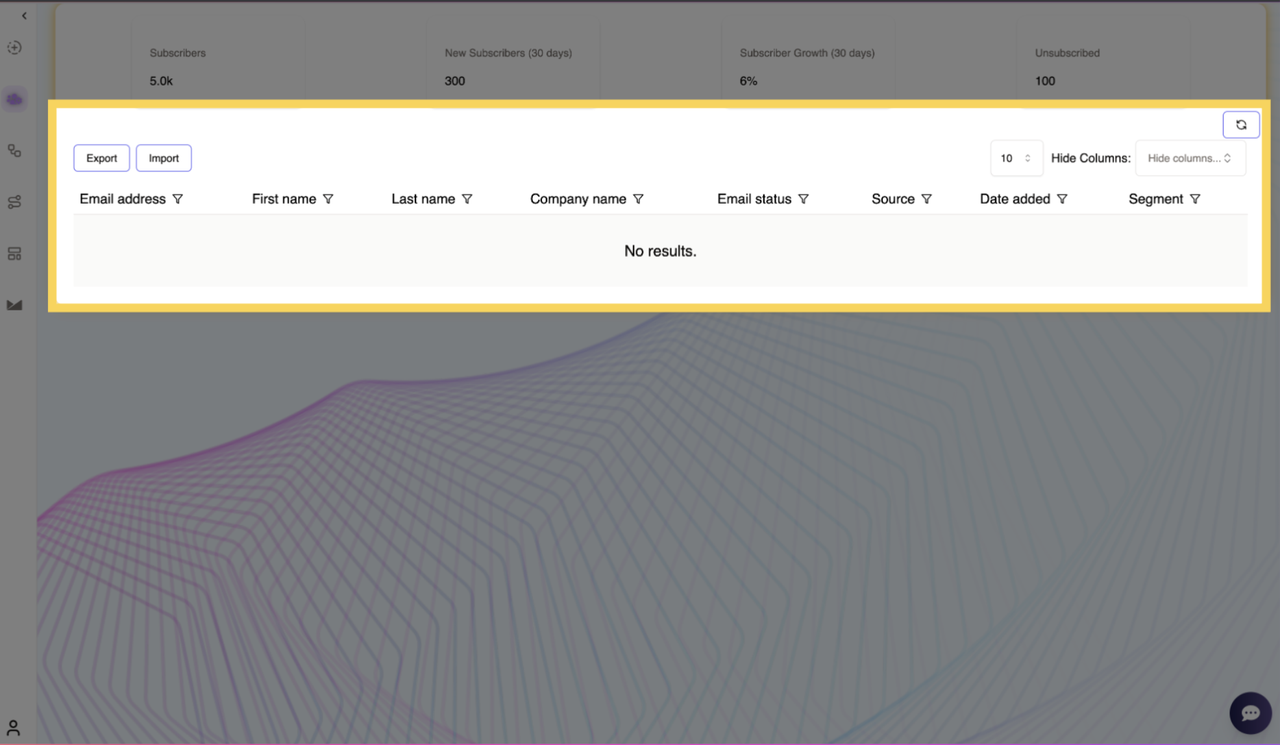
The Export button enables users to download the current subscriber list as a CSV or Excel file. This allows for offline data management, backups, or integration with external tools.
Importing Contacts
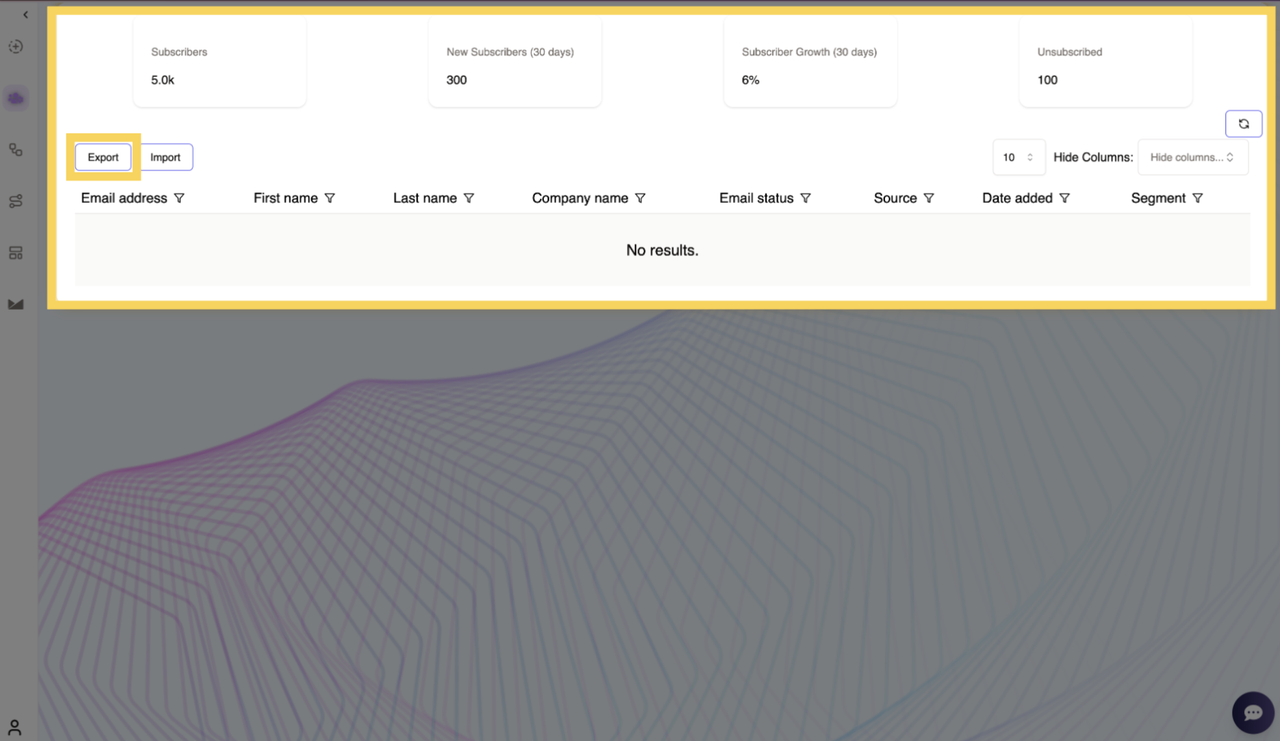
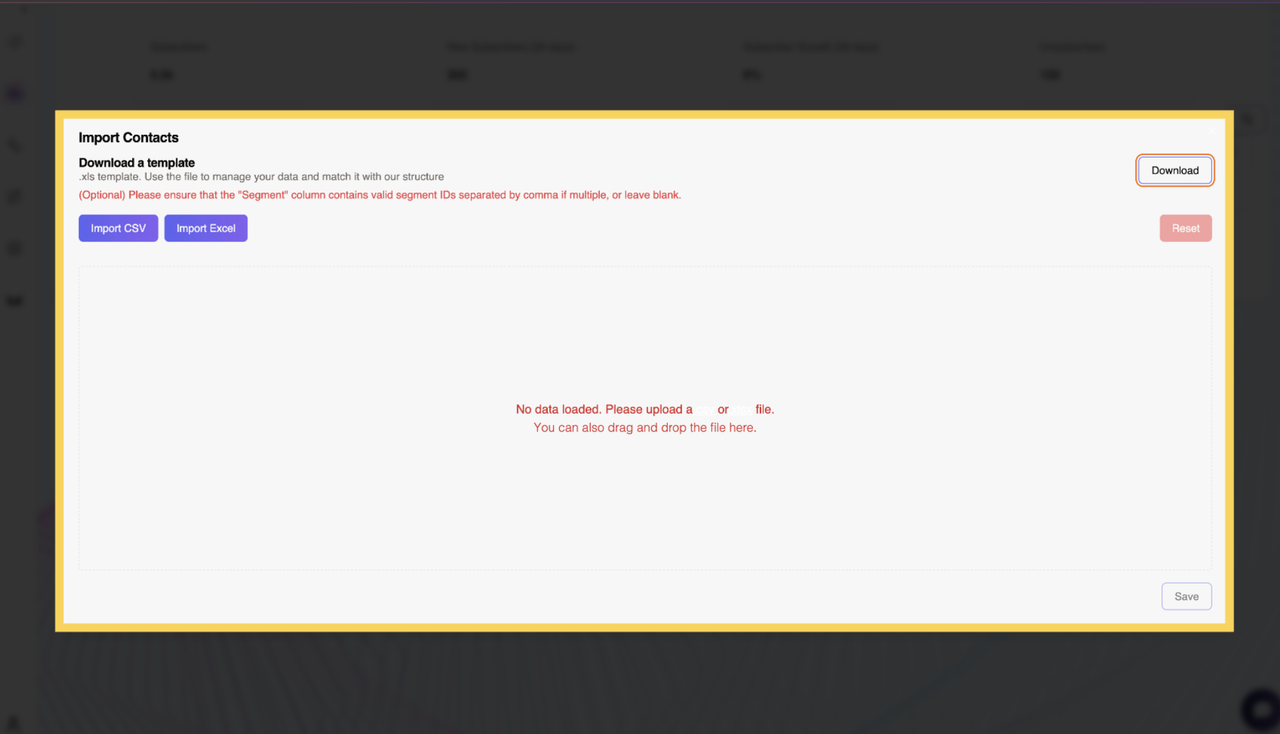
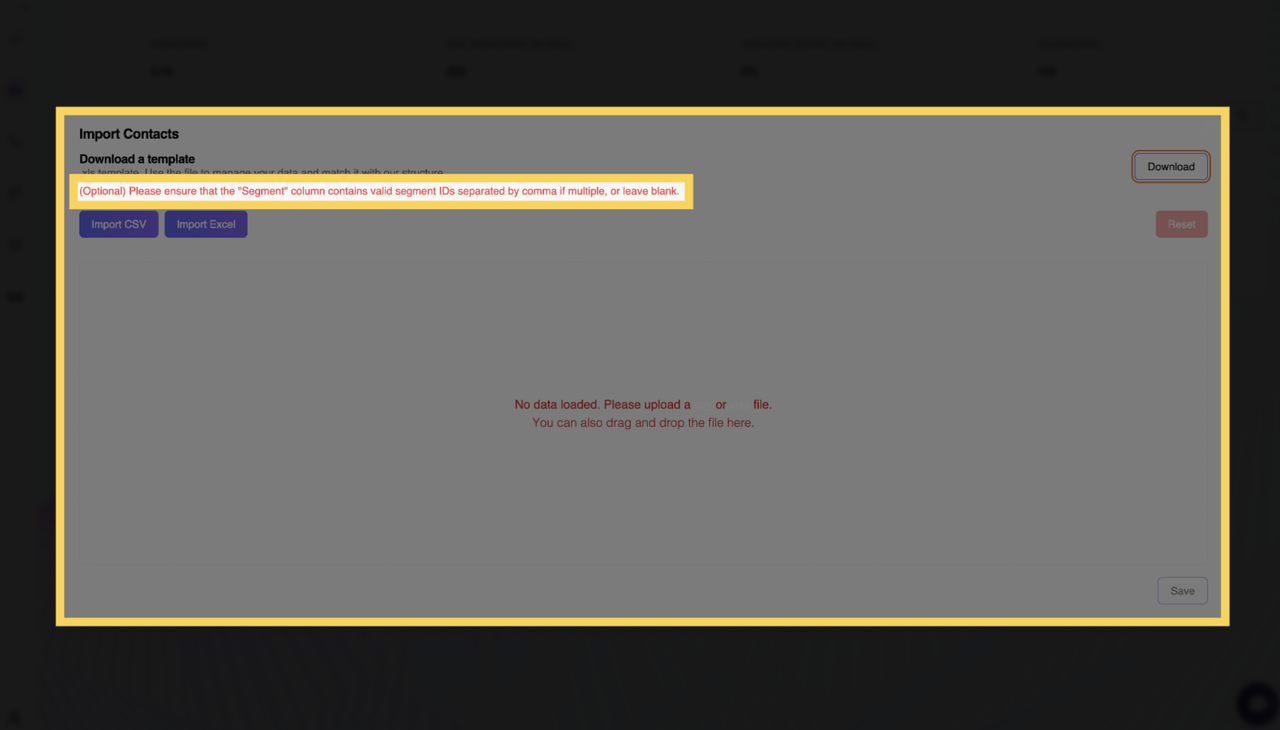
Clicking the Import button opens the Import Contacts pop-up, where users can upload subscriber data in CSV or Excel format. This feature allows users to bulk import contact lists efficiently while ensuring data integrity.
Downloading the Template
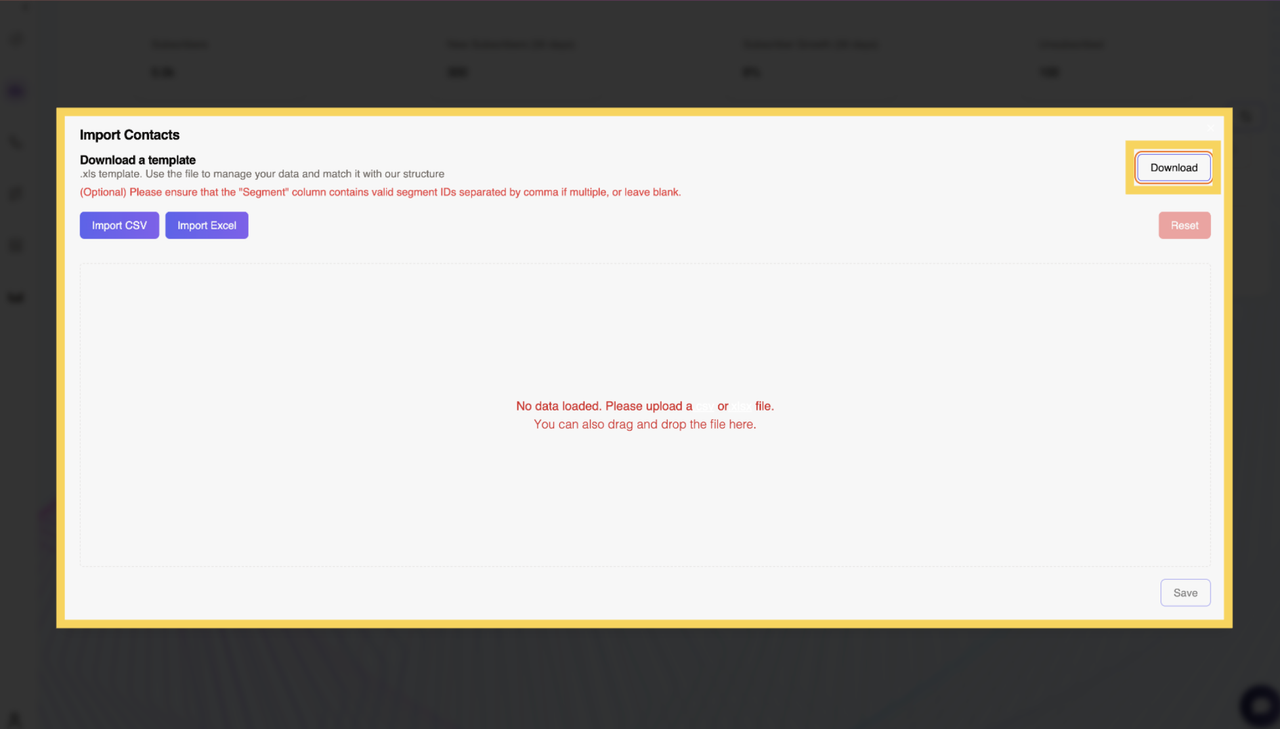
A Download Template button is provided to help users structure their data correctly before uploading.
- The template includes predefined columns to match the system’s requirements.
- Users can populate the template with their subscriber information, ensuring consistency.
- Using the template helps prevent errors during the import process.
Selecting a File Format
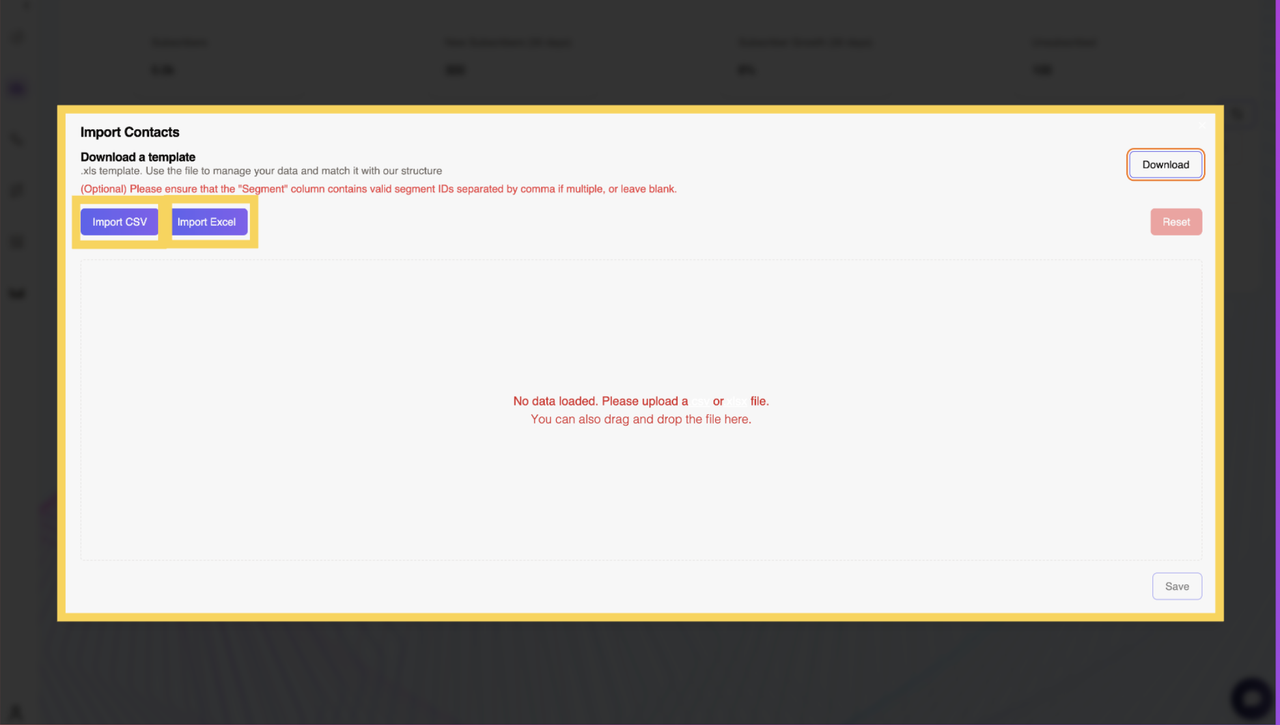
Users have two options for importing contacts:
- Import CSV – Click this button to upload a CSV file containing subscriber details.
- Import Excel – Click this button to upload an Excel file (.xlsx) with structured contact information.
Selecting the appropriate file format ensures compatibility with the platform’s data processing system.
Data Import Guidelines
To ensure smooth data import, users should follow these guidelines:
- The “Segment” column must contain valid segment IDs, separated by commas if multiple segments are assigned.
- If users do not wish to assign segments at the time of import, they can leave the “Segment” column blank.
- Ensure that all email addresses are valid to prevent import errors.
- Avoid duplicate entries by verifying the data before uploading.
Reset and Save
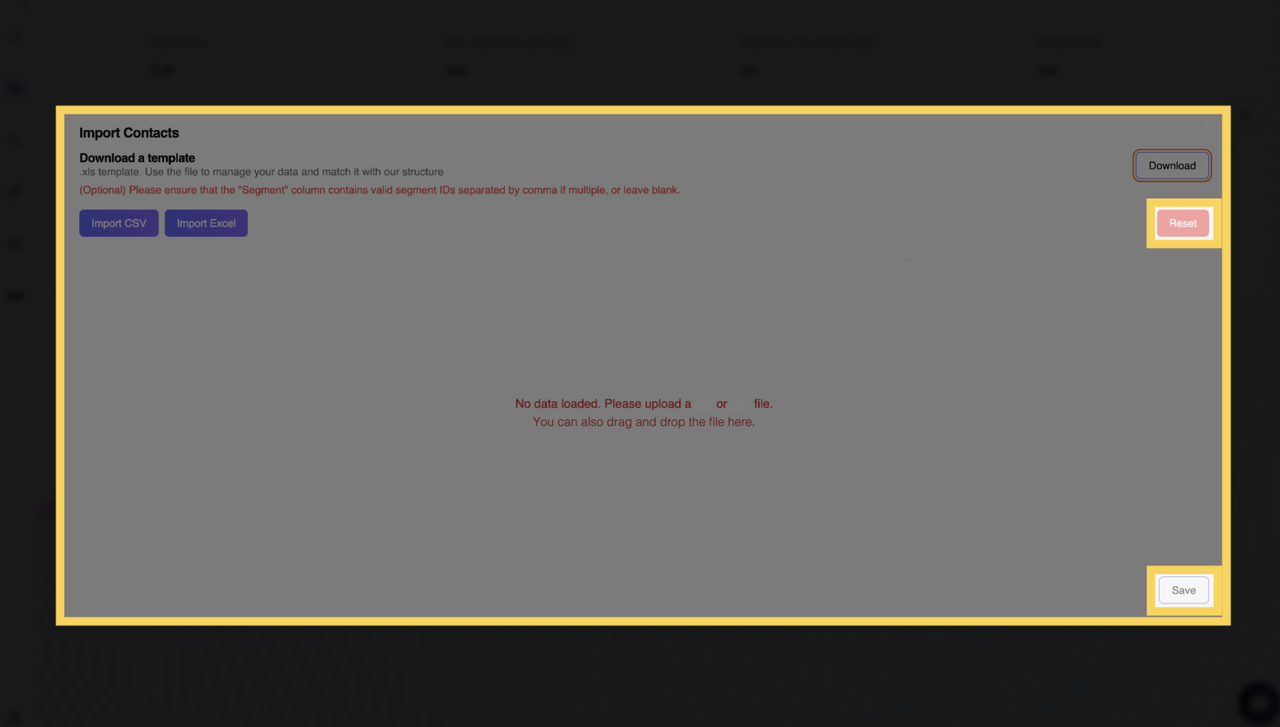
- Reset – Clicking this button clears all uploaded data, allowing users to start over if necessary.
- Save – Once the data is reviewed and confirmed, clicking Save completes the import process, adding the contacts to the system.
This structured import process ensures that subscriber data is accurately and efficiently integrated into the platform.
Additional Functionalities
- Column Customization – Users can hide or display specific columns using the “Hide Columns” dropdown.
- Pagination & Sorting – Allows navigating large lists and sorting contacts by different attributes.
The Contacts page provides all the necessary tools to efficiently manage, organize, and analyze subscribers, making it easy to optimize email marketing strategies.