Automation
The Email Automation enables users to create, manage, and review automated email flows. This feature helps streamline communication with customers through targeted and dynamic email sequences.
Overview
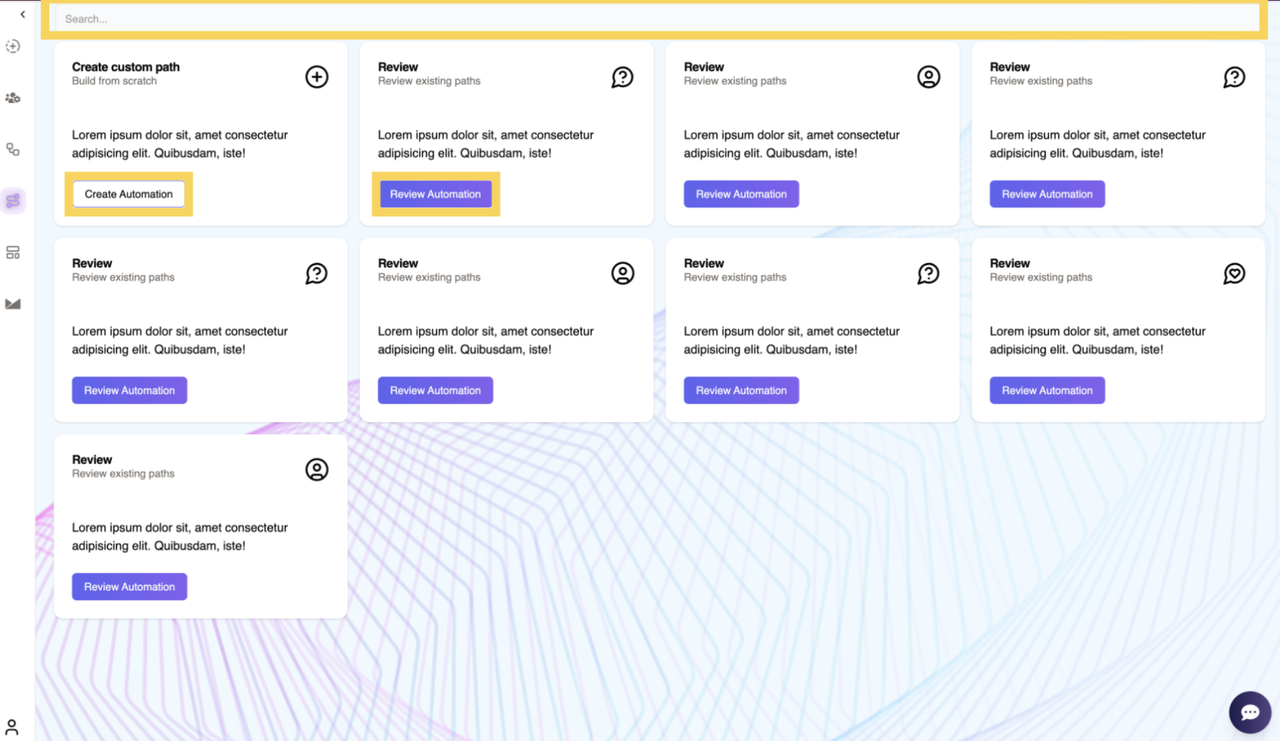
The Email Automation consists of the following key sections:
- Create Automation – Build a custom email flow from scratch.
- Review Automation – View and manage previously created automations.
- Search Bar – Quickly find existing automations by searching for their names.
The Create Automation feature is the core functionality, allowing users to design intricate email workflows using various nodes.
Creating an Automation
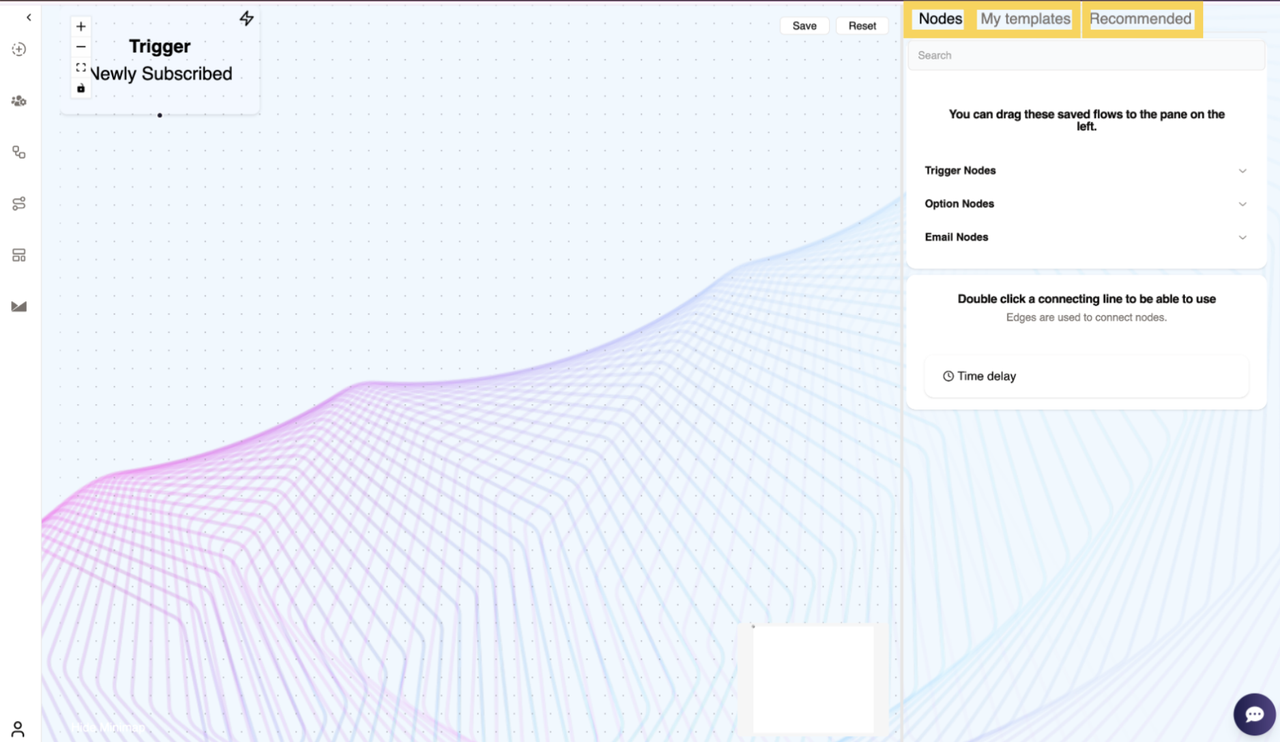
Clicking the Create Automation button redirects users to the Automation Creation Page, which consists of three sections:
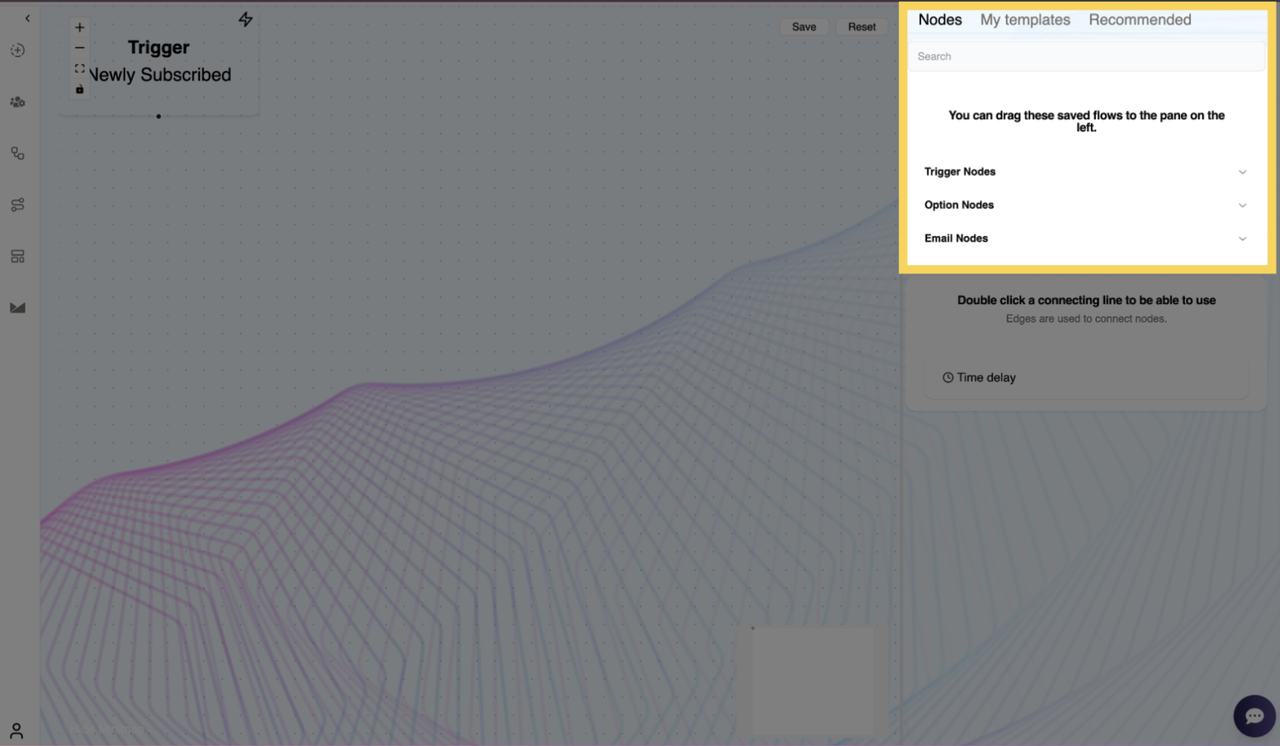
- Nodes – Components used to define the automation flow.
- My Templates – Previously saved automation flows that can be reused.
- Recommended – Pre-built automation templates for common use cases.
Users can drag and drop nodes onto the pane on the left to construct their email automation path.
Types of Nodes
There are three main types of nodes that structure the automation flow:
1. Trigger Nodes
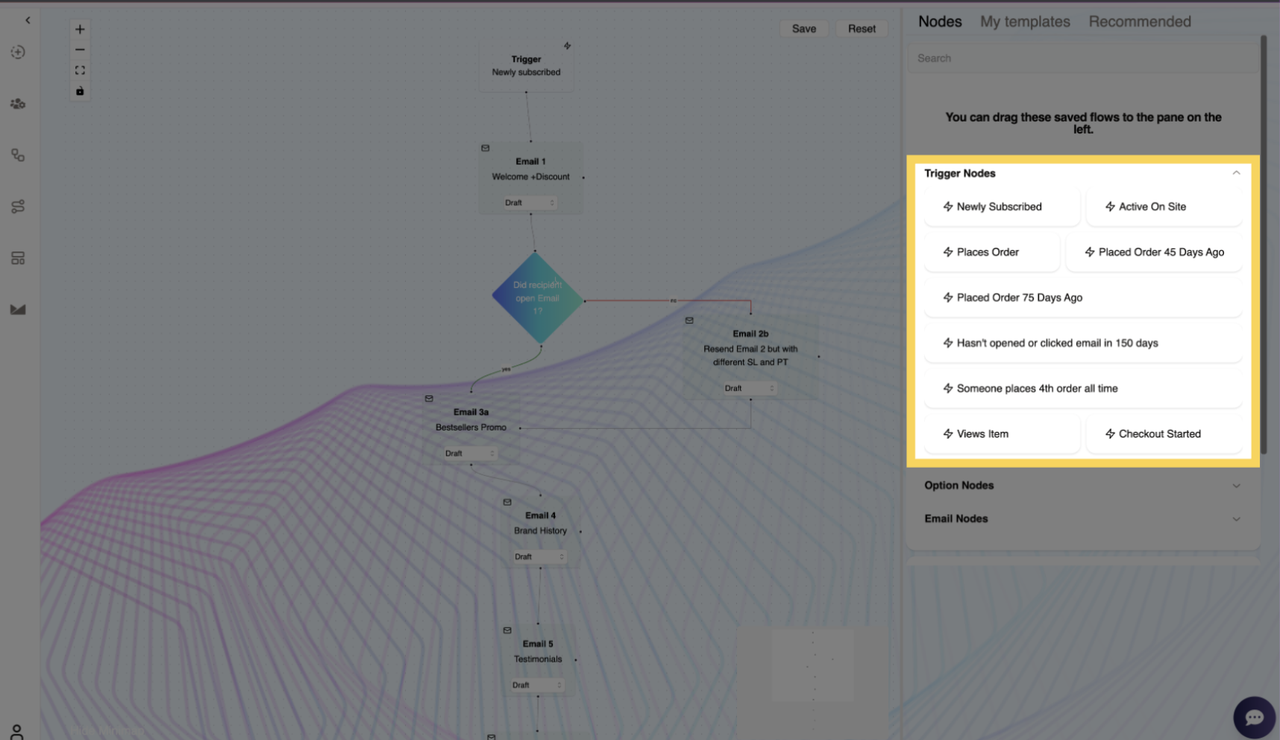
A trigger node is the starting point of the automation flow. Each flow can have only one trigger node, which initiates the email sequence when a specific event occurs.
Available Trigger Nodes
- Newly Subscribed – Triggered when a user subscribes to emails.
- Active On Site – Triggered when a user is actively browsing the website.
- Places Order – Triggered when a user completes a purchase.
- Placed Order 45 Days Ago – Triggered 45 days after a user places an order.
- Placed Order 75 Days Ago – Triggered 75 days after a user places an order.
- Hasn’t Opened or Clicked Email in 150 Days – Triggered when a user has been inactive.
- Someone Places 4th Order All Time – Triggered upon a user’s 4th order.
- Views Item – Triggered when a user views a product.
- Checkout Started – Triggered when a user initiates checkout but does not complete it.
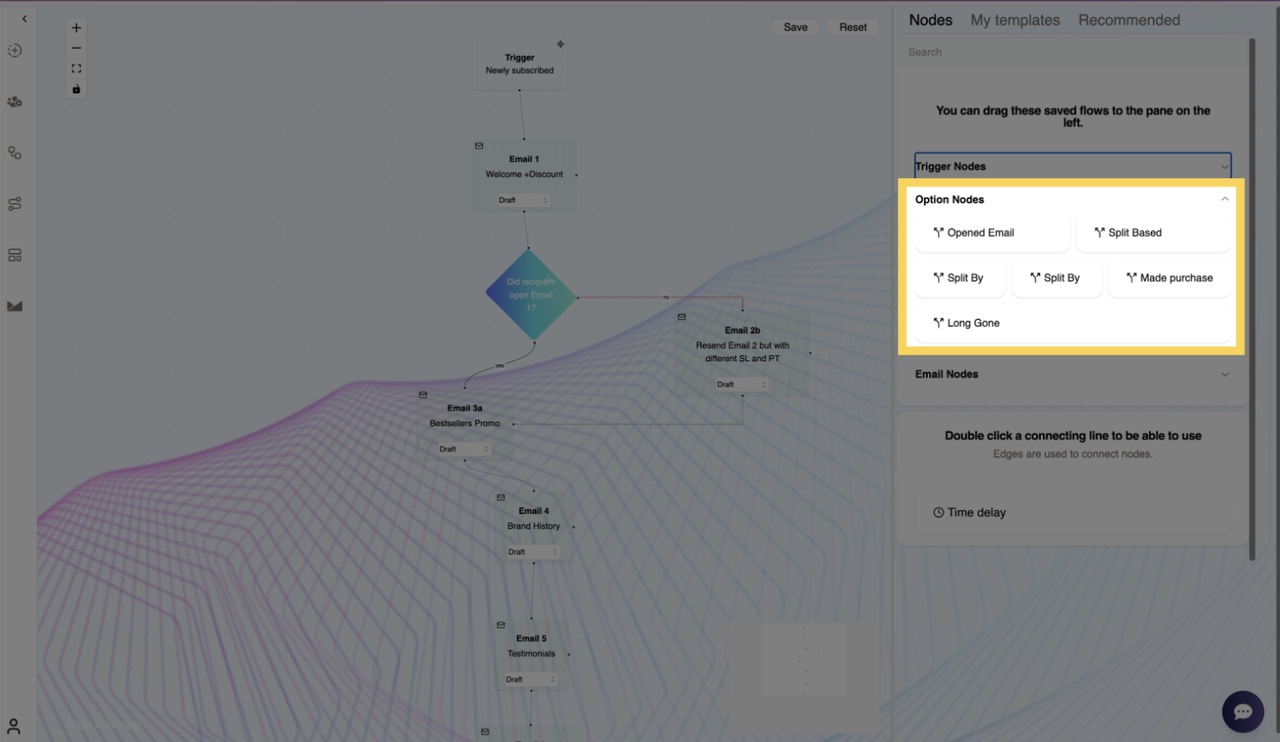
2. Option Nodes
Option nodes help segment users based on specific behaviors or purchase history. These nodes split the email flow into different paths depending on user actions.
Available Option Nodes
- Opened Email – Checks if the recipient has opened an email.
- Split Based on # of Purchases – Segments users based on their purchase count.
- Split By Product Viewed – Segments users based on products they have viewed.
- Split By Product – Filters users based on specific product interactions.
- Made Purchase in Last 60 Days? – Checks if a user has made a purchase recently.
- Long Gone – Identifies users who haven’t opened or clicked an email in 150 days.
3. Email Nodes
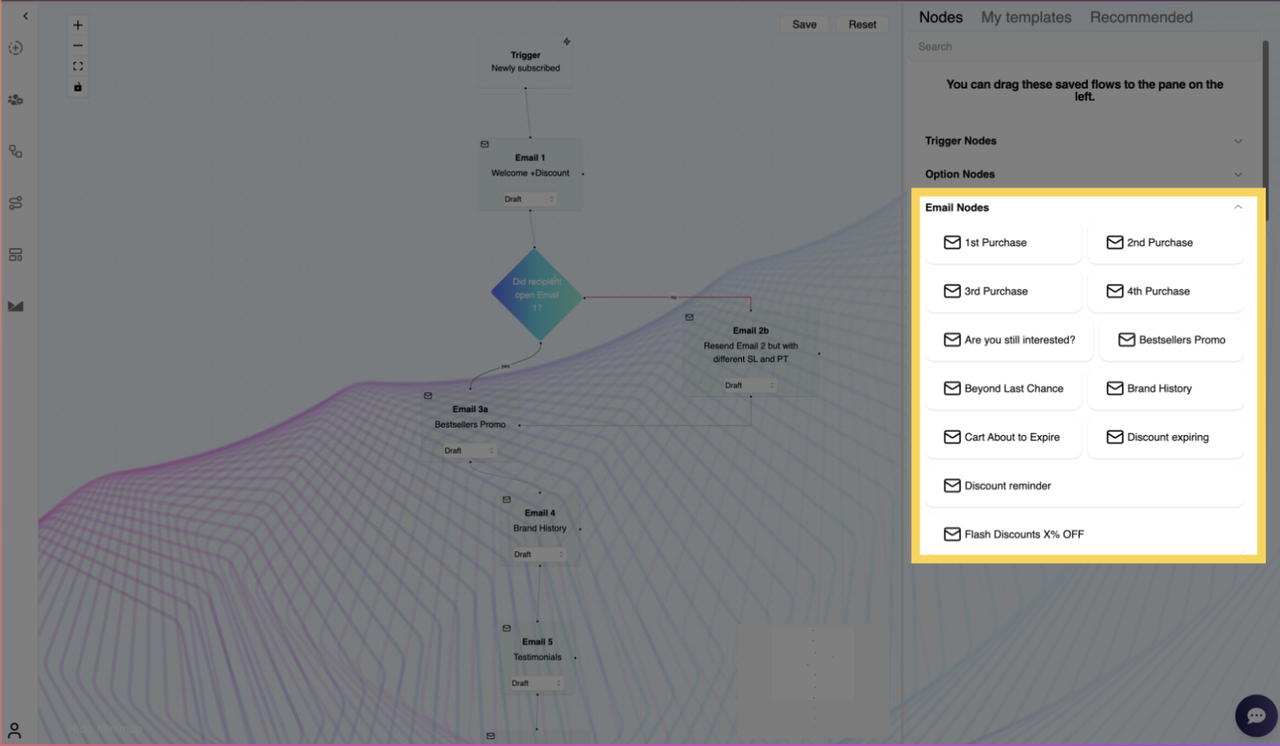
Email nodes define the actual emails sent at different points in the automation flow. Users can add multiple email nodes to craft a tailored customer journey.
Available Email Nodes
- Welcome + Discount
- Cart About to Expire
- Resend Previous Email (Different SL and PT)
- Need Help? Here Are the Favorites
- Nudge
- Product Info
- Risk Reversals + Urgency
- What Happened?
- Flash Discounts X% OFF
- Last Chance Discount
- Discount Reminder
- Last Discount Reminder
- Discount Expiring
- Running Low?
- We Miss You!
- Welcome in VIP
- Product Promo
- 1st Purchase, 2nd Purchase, 3rd Purchase, 4th Purchase
- Reviews of Product
- Not Interested Anymore?
- Are You Still Interested?
- Bestsellers Promo
- Brand History
- Testimonials
- Reminder of Coupon
- Risk-Free Guarantee
- Last Chance!
- Reorder XYZ Item
- Reorder Item (Aggressive!)
- Beyond Last Chance
- Want Anything Else?
- Getting Excited?
- Tips for Using
- Leave a Review!
- How Did You Like It?
- Take X% OFF
- X% OFF Reminder
- X% OFF Expiring
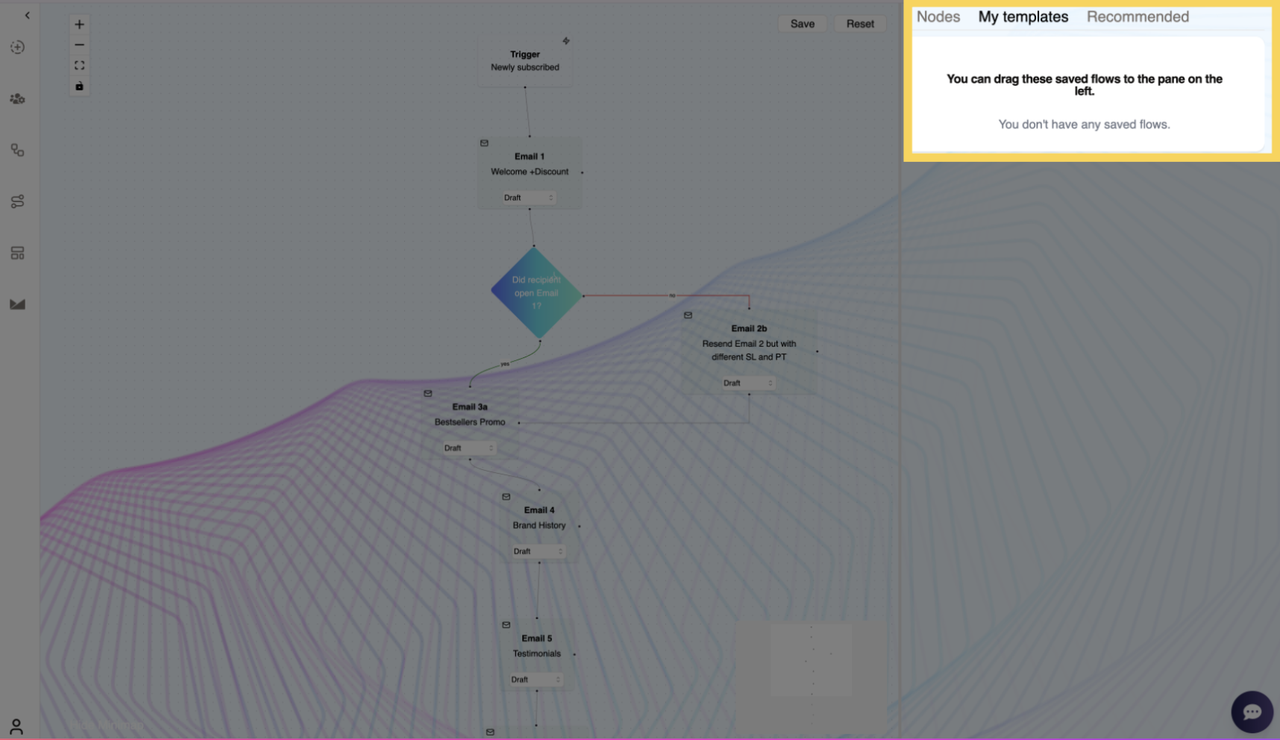
My Templates
This section allows users to drag and drop any previously saved automation flows. This helps in reusing well-performing email sequences.
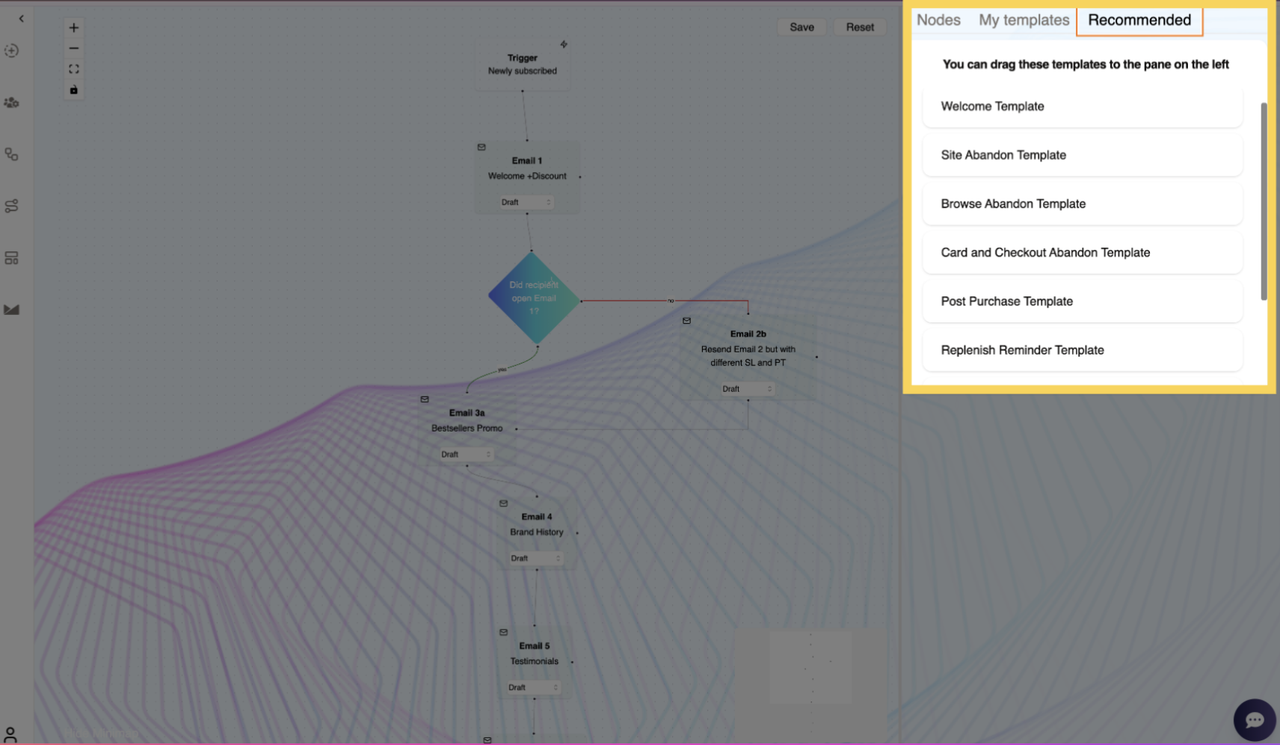
Recommended Templates
For ease of use, users are provided with pre-built automation templates to get started quickly.
Available Templates
- Welcome Template – Engage new subscribers with a welcome message.
- Site Abandon Template – Reconnect with visitors who leave without interacting.
- Browse Abandon Template – Follow up with users who viewed products but didn’t add them to their cart.
- Cart and Checkout Abandon Template – Recover lost sales by reminding users of their abandoned carts.
- Post-Purchase Template – Send thank-you emails and product recommendations after a purchase.
- Replenish Reminder Template – Remind users to reorder consumable products.
- Winback Template – Re-engage inactive customers with special offers.
- Sunset Template – Automate re-engagement emails before unsubscribing inactive users.
- VIP Template – Reward loyal customers with exclusive offers.
Finalizing the Automation
Once the automation flow is complete, users can finalize it using two key buttons:
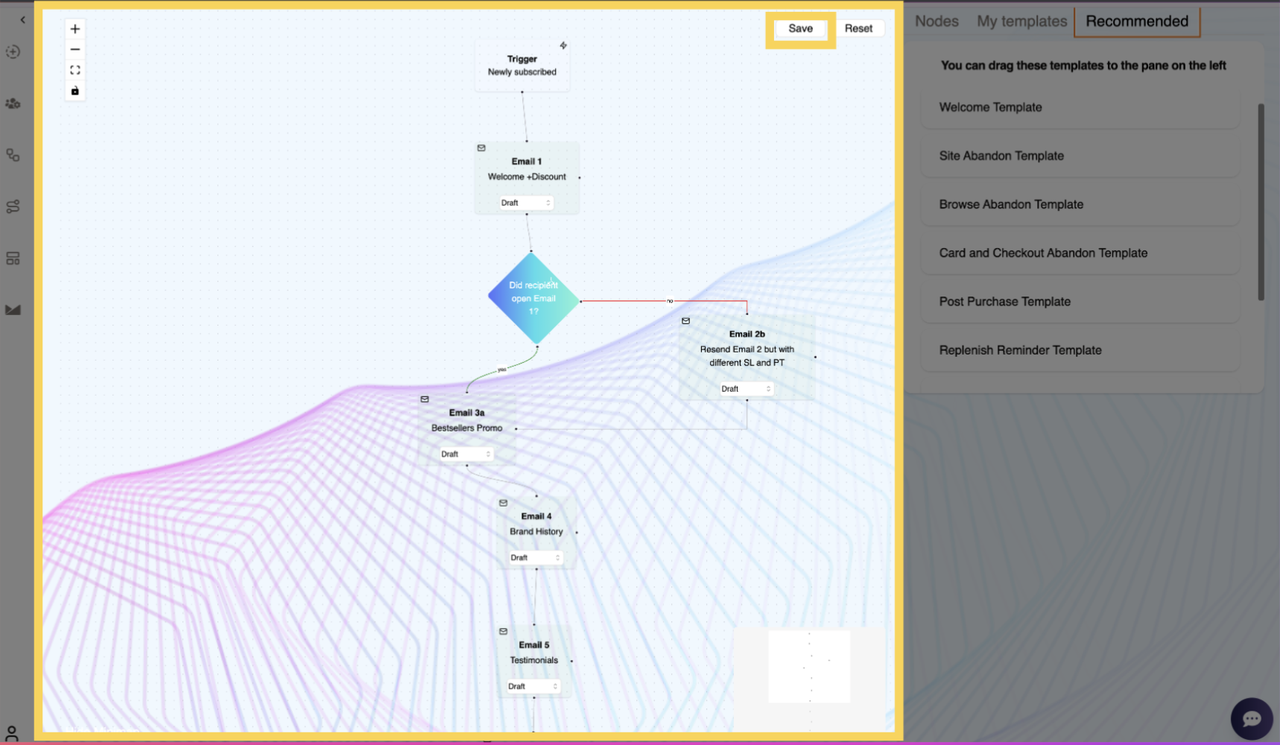
Save Button
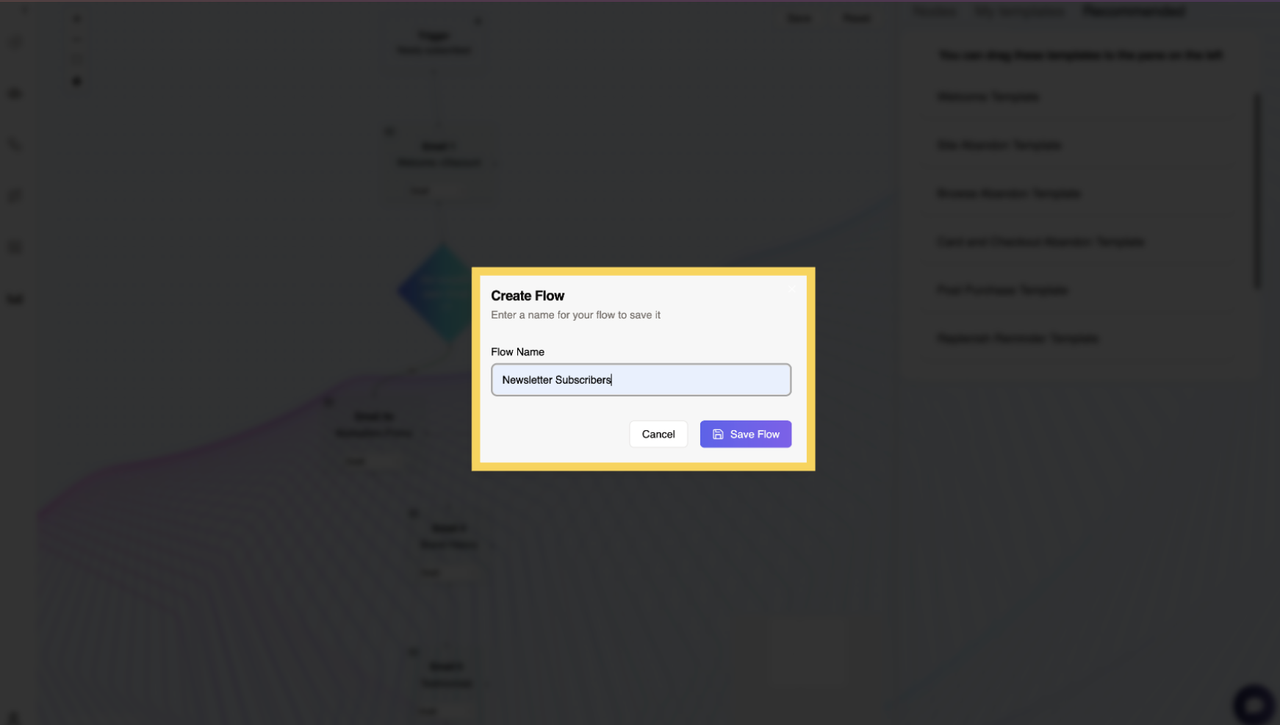
- Clicking Save opens a Create Flow Pop-up where users enter the name of the flow and save it for future use.
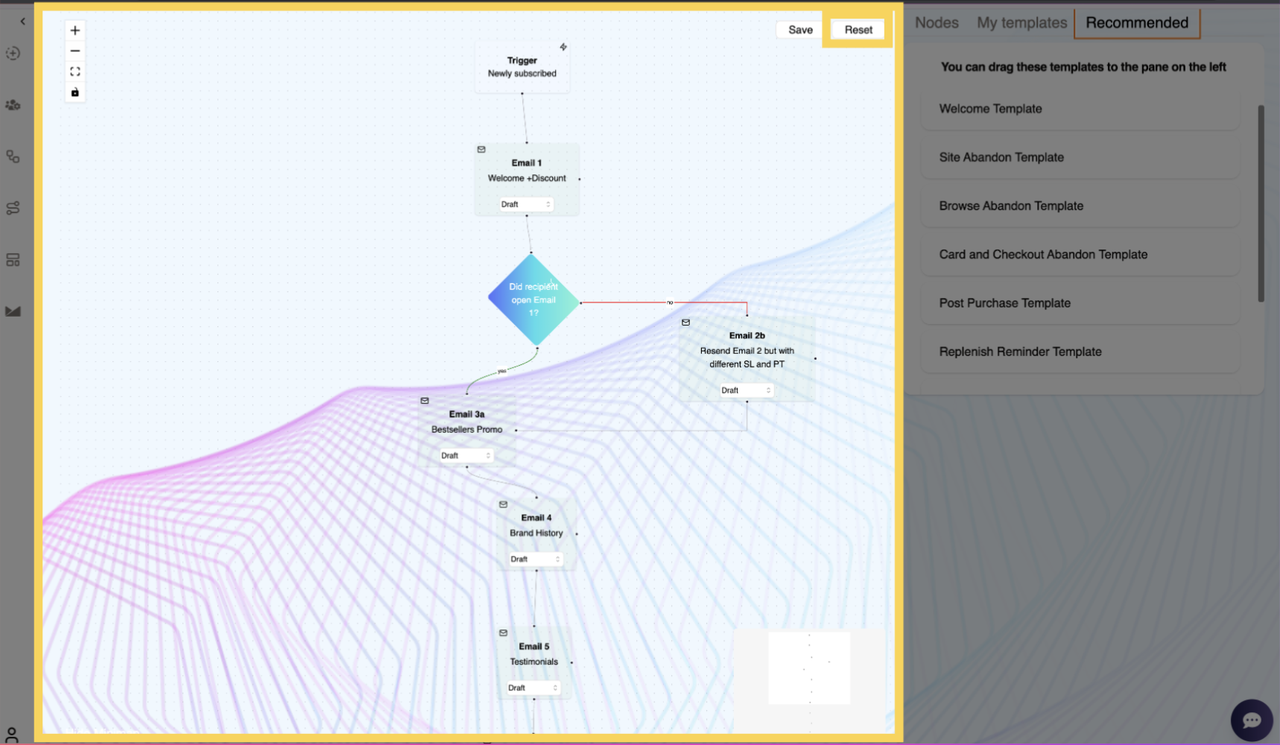
Reset Button
- Clicking Reset clears the entire automation flow, allowing users to start fresh.
With these automation tools, users can enhance customer relationships, increase conversions, and optimize marketing efforts. 🚀