Purchase Order Creation
Overview
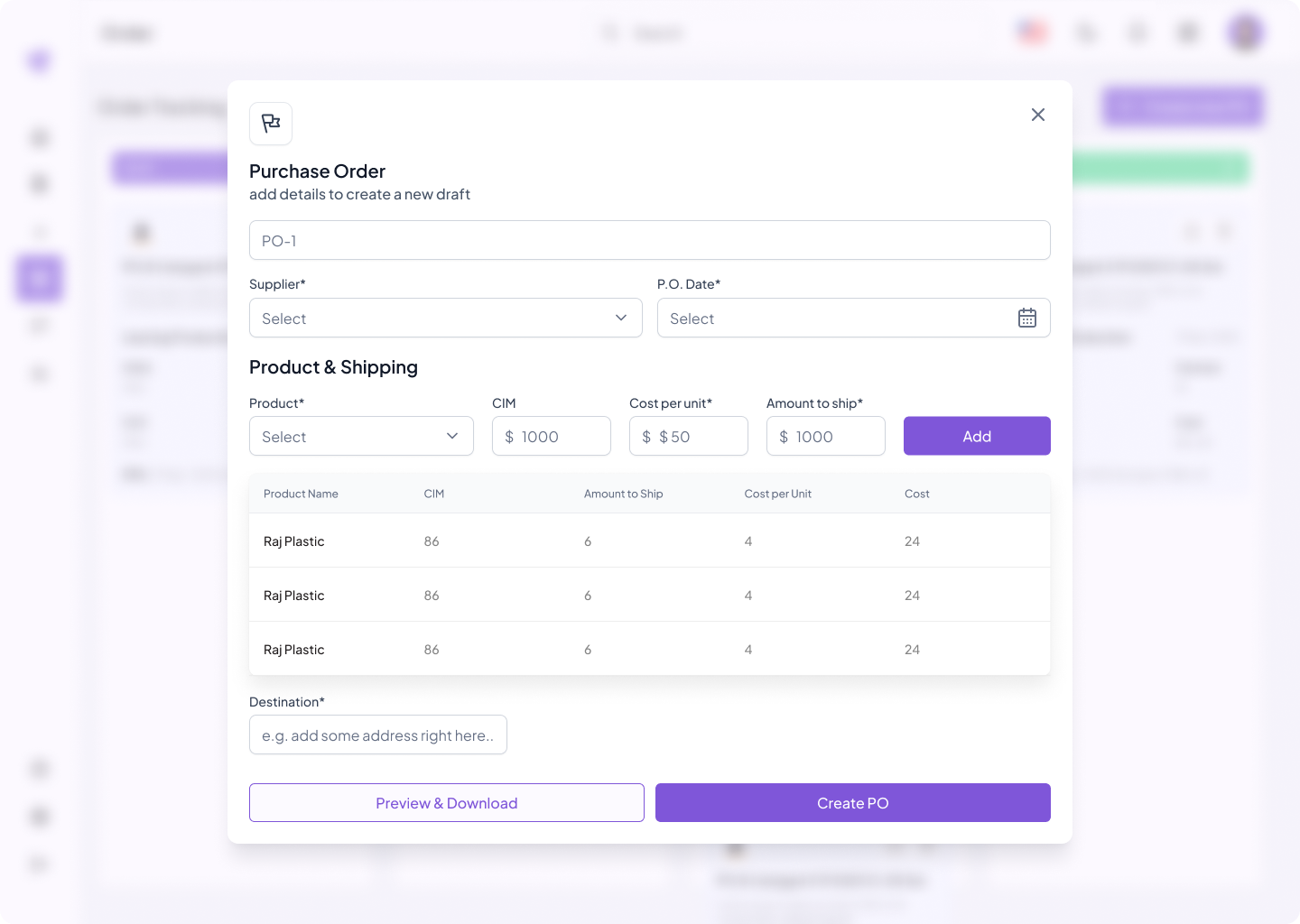
The Purchase Order Creation modal provides a streamlined workflow for generating a new purchase order (PO) to restock inventory from suppliers. It ensures timely inventory replenishment, accurate order tracking, and a clear communication channel with vendors. Users can enter supplier details, add products, specify shipping addresses, and finalize the order — all within one modal.
Form Fields
The initial section of the form captures the key information for the purchase order.
- PO Number: A unique identifier for the order (e.g.,
PO-1), used for internal tracking. - Supplier: A required dropdown to select the supplier. This field must be completed before proceeding.
- P.O. Date: A required date field to indicate the creation date of the PO.
Product & Shipping
Here, you can add one or more products to the purchase order and define relevant details.
- Product: A required dropdown to choose the product being ordered.
- CIM (Custom Inventory Metric): A product-specific code or identifier used internally.
- Cost per Unit: The price for each individual unit of the selected product.
- Amount to Ship: The total quantity to order.
- Add Button: Adds the selected product and details to the order table below.
Each product added will appear in a summary table for review and adjustment.
Order Table
As products are added, they are listed in a table that summarizes the current state of the purchase order.
- Product Name: Name of the product.
- CIM: Internal product identifier.
- Amount to Ship: Quantity to be ordered.
- Cost per Unit: Unit price.
- Total Cost: Automatically calculated total (Amount × Unit Cost).
Use this table to review all product entries before creating the purchase order.
Destination
This field captures the delivery address for the purchase order. It is a required field and ensures that products are delivered to the correct warehouse, prep center, or fulfillment facility.
Preview & Download
Use the Preview & Download option to review the completed purchase order before finalizing it. This preview shows the PO in a clean, formatted layout, ideal for both internal review and supplier communication.
Once satisfied, you can download the PO as a document (e.g., PDF) for offline use or email distribution.
Create PO
Clicking Create PO will finalize the purchase order. Once created, the PO is saved to the system and marked as ready for processing, communication with suppliers, or inventory planning.
Ensure all required fields are filled out accurately before using this option.