Create Shipment Plan
Creating a shipment plan is a critical part of managing inventory and ensuring that products are delivered efficiently to Amazon’s fulfillment centers or other distribution hubs.
The workflow is designed to streamline this process by guiding users through a structured, multi-step interface. This simplifies the coordination between suppliers, warehouses, and fulfillment services by capturing all necessary details, from shipment origin and packaging types to box dimensions and label responsibilities.
Key steps
By following this process, businesses can minimize errors, reduce delays, and optimize inventory flow while staying compliant with Amazon’s requirements.
Address
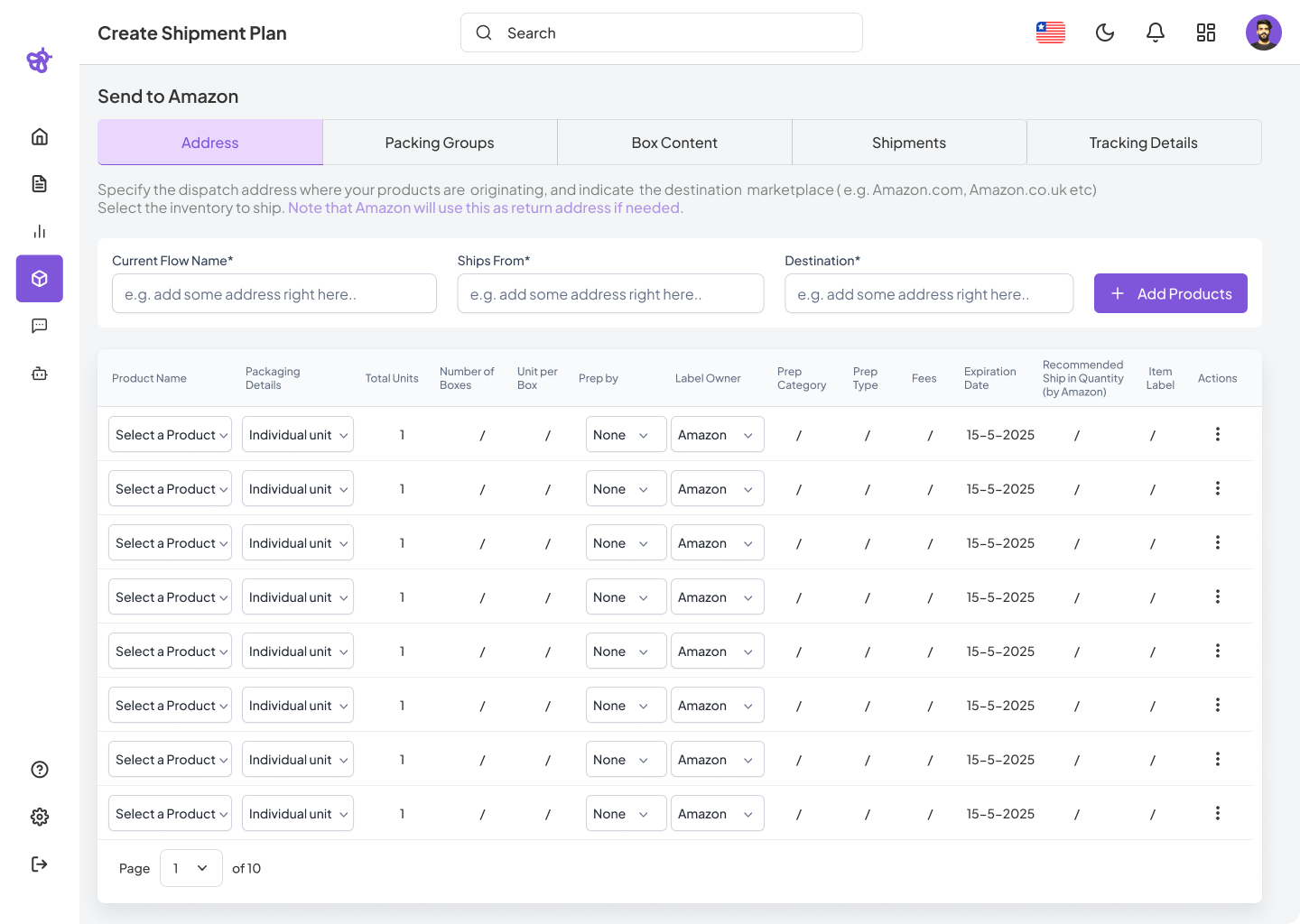
Start by setting up the basic shipment information. In this step, you will define where the shipment is coming from, where it is going, and which products will be included.
- Current Flow Name: Enter a descriptive name for the shipment plan so you can easily identify it later.
- Ships From: Select the address from which the products will be shipped (e.g., your warehouse, supplier, or prep center).
- Destination: Choose the Amazon marketplace or fulfillment center where the products will be delivered (e.g., Amazon.com).
- Product Selection Table:
- Packaging Details: Specify whether the products are shipped as individual units or case-packed.
- Units: Enter the total number of units you plan to ship.
- Number of Boxes: Enter the number of boxes for each SKU or group.
- Prep Instructions: Indicate any special handling instructions (e.g., bubble wrap, polybagging).
- Label Owner: Select who will apply the product labels — the seller, Amazon, or the supplier.
- Prep Category/Type: Choose the prep category (e.g., standard, fragile, liquid).
- Fees: Review any associated prep or labeling fees.
- Expiration Date: Provide expiration dates if you are shipping perishable items.
- Recommended Ship Quantity: Review the suggested quantity to help maintain optimal stock levels.
Packing Groups
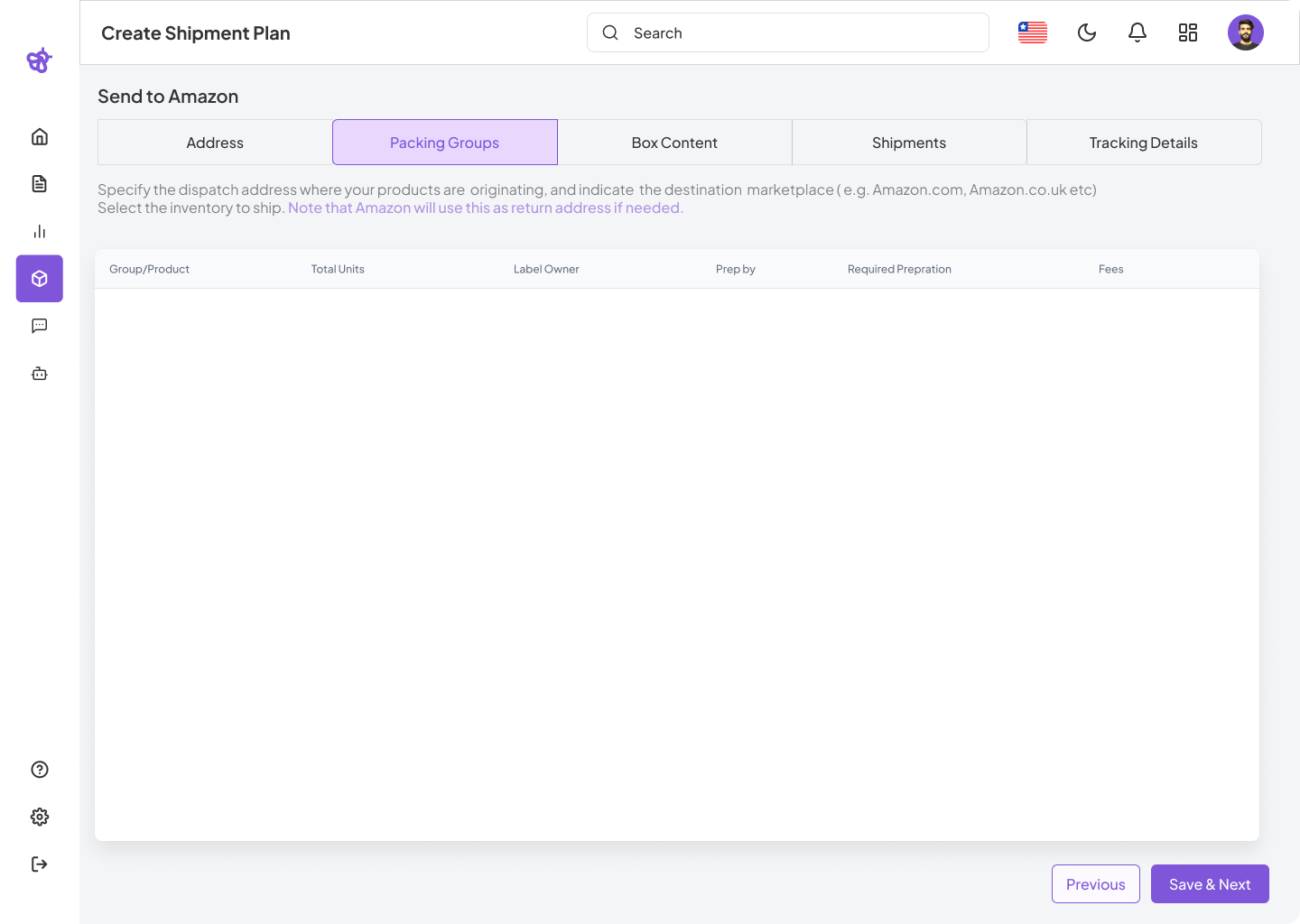
In this step, you will organize products into logical packing groups. Grouping products correctly ensures efficient packing and helps meet Amazon’s compliance guidelines.
- Packing Groups Tab: Review the list of products grouped for packing.
- Group/Product: View the identifier or name of each group.
- Total Units: Check the total number of units assigned to each group.
- Label Owner: Confirm who is responsible for labeling the products in this group.
- Prep By: Specify who will handle any required preparation.
- Required Preparation: Review any special prep steps (e.g., bubble wrap, labeling).
- Fees: View any additional fees associated with preparation or labeling.
Box Content
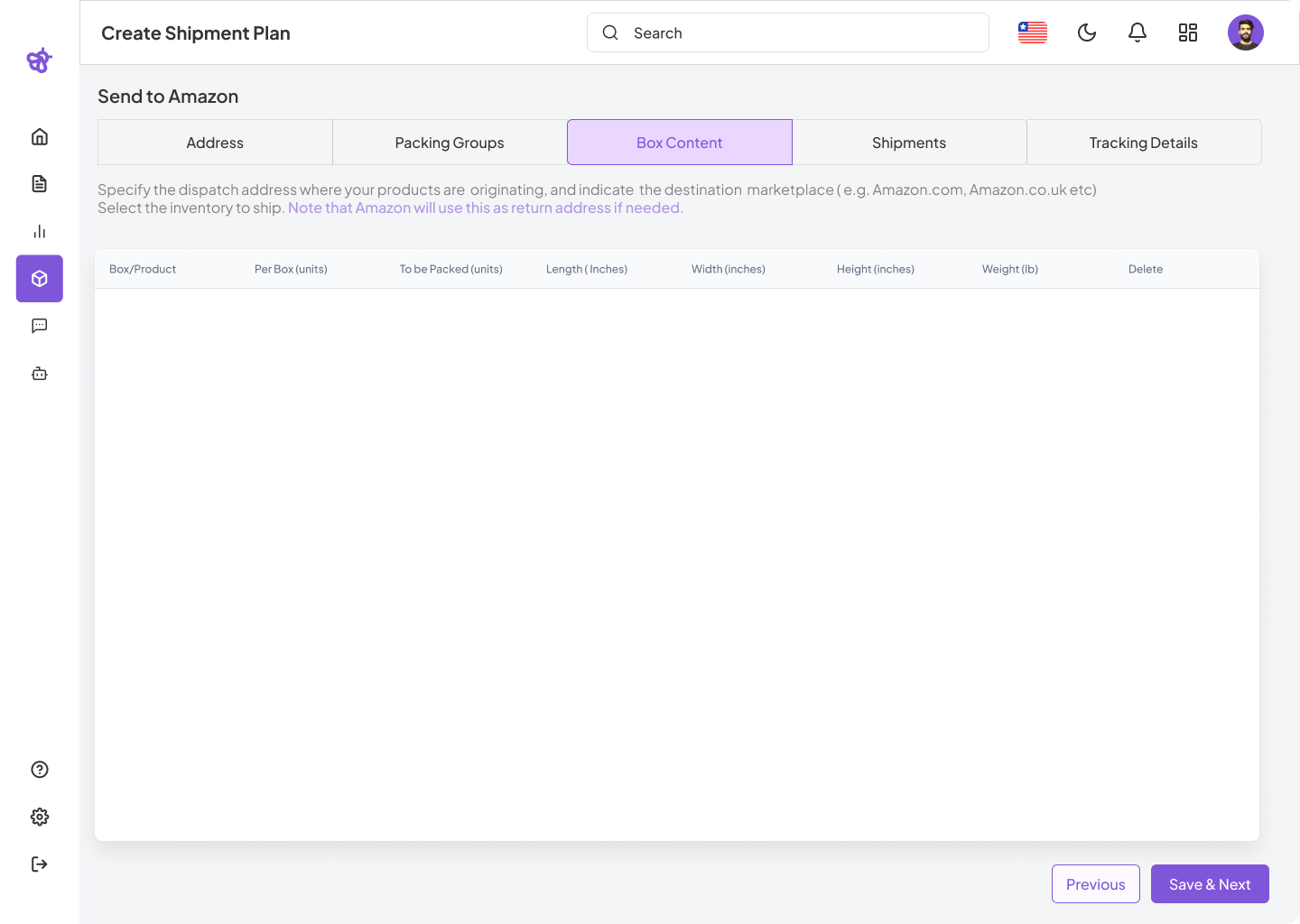
This step allows you to provide detailed packing information. You will enter how many units go into each box, the box dimensions, and the weight — all of which are required for shipping.
- Box/Product: Select the product or group being packed.
- Per Box (units): Enter the number of units in each box.
- To Be Packed (units): Enter the total number of units that will be packed for the shipment.
- Dimensions: Provide the length, width, and height of each box (in inches). Boxes must not exceed 25 inches on any side unless shipping oversized items.
- Weight: Enter the weight of each box (in pounds). The standard maximum is 50 lbs unless an individual item exceeds that weight.
Shipments Tab
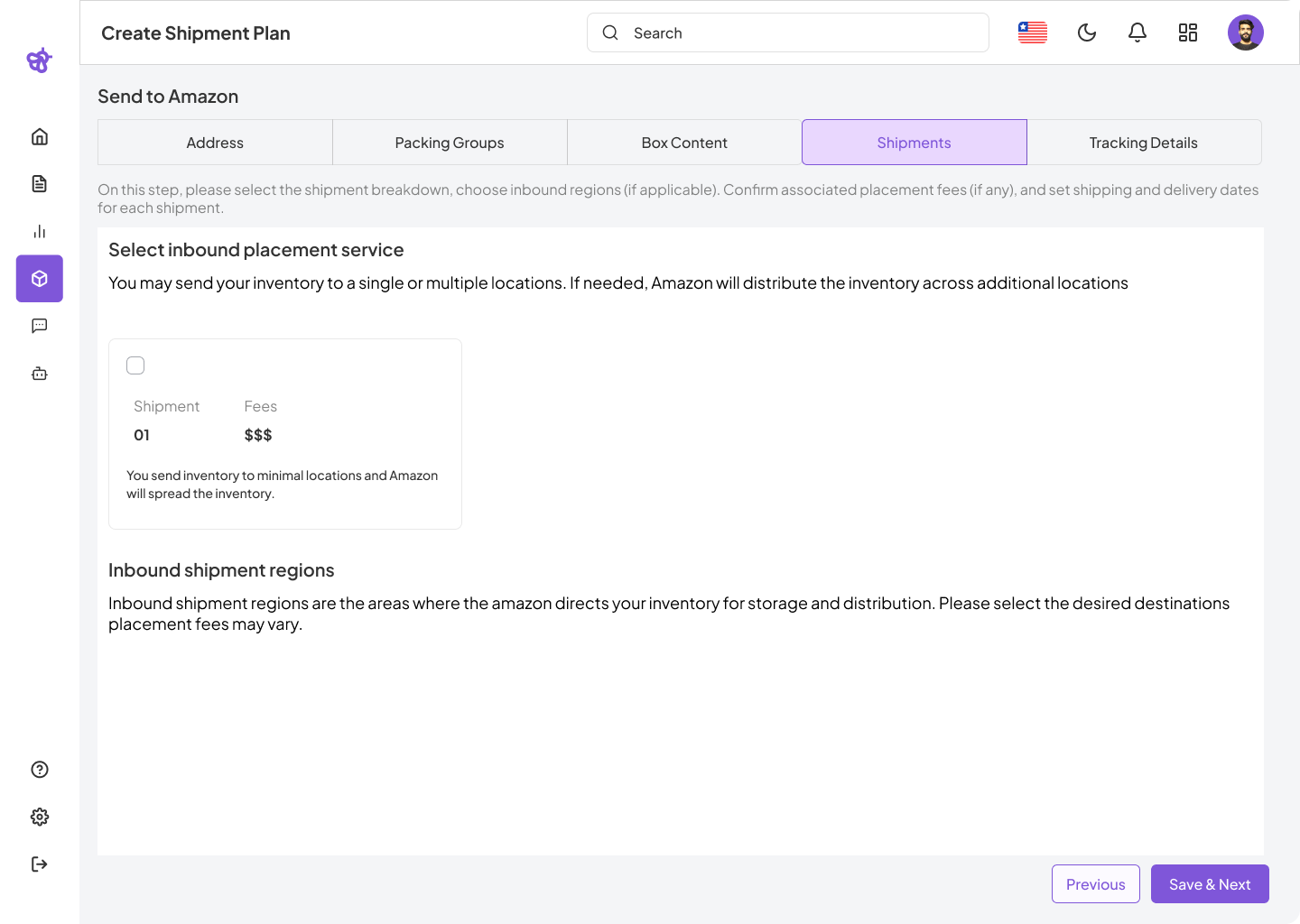
In this section, you will configure how the inventory will be distributed across Amazon fulfillment centers. You can choose to send inventory to one or multiple locations.
- Select Inbound Placement Service:
- Choose your preferred placement option (e.g., minimal distribution or multiple locations).
- Be aware that Amazon may further redistribute your inventory.
- Shipment Number: Review the auto-generated shipment identifier (e.g., 01, 02).
- Fees: Check the estimated cost associated with the placement option.
- Description: Read a summary explaining how your selected placement strategy may affect shipment distribution.
- Inbound Shipment Regions: Choose the regions where Amazon will receive your inventory. Note that placement fees may vary by region.
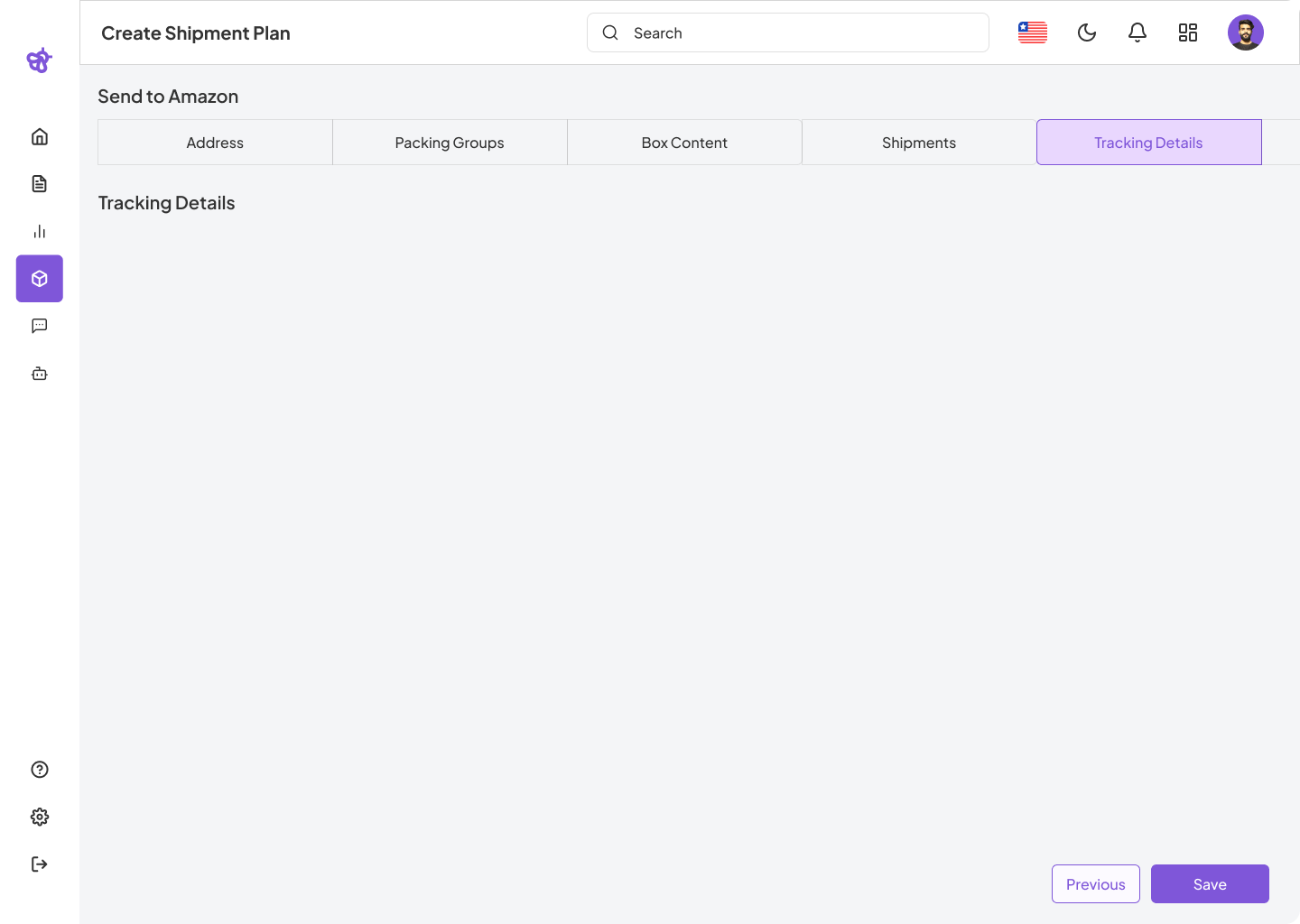
Tracking Details Tab
This is the final step of the shipment plan. Once your shipment has been handed over to the carrier, you can enter tracking information here to monitor delivery progress.
- Tracking Details: Enter or view the tracking numbers for each shipment. This section will remain empty until tracking information becomes available.