Lead Time Management
The Lead Time tab offers a comprehensive interface to view, create, and manage lead time templates assigned to vendors. It is designed to improve inventory planning and streamline procurement workflows.
Lead Time Overview
Lead times are displayed as interactive visual cards, providing quick insights and access to key information:
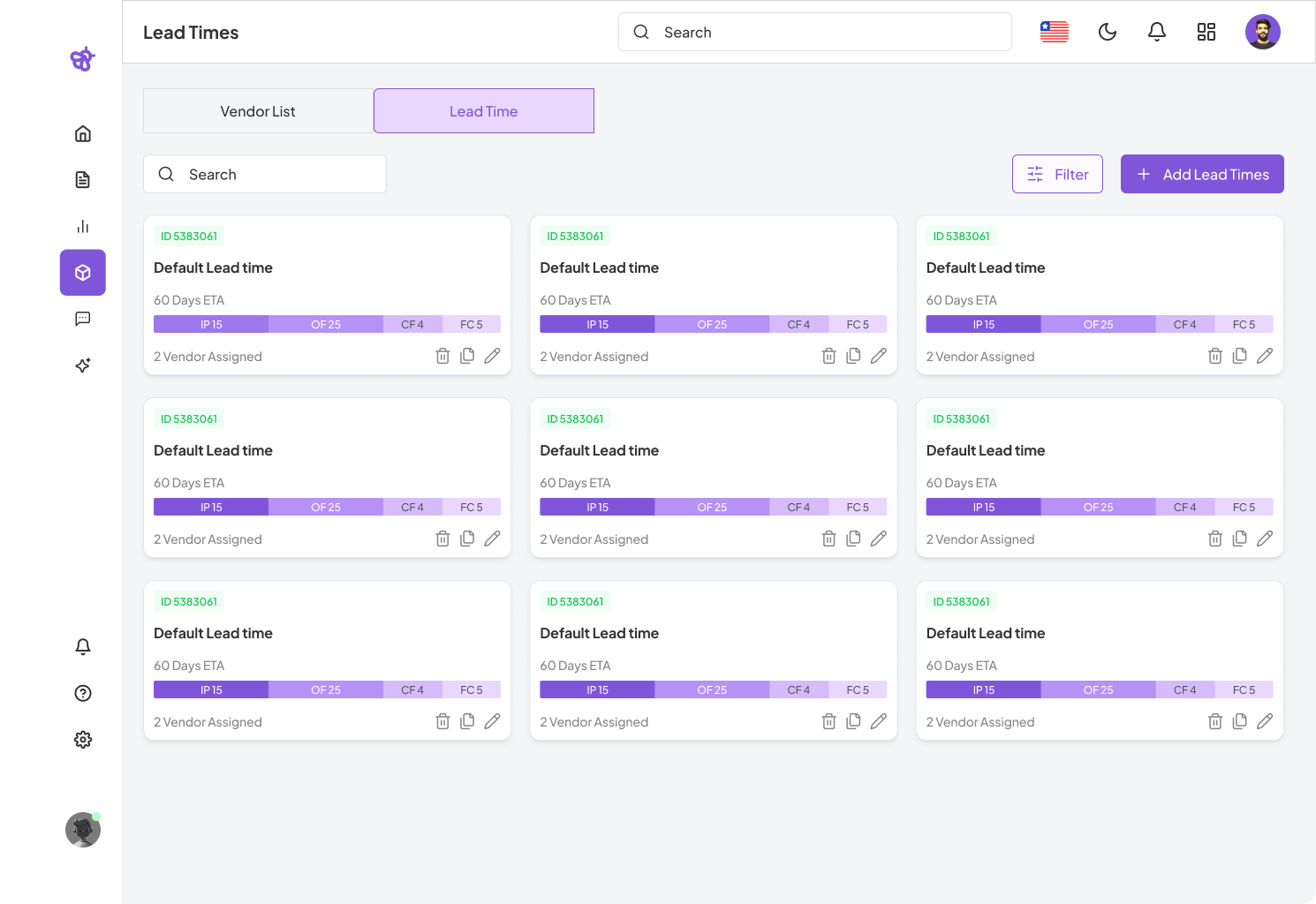
- ID: A unique identifier for each lead time template.
- Default Lead Time Name: Descriptive name or title of the template for easy reference.
- 60 Days ETA: The total estimated time to fulfill an order, calculated in days.
- Breakdown: Stage-wise division of the lead time, visually color-coded for clarity. For example:
- IP: 15 days (Initial Processing)
- OF: 25 days (Order Fulfillment)
- CF: 4 days (Customs & Freight)
- FC: 5 days (Final Clearance)
- Vendors Assigned: Number of vendors currently using the lead time template.
- Edit: Update the lead time template details using the pencil icon.
- Delete: Permanently remove the lead time template using the trash icon.
- Search: Quickly find specific templates using keywords.
- Add Lead Times: Create new lead time templates.
- Filter: Sort or group templates by relevant criteria (e.g., vendor, duration, status).
Edit Lead Time
When editing a lead time template, users are presented with a structured form to modify each aspect of the template:
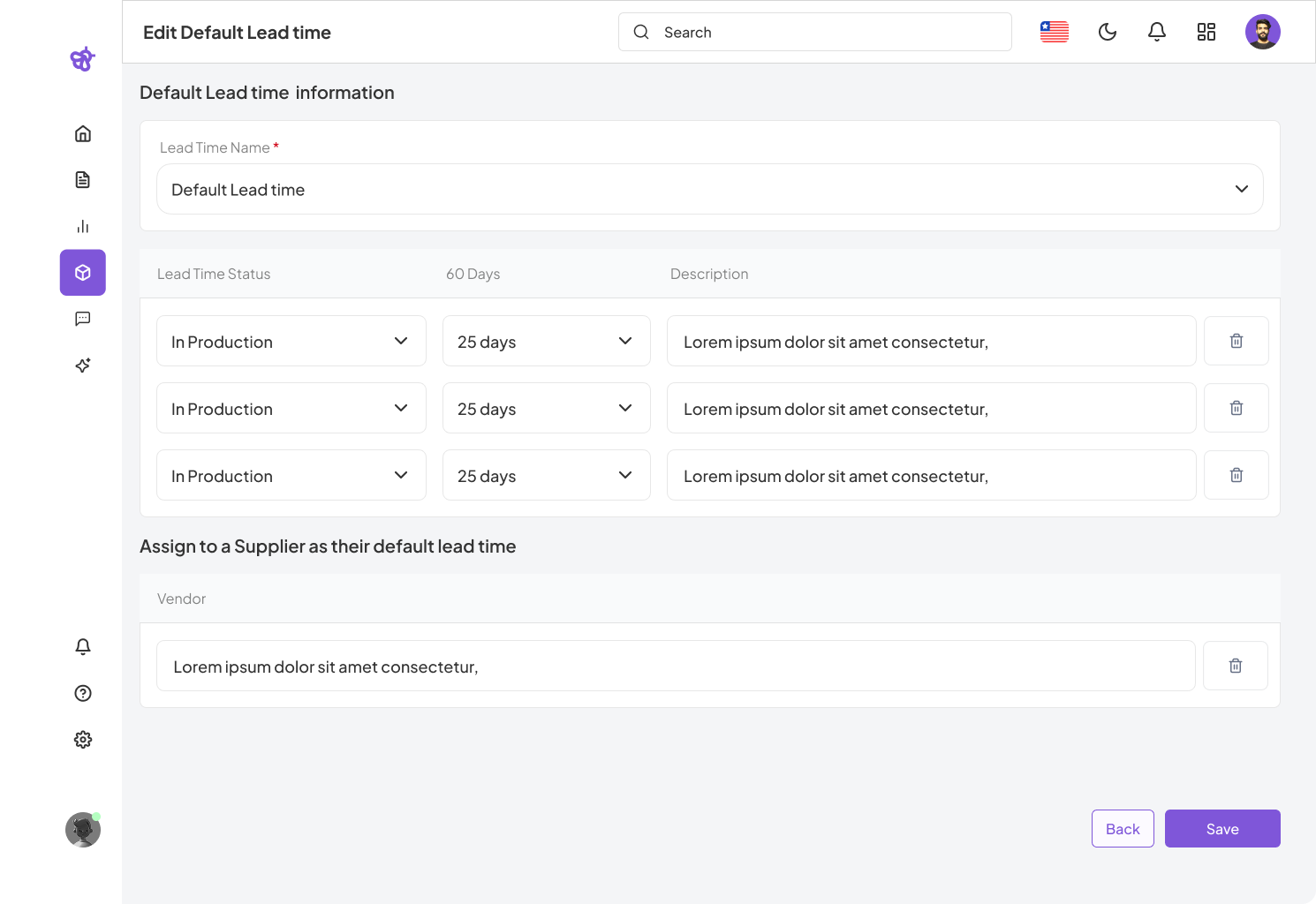
- Lead Time Name: A mandatory field specifying the template’s name.
- Lead Time Status: Select and define status stages such as IP, OF, CF, FC.
- Duration: Enter the number of days assigned to each stage.
- Description: Optional notes that can describe special considerations for the stage.
- Assign to Supplier: Use this toggle or selection to make the current template the default for specific vendors.
- Delete: Remove an individual stage from the template.
Efficient lead time management enhances visibility, reduces delays, and supports proactive inventory and order planning.