Amazon Account Integration
Overview
Connect your Amazon Seller Central account to unlock the full potential of our AI-powered analytics platform. This integration brings together your Amazon business data with our advanced AI tools to provide deep insights into your sales performance, advertising effectiveness, and overall business growth opportunities.
Once connected, our AI will continuously analyze your business trends, identify optimization opportunities, and provide actionable recommendations to help you maximize your advertising ROI and increase your overall profitability on Amazon.
Prerequisites
Before starting the integration process, make sure you have the following:
Amazon Account Requirements:
- An active Amazon Seller Central account with selling privileges
- Admin-level access to your Amazon Seller Central account (this is crucial for authorization)
- View and edit permissions for campaign manager (required for advertising data access)
- At least one active merchant account in good standing
Important Note: If you don’t have admin access, you’ll need to contact the person who manages your Amazon account to complete this integration process.
Integration Process
1. Initiate Connection
When you first log into your dashboard, you’ll notice an orange notification banner at the top of your screen with “Account Status: Pending”. This banner indicates that your account is ready to be connected to Amazon for enhanced functionality.
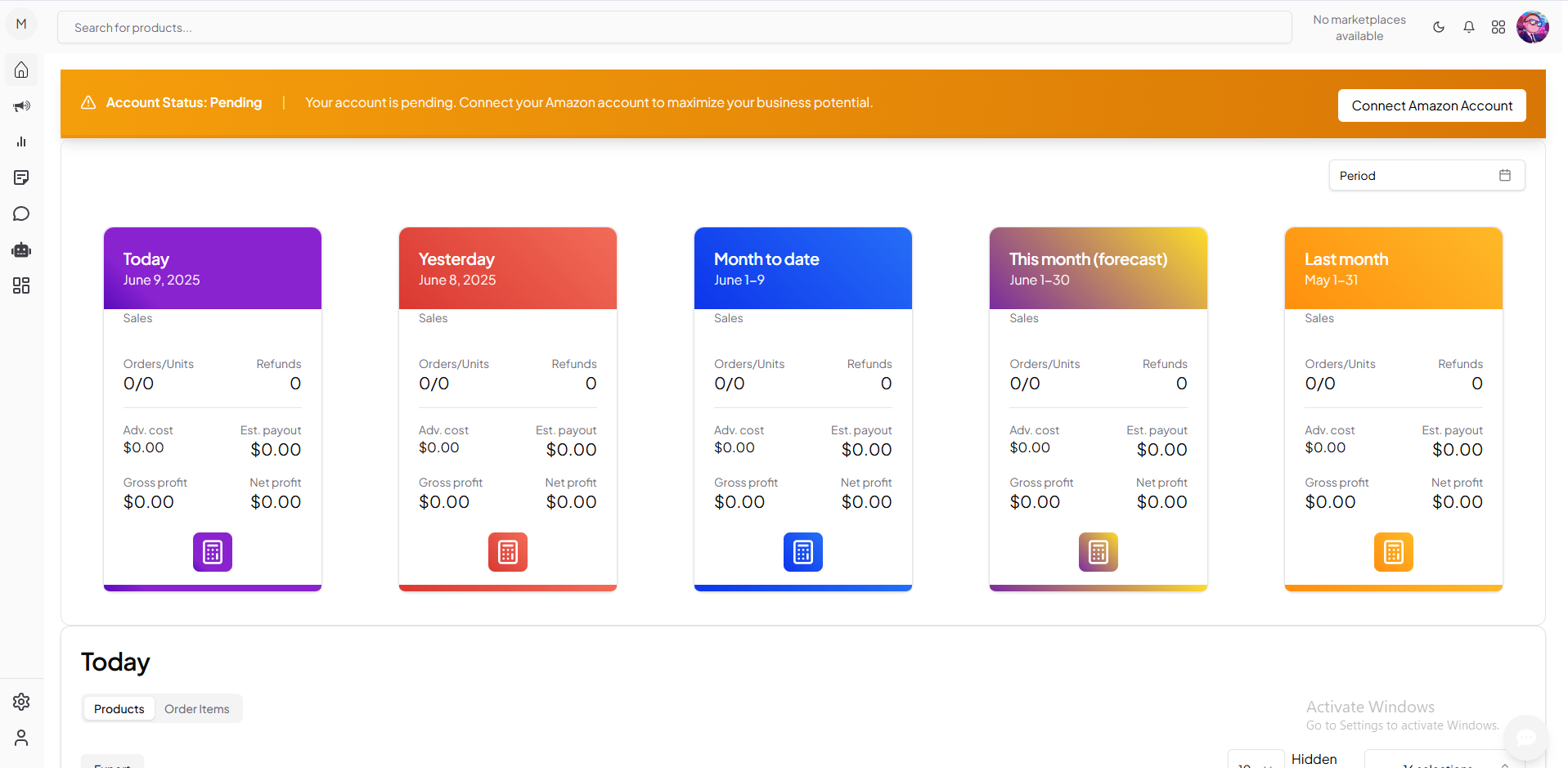
Click the “Connect Amazon Account” button in this notification banner to begin the integration process. This will open the connection dialog where you can start authorizing access to your Amazon data.
2. Choose Data Access Permissions
The integration dialog will present you with two essential data access options. Both are important for getting the most out of our AI-powered features:
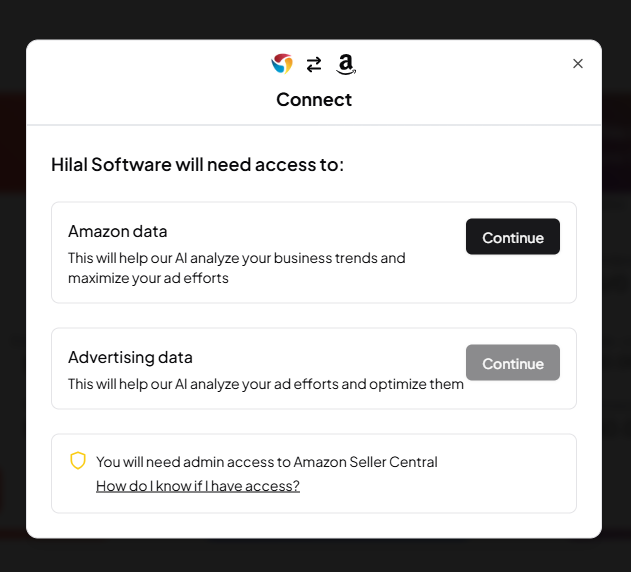
Amazon Data Access This permission allows our AI to access and analyze your core business data from Amazon. When you grant this access, our system can:
- Track your sales performance across different time periods
- Monitor your inventory levels and product performance
- Analyze customer behavior and buying patterns
- Generate insights about your business trends and growth opportunities
Click “Continue” next to the Amazon data section to authorize this access.
Advertising Data Access
This permission is specifically for your Amazon PPC and advertising campaigns. With this access, our AI can:
- Analyze your current advertising spend and performance
- Identify high-performing and underperforming keywords
- Recommend bid adjustments and budget optimizations
- Track your advertising ROI and suggest improvements
Click “Continue” next to the Advertising data section to authorize advertising access.
3. Verify Admin Access Requirements
Before proceeding further, the system will remind you about the admin access requirement. This is a critical checkpoint in the integration process.
Why Admin Access is Required:
- Amazon requires admin-level permissions to authorize third-party applications
- Only admins can grant access to business data and advertising information
- This ensures security and prevents unauthorized access to sensitive business data
If you’re not sure whether you have admin access, click on “How do I know if I have access?” for detailed guidance on checking your permission level in Amazon Seller Central.
4. Authorize Merchant Accounts
Next, you’ll see a list of all merchant accounts associated with your Amazon login credentials. This step is important because many sellers have multiple merchant accounts or marketplaces.
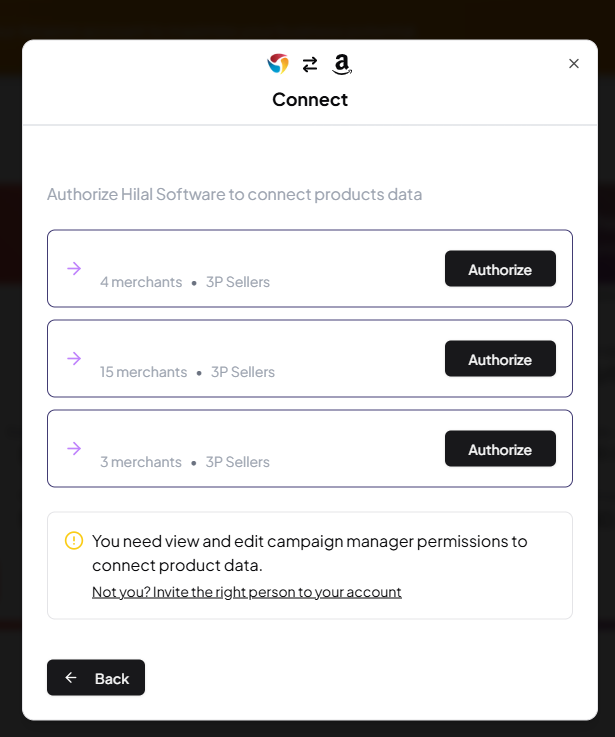
Understanding the Merchant List:
- Each row represents a different merchant account or marketplace
- The numbers (like “4 merchants”, “15 merchants”) indicate how many individual merchant accounts are grouped together
- “3P Sellers” indicates these are third-party seller accounts (as opposed to vendor accounts)
- You can choose to authorize all accounts or select specific ones
Important Permissions Note: The yellow warning box reminds you that you need “view and edit campaign manager permissions” to successfully connect product data. If you don’t have these permissions, the advertising features won’t work properly.
Click “Authorize” for each merchant account you want to connect to our platform.
5. Amazon Authentication Process
After selecting your merchant accounts, you’ll be redirected to Amazon’s official login page. This is Amazon’s secure authentication system, not our platform.
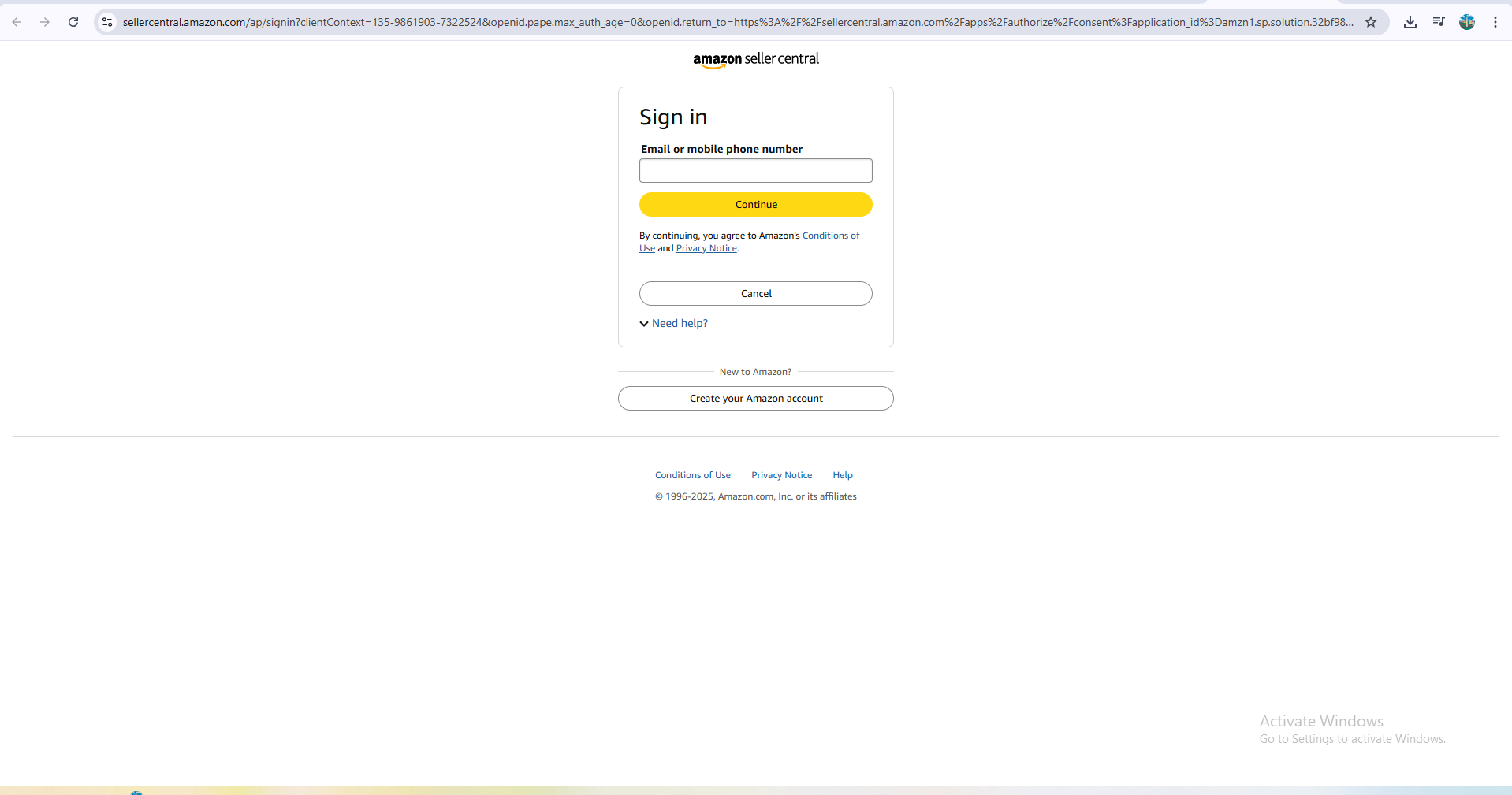
Authentication Steps:
- Enter your Amazon account email address or mobile phone number
- Click “Continue” to proceed to the next step
- You’ll then enter your password on the following page
- Complete any two-factor authentication if you have it enabled
- Accept Amazon’s terms and conditions to proceed
Security Note: This login process happens directly on Amazon’s servers, ensuring your credentials remain secure and are never shared with our platform.
6. Final Authorization and Completion
Once you’ve successfully logged into Amazon, you’ll see Amazon’s permission authorization screen where you can review exactly what data our application is requesting access to.
What You’ll See:
- A detailed list of the data types our application will access
- Information about how the data will be used
- Options to approve or deny the authorization request
Completing the Integration:
- Review the permissions carefully
- Click “Allow” or “Authorize” to grant access
- You’ll be automatically redirected back to our platform
- The orange “Account Status: Pending” banner should disappear
- Your dashboard will begin populating with Amazon data within a few minutes
Success Indicators:
- The pending status banner is no longer visible
- Sales data begins appearing in your dashboard cards
- Real-time metrics start updating (Orders/Units, Sales figures, etc.)
Troubleshooting Common Issues
Connection Problems
The “Account Status: Pending” banner won’t disappear
This usually happens when one or more steps in the authorization process weren’t completed successfully:
- Go back through the integration process and ensure you clicked “Continue” for both Amazon data and Advertising data permissions
- Verify that you actually have admin access to your Amazon Seller Central account
- Make sure you authorized all the merchant accounts you intended to connect
- Try refreshing your browser page after waiting a few minutes
Authorization keeps failing or timing out
Authentication issues can be frustrating, but they’re usually easy to resolve:
- Double-check that you’re entering the correct Amazon login credentials
- Ensure your Amazon Seller Central account is in good standing and not suspended
- Clear your browser’s cache and cookies, then try the integration process again
- Disable any browser extensions that might interfere with the authentication process
- Try using a different browser or incognito/private browsing mode
Data Access Issues
Advertising data isn’t showing up in the dashboard
This is one of the most common issues and usually relates to permissions:
- Confirm that you have campaign manager permissions in your Amazon Seller Central account
- Make sure you clicked “Continue” for the Advertising data access section during setup
- Check that your Amazon account actually has active advertising campaigns
- Wait up to 24 hours for advertising data to fully sync and appear in your dashboard
- If the problem persists, you may need to disconnect and reconnect your account
Some merchant accounts aren’t appearing in the list
If you expected to see more merchant accounts during the authorization step:
- Verify that you’re logged into the correct Amazon account (some users have multiple Amazon accounts)
- Ensure all your merchant accounts are active and in good standing with Amazon
- Some marketplace accounts may require separate authorization processes
- Check that you have the appropriate permissions for all accounts you want to connect
Permission and Access Issues
Getting a message that you don’t have the required permissions
This typically means there’s a mismatch between your actual account permissions and what’s required:
- Contact your Amazon account administrator or the person who manages your Seller Central account
- Ask them to grant you admin access and campaign manager permissions
- Use the “Not you? Invite the right person to your account” option in the authorization dialog
- Consider having the account administrator complete the integration process instead
Multiple users trying to connect the same Amazon account
If multiple team members are attempting to integrate the same Amazon account:
- Only one person (preferably the admin) should complete the integration process
- Other team members can be granted access to the data through our platform’s user management features
- Avoid multiple simultaneous connection attempts as this can cause conflicts
After Integration Issues
Data appears incomplete or outdated
If your Amazon data doesn’t look right after successful integration:
- Allow up to 24 hours for complete historical data synchronization
- Check that your Amazon account has recent activity and sales
- Verify that all necessary permissions were granted during the authorization process
- Some data types (like financial reports) may take longer to appear than others
Need to connect additional marketplaces or accounts
If you realize you need to connect more Amazon accounts or marketplaces:
- You can repeat the integration process for additional accounts
- Each Amazon account will need to be authorized separately
- Make sure you’re logged into the correct Amazon account for each integration attempt
Getting Additional Help
If you continue to experience issues after trying these troubleshooting steps:
For Permission-Related Problems: Contact your Amazon account administrator or the person who has admin access to your Seller Central account. They may need to adjust your permissions or complete the integration themselves.
For Technical Issues: Reach out to our support team with specific details about:
- The exact error message you’re seeing
- Which step in the process is failing
- Screenshots of any error screens
- Your browser type and version
For Amazon Account Issues: If you’re having problems with your Amazon account itself (login issues, suspended accounts, etc.), you’ll need to resolve these directly with Amazon Seller Support before attempting our integration.